 on the User Administration
screen header.
on the User Administration
screen header.BI Tool > Settings > Administrator > User Administration
The BI Tool User Administration screen lists an overview of users’ Login ID, User Names, Roles, and the Business Categories to which each user has access. Additionally, access to Business Categories can be “Has Access” (read-only) or “Is Creator” permissions and can be set on a report by report basis or broader basis, such as all reports with the Business Category.
To view or edit permissions, select an employee by clicking
anywhere on their information to highlights that user, shown in blue in the
image below. Once highlighted, click the edit icon on the User Administration
screen header.
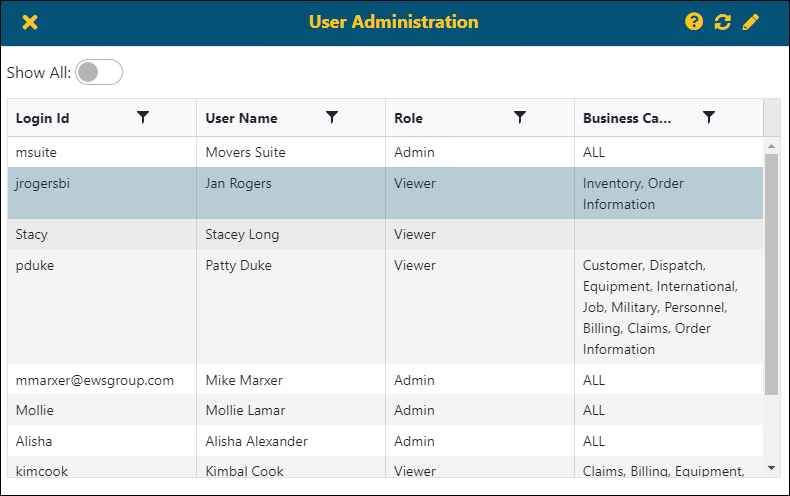
Figure 26: Choosing an employee profile
The user’s profile provides a detailed viewed of the business categories available from MoversSuite. Assign permissions based on Category or by Data Source, if needed. The checkbox indicates the following:
|
Checkbox Status |
Description |
|
|
Access to this category is denied, including all reports within the category. |
|
|
Access has been granted to some of the options within this category, which includes Data Sources, Report, Has Access, and/or Is Creator permissions. |
|
|
Access to this category is granted and includes all Data Sources, Report, Has Access, and Is Creator permissions. |
To assign permissions to all Categories:
Click the “select all/unselect all” checkbox in the header to assign permissions to all Categories. Doing so, grants all “Has Access” and “Is Creator” permissions within every Category. See BI Tool Assigning Access to Reports for more details.
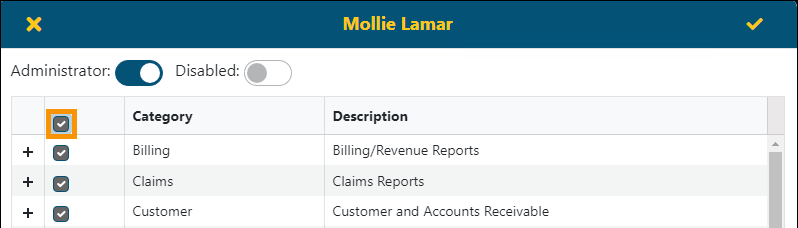
Figure 27: This main level "Has Access" permission grants all permissions for all Categories, including all Data Sources listed within each Category.
To assign permissions to some Categories:
The main level “select all/unselect” checkbox remains unchecked. When that category is expanded, and permissions are granted to some of the options, then the “select all/unselect all” checkbox is greyed. In the example in Figure 28, the “select all/unselect all” checkbox for “Has Access” permissions; however, it remains unchecked for the “Is Creator” “select all/unselect all” checkbox. Permissions for “Is Creator” were manually applied and not all were granted.
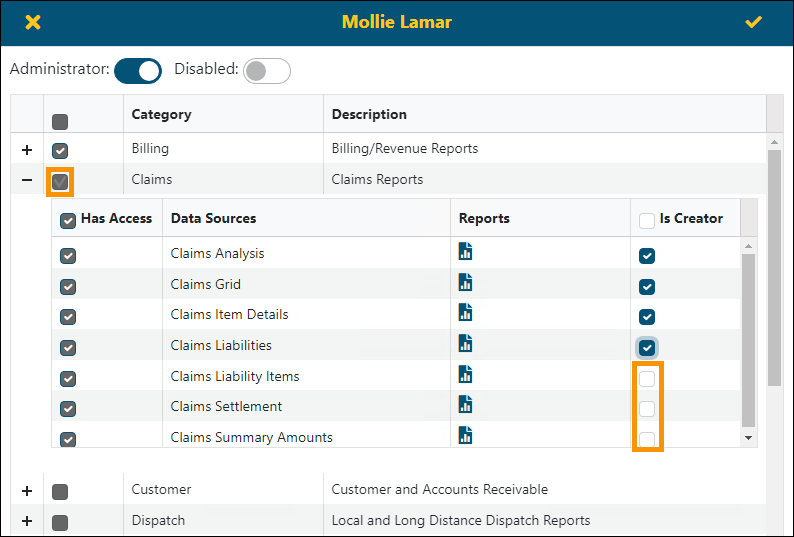
Figure 28: Main level "Has Access" icon is not checked
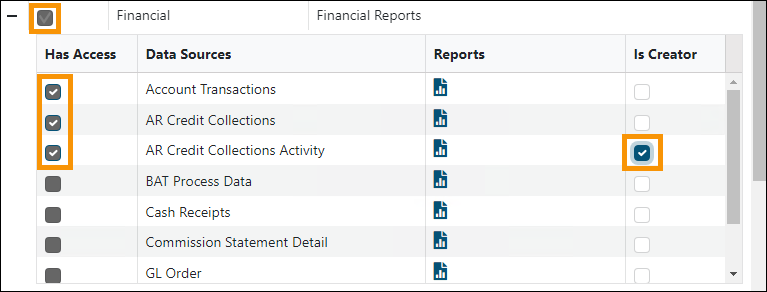
To assign permission for some - but not all – Data Sources within certain Categories:
Assigning permissions at this level are detailed within BI Tool Assigning Access to Reports.
RELATED INFORMATION:
BI Tool Assigning Access to Reports


