MoversSuite Rating Systems provide your company with a flexible and versatile means of applying rates automatically for a variety of products and services including imported revenue, transportation linehaul, recurring billing, quote generation, general and move-related invoicing, applying tariffs, etc.
The system utilizes Rate Plans in conjunction with Item Codes to determine rates. Additionally, you can employ an Advanced Rating feature to base rates on a number of order elements including cubic feet, miles, and/or weight.
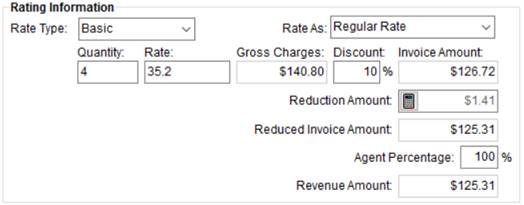
Figure 1: Rating Information from Add Revenue Item
Rate Plans assigned to the order drive the rating system by linking the order to available rates, which in turn provide the specifics needed to compute a rate based on effective dates, rate types, Rate Matrix, etc. Additionally, a Rate Plan links an order to van line support tariffs.
Set the Rate Plan through the Tariff/Rate field within the Rating Information section on the Billing Information tab (also set this field through the Order Information (Revenue Entry) tab in Revenue Entry).

Figure 2: Rating Information section from the Billing Information tab
You can also update rating data by hand in most places, such on the Add Billing Item screen.
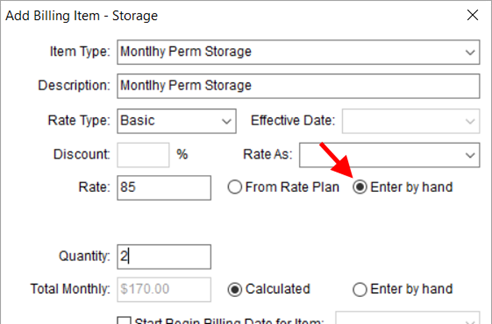
Figure 3: Add Billing Item screen
The following functional areas utilize rating information:
Containers, Packing and Unpacking (CPU)
Rating Settings
The following table describes the settings available that affect rating. These fields are presented in the order in the general order in which they are referenced by MoversSuite.
|
Field |
Description |
|
Rate Plan
|
Setting the Rate Plan is comprised of Rates (Item Codes). Setting the Rate Plan determines which rate amounts are available to revenue functions within MoversSuite. The Rate Plan determines which Item Codes are available and the dollar rated amount applied for each code through the Rate Matrix or through Rate, OT Rate, and Double Rate settings.
Set the Rate Plan through the following:
Tariff/Rate field through Billing Information, Order Information (Office & Industrial), Order Information (Revenue Entry), and Claim Detail. This sets the plan assigned at the order-level and drives all subsequent revenue, such as revenue generated for Invoicing and Recurring Billing. You can default a Rate Plan for an order based on the Account Profile assignment as well.
Rate Table on a Billing Record. Setting the Rate Table (Rate Plan) controls which rating to apply to Recurring Billing items. This setting drives the rates available when adding revenue for storage billing records (via the Add Billing Item screen).
Define Rate Plans along with setting Rates through the Rate Plan Setup.
|
|
Item Code
|
MoversSuite utilizes Item Codes to generate account transactions. Item Codes apply based on order data such as Rate Plan, Branch, Commodity, and Move Type. They are referenced in MoversSuite to identify the rates to utilize for revenue and storage billing.
You select an Item Code within MoversSuite to identify the rate to apply; this is the Rate associated to the Rate Plan. Select an Item Code through the following fields: Service within the following:
Rate Item within Add Revenue Group. Item Code within Quote Import. Item Type within Add Billing Item. Item within Quote. Chargeback Type within Liability and Chargeback. Distribution Code within the following:
Selecting an Item Code populates other rating data, which includes the Rate Type, Rate Matrix, Rate, Overtime Rate, and Double Rate.
Manage Item Codes through the Item Code Setup.
|
|
Rate Type |
Rate Type provides you the ability to divide a rated amount by a set value. For example, a 100-Weight rating scheme divides the weight of the move by 100 then applies the appropriate rate. For the 100-Weight scheme, the Divisor of the Rate Type is 100.
The Rate Type also provides field labels for quantity rating fields, such as “lbs.” for weight.
You can manually set the Rate Type of a rated item. It is available through the same areas as the Item Code, e.g. Add Revenue Item.
Rate As Functionality There is also a flag on the Rate Type that allows you to evoke Rate As functionality. Setting the Apply Regular, OT and Double Rates flag enables the Rate As functionality allowing to apply overtime and double rates, if desired.
Refer to for Rate Type Setup for more information.
|
|
Effective Date |
You can setup rates to be in effect for a specified period. The application compares the Effective Start and Effective End dates set within Rate Plan Setup to the dates linked to an order or service to determine the rate to apply.
When effective dates are set for a Rate, the application references the following dates to determine the rate in effect.
Effective Date. You can specify an Effective Date for a Recurring Billing item through Add Billing Item. This date is only referenced for Recurring Billing items.
Load Date. The application references the Load Date of the order to determine the Rate for all non-Recurring Billing items. This date is set as the first Load Date within the Range tab within the Move Information tab. If the Load Date is not set, the application references the System Date.
System Date. The date from the application server is utilized to determine the Rate in effect in the case that the Load Date is not set.
See Rate Plan Setup for more information on effective dates.
|
|
Rate |
The Rate is the actual dollar amount utilized in calculating a total charge for quotes, revenue items, and billing items. The rate applied is dependent on the Rate Plan and Item Code assigned, along with other variables such as order data linked to the Rate Type.
A Rate can also be calculated through the Advanced Rating features, including the Rate Matrix. Advanced Rating utilize order data that includes Cubic Feet, Linear Feet, Miles, and Weight set for the order to determine the Rate.
Additionally, the Rate As option can be utilized to evoke an overtime or double rate to apply to an item.
Manage Rates through the Rate Plan Setup.
|
|
Rate As |
When the Rate As option is turned on, it is available through the same areas as the Item Code, e.g. Add Revenue Item.
Refer to Rate Type Setup for more information.
|
|
Discount |
The discount is a field that allows you to provide a percentage (from 0.01 to 99.99) off of a gross amount. This amount is generally considered a bottom line discount to key contract or accounts.
The application reduces gross charges by the percentage entered for the Discount. Additionally, you can utilize contracts to automatically set the Discount based on the Item Code. Refer to Contract Master Setup for details.
|
|
Quantity |
Once a Rate Type is selected, the quantity fields are defined. The quantity fields allow you to specify the amount you wish to multiple the rate by to determine the charged amount.
The labels associated to the quantity fields pull from the selected Rate Type and are defined within the Rate Type Setup.
|