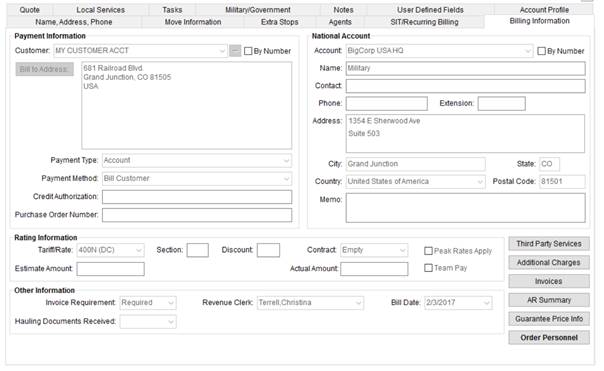
Manage order billing and payment through the Billing Information tab.
Figure 48: Billing Information tab
Billing Information contains different data than what is
available within Revenue Entry,
see Billing
Information (Revenue Entry) and refer to the Office & Industrial references in the
Technical Field and Function Information below.
Technical Field and Function Information
Described below are the fields and functions available within the Billing Information tab.
|
Field/Function |
Description | ||||||||
|
Payment Information |
| ||||||||
|
Customer |
Select the billed customer for the order. Users
can set this value using the drop-down menu ( Choose By Number to display the customer by their identification number. Notes: Users can sort and select customers by Customer Name, Customer Number, or by On Hold status through the drop-down menu. Manage customer records through Microsoft Dynamics GP. | ||||||||
|
|
Bill to Address (Alt+B) This function opens the Choose Billing Address screen allowing a user to select an alternate address for the billing. Note: When selecting a customer, the billed address is set to the Primary address established within Microsoft Dynamics GP. | ||||||||
|
Payment Type |
Select a type for the billing of the order.
| ||||||||
|
Payment Method |
Select a method of payment for the order from those defined within Payment Method Type Setup. | ||||||||
|
Credit Authorization |
Represents either the credit authorization code from a van line or own authority company extension of credit for payment of the order. It can also represent the authorization number for a credit card payment (up to 30 characters). | ||||||||
|
Purchase Order Number |
Purchase order number submitted by the national account assigned to the order (up to 30 characters). | ||||||||
|
National Account |
| ||||||||
|
Account |
Select the Account by name of By Number that will
be representing the order from the list of those defined within Account Setup. The
selector ( Notes: When an account is selected, data for the Name, Contact, Phone, Extension, and Memo will automatically populate.
| ||||||||
|
Note: The application will auto populate all National Account fields, however, a user can update the Name, Contact, Phone Number, Extension, and Memo field. The application saves these changes to the order record only and the changes will not affect the data within Account Setup. | |||||||||
|
Name |
Enter the name of the account (up to 30 characters). | ||||||||
|
Contact |
Enter the name of the contact person at the account for this order (up to 30 characters). | ||||||||
|
Phone |
Enter/update the contact phone number for the
agent. Press the phone icon ( | ||||||||
|
Extension |
Enter/update the phone number extension (up to 10 digits) for the agent contact. | ||||||||
|
Address |
This field displays the address set for the selected account. | ||||||||
|
City |
This field displays the city set for the selected account. | ||||||||
|
State |
This field displays the state set for the selected account. | ||||||||
|
Country |
This field displays the country set for the selected account. | ||||||||
|
Postal Code |
This field displays the zip code set for the selected account. | ||||||||
|
Memo |
Notes regarding the national account and/or its relationship to the order (up to 60 characters). | ||||||||
|
Rating Information |
See Rating Systems for more information. | ||||||||
|
Tariff/Rate |
Tariff or rate applied to an interstate or intrastate order. The field can be interpreted as a tariff for van line rating imports or a rate when computing revenue and billed services internal to MoversSuite.
| ||||||||
|
Section |
Van line supplied section number used to ship the order (up to 4 characters). Not available for Office & Industrial orders. | ||||||||
|
Discount |
Van line discount amount applied to the tariff.
| ||||||||
|
Peak Rates Apply |
Set this flag to indicate that peak rates apply to the billed amount. Not available for Office & Industrial orders. | ||||||||
|
Contract |
Local tariff or national account contract number used for an own authority order (up to 12 characters). Note: Contract codes are administrated through MoversSuite Administration (standard) > AFS > Contracts > Contract Master. | ||||||||
|
Estimate Amount |
Enter the original estimate amount taken from survey results.
Not available for Office & Industrial orders. | ||||||||
|
Actual Amount |
Enter the actual dollar amount for the cost of the move. Not available for Office & Industrial orders. | ||||||||
|
Team Pay |
Set this flat to indicate that team play rules apply to the billed amount. Not available for Office & Industrial orders. | ||||||||
|
Invoicing Information |
See Invoicing for more information. | ||||||||
|
Number |
Invoice number associated to billing for this order from a vendor (up to 10 characters). Not available for Office & Industrial orders. | ||||||||
|
Date |
Invoice date of the billing invoice from a vendor. See Date Fields for data entry options. Not available for Office & Industrial orders. | ||||||||
|
Invoice |
This function opens the Invoice Management screen allowing a user to view existing invoices for this order. See New Complete Invoice for more information. Not available for Office & Industrial orders. | ||||||||
|
Other Information |
| ||||||||
|
Invoice Requirement |
Setting determines whether a record displays on the Orders with Revenue not Invoiced report or not. Refer to Invoice Requirements Setup topic for more information. | ||||||||
|
Revenue Clerk |
Set the person responsible for processing the order through Revenue Entry, typically at the time of release or billing.
Note: Personnel must have Status of ACTIVE and Labor Type of Revenue Clerk to be assignable through this field.
| ||||||||
|
Bill Date |
Enter the billing or payment release date. See Date Fields for data entry options. | ||||||||
|
Bill International To |
Specify the type of entity being billed on an International Orders order. Choices include the following:
Agent Set this field to Agent to indicate that the party being billed the one specified as the Bill To Agent on the order.
National Account Set this field to National Account to indicate that the National Account on the order is to be billed.
This setting is referenced by the UniGroup International Interface. | ||||||||
|
Bill To Agent |
Available on an International Orders record only, this field allows you to
select the agent that is to be billed for an International Orders order. Use the Agent Find ( The drop-down selector includes sortable columns for the Agent ID, Agent Name, and Van Line affiliation. Reference Agent Information ( This setting is referenced by the UniGroup International Interface. | ||||||||
|
Hauling Documents Received |
Enter the receiving date of transportation documents for the order. See Date Fields for data entry options. Not available for Office & Industrial orders. | ||||||||
|
| |||||||||
|
|
Third Party Services (Alt+Y) Opens the Third Party Services screen which allows a user to document services for the order provided by a third party.
Note: This data is typically sent to a van line for processing.
| ||||||||
|
|
Additional Charges (Alt+D) Opens the Additional Charges screen which allows a user to document additional charges to the standard billing of an order.
Note: This data is typically sent to a van line for processing.
| ||||||||
|
|
Guarantee Price Info (Alt+U) This function opens the Guarantee Price Information screen allowing a user to assign rates to containers, packing, and unpacking items and to set maximum container/packing charge and credit per CWT amounts.
Note: This data is typically sent to a van line for processing.
Not available for Office & Industrial orders. | ||||||||
|
|
Invoices (Alt+I) Opens the Invoice Management screen allowing a user to view and manage invoices for the order. | ||||||||
|
|
AR Summary (Alt+M) This function opens the AR Balance Summary providing the user with balance information for customers associated to the order. See Summary for more information. | ||||||||
|
|
Order Personnel (Alt+P) This function opens the Order Personnel dialog allowing the user view personnel assignments for the order. Not available for Office & Industrial orders. | ||||||||
RELATED TOPICS:
 ) or through the
  ).
). 
 ) to access
  ) for advanced search options.
 ) for detailed information on the
selected agent.
) for detailed information on the
selected agent.




