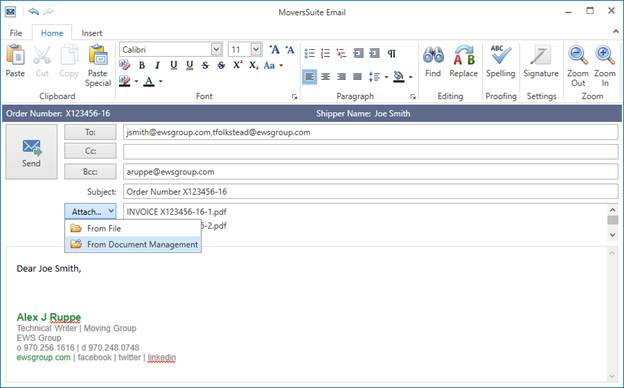
MoversSuite offers an email service that is completely self-contained and fully integrated with the MoversSuite application. The MoversSuite Email Service allows you to open an email dialog from several locations throughout the application. Further, the service makes order personnel, and others tied to the order, available to you to assign as email recipients. Order Number and Shipper Name displays directly within the email form for reference, as you can have multiple mail messages open concurrently, and you have the ability to attach order documents directly to the email message.
Figure 1: MoversSuite Email form
The MoversSuite Email form contains many features common in most mail forms, such as the ability to insert text and images, print, add a signature, check spelling, and more.
Unique to MoversSuite Email is that the Order Number and Shipper Name of the specific order record being viewed display within the mail form. This allows you to open multiple email forms for multiple orders and not lose track of which one you are on.
Further, clicking one of the recipient buttons (To, Cc, Bcc) opens the Add Email Address dialog allowing you to select one or more personnel associated to the order and add them to the list of recipients on the email message.
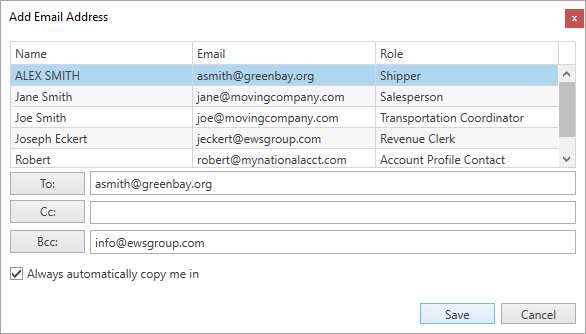
Figure 2: Add Email Address dialog
You can access the email form from the Tools Menu and through key locations within MoversSuite, such as through reports, clicking on the shipper email within Name, Address, Phone tab, and from various tabs, such as the Agents tab.
Specific to the Agents
and Military/Government tabs, is the ability to
access various contacts for the agents or military agents when the mail icon
( ) is clicked. In the example (below)
there are three contacts for the booking agent. You can select the
appropriate one to access the MoversSuite Email form.
) is clicked. In the example (below)
there are three contacts for the booking agent. You can select the
appropriate one to access the MoversSuite Email form.
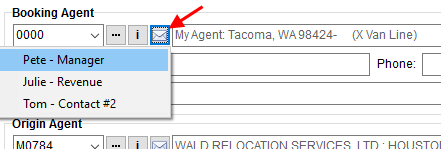
Figure 3: Email selector within Agents tab
The MoversSuite Email Service works independent of any email service you may have running locally, such as Microsoft Outlook.
The MoversSuite Email Service requires that the sender (person logged into MoversSuite) to have a valid email assigned to their Personnel Setup record. If the email is missing, then the Sender Address Required prompt appears.
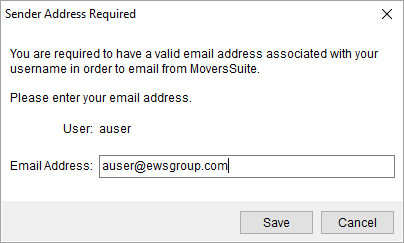
Figure 4: Sender Address Required dialog
MoversSuite updates your Personnel Setup record with the provided Email Address when Save is pressed.
Refer to the MoversSuite Email topic for usage.
The following table lists the various ways in which you can access the MoversSuite Email form.
|
MoversSuite Location |
Description |
|
MoversSuite Email is available for the profile contacts Choosing the Send Email through the right-click menu opens the email form with the email of the contact set as the recipient | |
|
MoversSuite Email is available for each contact for each agent type Clicking on the mail icon ( | |
|
MoversSuite Email is available for each claim record Clicking on the mail icon ( | |
|
MoversSuite Email is available for the contact of each base Clicking on the mail icon ( | |
|
MoversSuite Email is available for the shipper email link Click on the shipper email within the Shipper Contact Information section. The email set for the shipper is set as the To email recipient automatically. | |
|
MoversSuite Email is available for the shipper email link Click on the shipper email within the Shipper Contact Information section. The email set for the shipper is set as the To email recipient automatically. | |
|
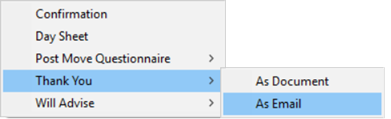
Choose the As Email option from the Reports Menu for Letter Management documents to open the template within the body of the email message.
Figure 5: Reports > Letters options for Letter Management templates
These two render options are available through the Reports/Letters menu within the Claims module and within the Quote tab. | |
|
MoversSuite Email is available for contacts associated to each Service Provider Clicking on the mail icon ( For the Carrier, Consolidator, and Customs Agent
settings, clicking on the mail icon ( | |
|
Select the Email option to open the MoversSuite Email form with no address set for the To recipient |
RELATED TOPICS:
 ) opens the email form with the email
of the specified email address set as the recipient
) opens the email form with the email
of the specified email address set as the recipient