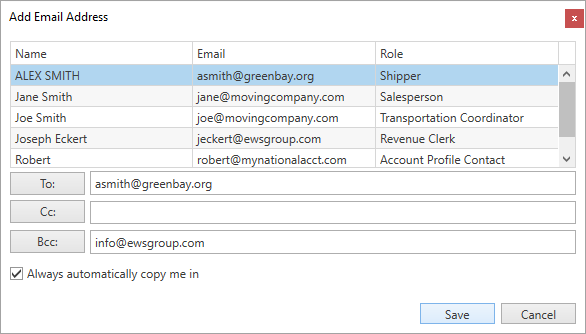
Access to the Add Email Address dialog is by clicking on one of the recipient buttons (To, Cc, Bcc) from the MoversSuite Email form. This dialog allows you to update the recipients of an email. It provides a list of all personnel linked to the order with valid email addresses that you can select from quickly.
Figure 10: Add Email Address dialog
Using this Screen
To use this form, click on the names within the grid. This highlights the record (clicking on highlighted records unselects them). Click on all the records you wish to add as one of the recipient types.
Press the  ,
,  , and/or
  buttons to add them each type
accordingly.
buttons to add them each type
accordingly.
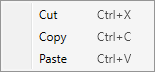
To remove a recipient, select it and press the Delete key or use the Cut selection from the following right-click options.
You can enter email addresses manually, as well. Just type them into the entry area and separate each email address using a comma.
Check the Always automatically copy me in option to place a copy of this message in your sent messages folder. If your company utilizes Microsoft Outlook, for example, then the application places a copy of the message in your Sent Items folder.
Press  to
update the recipients on the MoversSuite Email form.
to
update the recipients on the MoversSuite Email form.
Press  to close
the Add Email Address dialog without updating the MoversSuite Email form.
to close
the Add Email Address dialog without updating the MoversSuite Email form.
The table below describes the order personnel roles that may list within the Add Email Address grid.
|
Personnel Role |
Description |
|
Account Profile Contact |
Email data is available for contacts linked to the Account Profile assigned to the order through the Account Profile tab. |
|
Base Information Contact |
Email data is available for contacts linked to the Base assigned to the order through the Military/Government tab. |
|
Booking Agent Contact |
Email addresses for contacts set for the Booking Agent assigned to the order (through the Agents tab) display. Contacts are managed through Agent Setup. |
|
Branch Contact |
Email data is available for contacts linked to the branch assigned to the order. |
|
Claims Adjuster |
Name and email address for the person assigned as the Claims Adjuster on the order display. The Claims Adjuster is assigned through the Claim Detail tab. |
|
Claim Detail Email 1 |
Email data is available for contacts linked to each claim record assigned to the order through Claims. The application displays the Email 1 and Email 2 records set through the Claim Detail screen. |
|
Claim Detail Email 2 | |
|
Collector |
The collector assigned to an order through AR Credit & Collections is available. |
|
Customer Contact |
The Contact Person and Email associated to the contact assigned to the Customer on the order display. The Customer is set for the order through the Billing Information tab. |
|
Destination Agent Contact |
Email addresses for contacts set for the Destination Agent assigned to the order (through the Agents tab) display. Contacts are managed through Agent Setup. |
|
Hauling Agent Contact |
Email addresses for contacts set for the Hauling Agent assigned to the order (through the Agents tab) display. Contacts are managed through Agent Setup. |
|
Logistics Coordinator |
Name and email address for the person assigned as the Logistics Coordinator on the order display. The Logistics Coordinator is assigned through the Name, Address, Phone tab. |
|
Me |
Name and email associated to the user logged in to MoversSuite display. |
|
OA Coordinator |
Name and email address for the person assigned as the OA Coordinator on the order display. The OA Coordinator is assigned through the Agents tab. |
|
OA Surveyor |
Name and email address for the person assigned as the OA Surveyor on the order display. The OA Surveyor is assigned through the Agents tab. |
|
Origin Agent Contact |
Email addresses for contacts set for the Origin Agent assigned to the order (through the Agents tab) display. Contacts are managed through Agent Setup. |
|
Revenue Clerk |
Name and email address for the person assigned as the Revenue Clerk on the order display. The Revenue Clerk is assigned through the Billing Information tab. |
|
Salesperson |
Name and email address for the person assigned as the Salesperson on the order display. The Salesperson is assigned through the Name, Address, Phone tab. |
|
Shipper |
Name and email address for the person assigned as the shipper on the order through the Name, Address, Phone tab display. |
|
Transportation Coordinator |
Name and email address for the person assigned as the Transportation Coordinator on the order display. The Transportation Coordinator is assigned through the Name, Address, Phone tab. |
|
Van Line Contact |
Email data is available for contacts linked to the van line assigned to the order. |