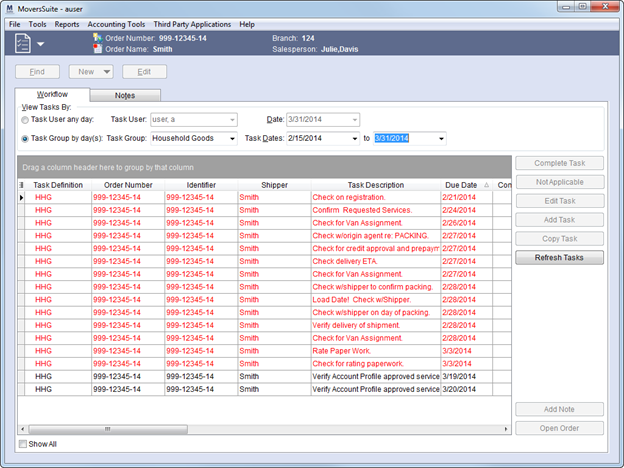
The Tasks System allows users to effectively manage their workflows by providing assigned users a to-do list of action items complete with due dates based on key move dates and dynamically updated when changes are made.
Figure 1: Tasks module featuring the Workflow tab
Task items are auto-generated when an order or claim is associated to a Task Definition or when manually added through one of the Tasks tab or within the Workflow tab.
From the Tasks module, coordinators can access the Workflow screen, which allows them to view tasks assigned to a particular user or Task Definition. A full-function grid allows them to customize the screen to suit their needs while all task functions are clearly accessible.
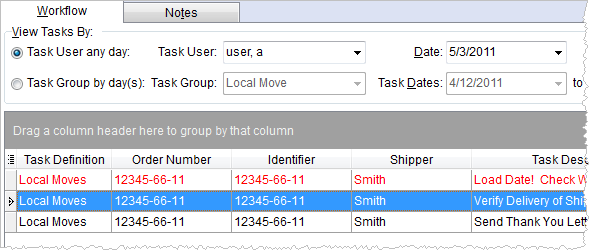
Figure 2: Tasks Workflow
While the Workflow screen provides access to all orders, the Tasks tab allows users to manage tasks for a particular order or claim. All the functionality available in the Workflow is also available in the Tasks tab.
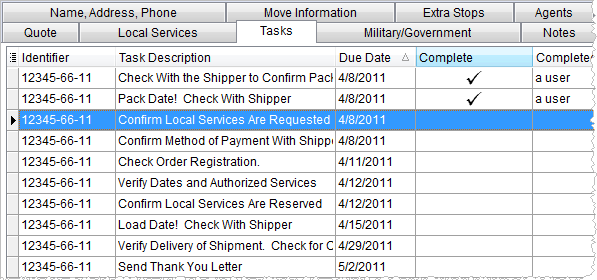
Figure 3: Tasks tab
Key features of the Tasks system includes the following:
•Personnel workflow is easily defined for an order or claim
•Tasks items are dynamically generated for personnel based on Task Definition and role assignment on an order or claim
•Task due dates are dynamically based on key move dates
•Module security allows task items to be managed and/or viewed across branches
•Workflow tab provides users an effective tool to manage tasks associated to all orders in which they have appropriate access to
•Tasks items can easily be marked as completed, not applicable, or postponed
•Workflow provides users a bulk edit ability on certain functions, such as marking several task items as not applicable all at once
•Task Definition and related Task Group assignment can provide customers secure, web-based access to information specific to their moves
•Store rollouts based on tasks assignments can be defined for Special Service orders
Additionally, Add Task (AR Credit & Collections) provides a variation on the Tasks System.