Step
Description
1
Open Payment Management
2
Press Import to access the Open screen
3
Select a file to import and press Open. By default, the application will attempt to open the “Downloads” folder on the application server.
As progress indicator will appear when the application processes the file.
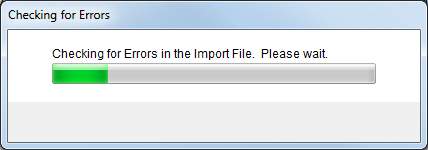
Figure 26: Checking for Errors dialog
Note:
The import process will detect and warn the user if the same file was previously imported.
4
Upon completion of the import process, the Statement Import Summary (or Statement Import Summary (Generic Import)) screen will appear. This screen allows a user to verify the import file and make adjustments to the batch record as well make adjustments to and set the order for detail items with errors.
5
Check the Statement Amount. If it contains a negative dollar amount, then the file may contain a negative balance forward from a previous import. If this is the case, users can Cancel the current import, locate the file outside of MoversSuite, and, using a text editor such as Notepad, edit the import file by removing the entire line containing the journal entry for the balance forward, save the file, and reprocess the file through the Import function.
6
Make corrections, if necessary, to the Description, Cash/Clearing Account, and Wire/Journal Date.
The application uses the Wire/Journal Date to post all batch transactions. This date will need to match the transmittal date of funds for the batch.
7
Make adjustments to detail items to Associate Order and/or Set Payment Type.
8
Press Done to complete the import process and add the import file as a batch within Batch Management