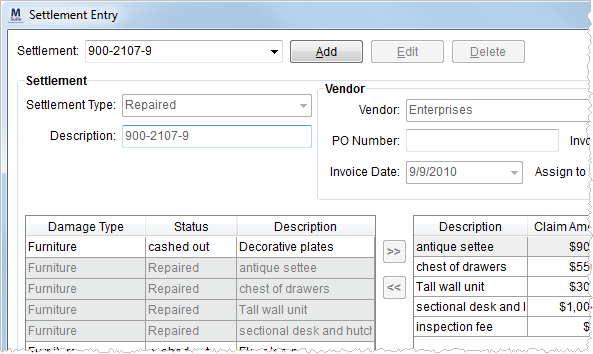
The Settlement Entry screen allows a user to record settlements to particular vendors or to denote cash out settlement to a payee. Access this screen through Settlements.
Figure 16: Settlement Entry screen
The following table describes the fields and functions available within this section.
|
Field/Function |
Description |
|
Settlement |
Select from an existing list of settlement items to manage from the available list. |
|
|
Add (Alt+A) This function clears the screen and enables fields for entry of a new settlement item. |
|
|
Edit (Alt+E) Open the selected Settlement to make adjustments using this function. |
|
|
Delete (Alt+D) Permanently remove the selected settlement record. |
|
|
Save (Alt+S) Press Save to keep changes made to the open settlement record. |
|
|
Cancel (Alt+C) This function discards changes made to an open settlement record. |
|
Settlement |
|
|
Settlement Type |
Select the record type for the settlement item from the list defined in Claim Settlement Type Setup. |
|
Description |
Enter the name of the record (up to 50 characters). The application sets this field upon selection of a Settlement Type. |
|
Vendor/Payee |
Payee When the Settlement Type associates to a Pay Claimant type (as set in Claim Settlement Type Setup), data for the payee set in Claim Detail will display (the company settles the claim directly with this payee); the application will generate an Accounts Payable invoice to the named claimant. The application creates a temporary vendor for each cash-out transaction. Vendor When the Settlement Type associates to a vendor, then the application will prompt for the following vendor data. |
|
Vendor |
Select a transaction vendor from the drop-down menu or through the Vendor Find. The company pays the vendor for their part of the settlement.
Note: Maintain vendors data through Microsoft Dynamics GP.
|
|
|
1099 Flag Select this flag to report this transaction as a 1099. |
|
PO Number |
Enter the purchase order number for the expense item from the vendor (up to 50 characters). |
|
Invoice Number |
Associate the invoice number of the transaction for the vendor through this field (up to 30 characters). |
|
Invoice Date |
Record the date of the invoice from the vendor. |
|
Assign to Vendor Date |
Enter the date the vendor was assigned to the settlement.
Note: This is a Task Dependency Dates setting and used to drive task workflow.
|
|
Left Pane |
|
|
The items that list in the left pane are all defined claim item records. Settled items appear highlighted. Use the following transfer buttons to move records between the two panes:
Transfer the selected record to the right pane.
Transfer the selected record to the left pane. | |
|
Damange Type |
The classification set in Add Claim Item displays. |
|
Status |
The state of the claim item set in Add Claim Item displays. |
|
Description |
The description of the item set in Add Claim Item displays. |
|
Right Pane |
|
|
Items that list on the right are those selected by the user through the transfer buttons. The application includes these items in the open settlement record. | |
|
Description |
The description of the item set in Add Claim Item displays. |
|
Claim Amount |
This field displays the initial requested amount of the claim as set within Add Claim Item. |
|
Settled Amount |
This is the amount agreed upon to settle the claim item. This amount displays within Liabilities/Chargebacks. |
|
Amount |
Enter the dollar amount received for the settlement of the claim item. |
|
# |
This displays the posting document number. |
|
Right-Click Option |
Right-Click Option The following option is available through right-click on a record in this grid.
Posting Information This option opens the Posting Information screen for the selected record.
|
|
|
Close (Alt+l) This function closes the screen. |



