Field
Description
Description
Enter a title for the template (up to 128 characters). The values entered here will be available as Reduction Template options in Reductions, Add Group Reductions, and Reduction Profile Setup.
To Agent
Select a default agent (Agent Setup) assignment for the add back to the reduction when reductions are applied.
To Item Code
Select a default agent (Item Code Setup) assignment for the add back to the reduction when reductions are applied.
Add back items include credit card expense or national account escrow.
To Branch
Select a default branch (Branch Setup) assignment for the add back to the reduction when reductions are applied.
Effective Date Basis
This setting determines which MoversSuite date will be used to compare with the effective dates of this record. The following dates are available:
Current Date
Base the effective date on the current system date. The Current Date will be used when no other basis date is set.
Delivery Date
Base the effective date on the Actual Delivery Date set within Move Information. If this date is not set, then the first date in the Delivery Date spread will be referenced (first Delivery Date in the Range tab in Move Information).
Load Date
Base the effective date on the Actual Load Date set within Move Information. If this date is not set, then the first date in the Load Date spread will be referenced (first Load Date in the Range tab in Move Information).
SIT Delivery Out Date
Base the effective date on the Actual In Date of SIT at the Destination in SIT/Recurring Billing.
Inactive
Setting this flag marks this record as inactive and users will not see this record as an option within the options available in MoversSuite, such as within Add Revenue Item and within Reduction Profile Setup. Use this option if you cannot delete the record (because it links to another record) and do not want it available to users in MoversSuite.
Options exist through the selected records option menu
( ), available in the upper
right-hand corner of the screen that allow you to mark all records
displayed in the grid as inactive or active.
), available in the upper
right-hand corner of the screen that allow you to mark all records
displayed in the grid as inactive or active.
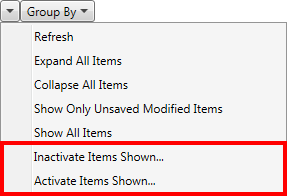
Figure 53: Options menu for selected records
Reduction Template Detail
Basis
When the Type is set to “Percentage” the Basis can be set to one of the following transaction amounts for basing the percentage reduction calculation on:
Allocated Amount
Gross Amount
Group Gross Amount
Group Invoice Amount
Invoice Amount
Refer to the Basis field description in Reductions for details on each option.
Type
Set the type of the reduction as either Flat Rate or Percentage.
When set to “Flat Rate,” the Flat Amount field will become active allowing the user to set the dollar amount of the rate.
Likewise, when set to “Percentage,” the Basis, Percentage and the Base Rate on Reduction Lookup fields become active.
Percentage
If Type is set to “Percentage” this field will becomes active. Enter a percentage of the Basis to calculate the reduction on.
Flat Amount
If Type is set to “Flat Rate” this field will becomes active. Enter the set dollar amount of the reduction.
Look Up Table
If Type is set to “- none -” this field will become active. Select a lookup table from the list that will compute the reduction amount based on one of three order values (Discount, Miles, or Weight). See Reduction Lookup Setup for more information.
Effective Start
Enter the date that this reduction detail record will be in effect.
Setting an effective date range is optional.
Effective End
Enter the date that this reduction detail record is no longer in effect. If the reduction is to remain in effect indefinitely, leave this date blank.
Setting an effective date range is optional.
Reduction Template Item
Include other Reduction Template Setup records into this reduction by making additions in this section.

Item Code Selection
Pressing this button opens the Item Code Selection screen. From this screen, you can select all item codes that this reduction template applies to.