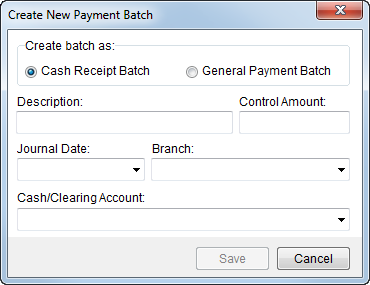
Use the Create New Batch screen to define a “Manual” batch in Payment Management. This screen is available through by pressing New from within Payment Management. and provides the ability to create a batch for cash receipts or for general payments; the difference between these two options is visible when adding payments to the batch through the Payment Application screen in Add New Payment mode.
Creating a batch is most often needed to fill in gaps between imported van line statements or cash receipt batches.
New batches created by this screen have a status of “Manual” (refer to Batch Status).
|
Important |
|
Avoid using a manual batch to enter bank deposits and cash receipt items. Only use a manual batch when a statement import is not available. |
Figure 3: Create New Batch screen
The following table describes the fields and functions available within this screen.
|
Field/Function |
Description |
|
Create Bath as |
The batch can be for cash receipts or for general payments. Choose one from the two options described below:
Cash Receipt Batch Create a batch similar to what is created through the Cash Receipts module. Payments added to this batch have options to set Payment Type and related memo and are linked directly to the Cash Receipts module.
General Payment Batch Choose this option to create a batch to add general payments to.
|
|
Description |
Enter the title of the batch (up to 128 characters). The Description is referenced throughout Payment Management. |
|
Control Amount |
Enter the total dollar amount of the funds transmitted for the batch. |
|
Journal Date |
Enter the transmittal date for the funds associated to the batch. See Date Fields for entry options. |
|
Branch |
This is the branch that transactions process under. Select a branch from those defined within Branch Setup. |
|
Cash/Clearing Account |
This is the cash or clearing account that transactions post to. These accounts are defined within Payment Management Posting Account Setup. |
|
|
Save Pressing Save creates the new batch. The batch appears in Batch Management with a Status of “Manual” after it is saved. |
|
|
Cancel This function closes the screen without creating the new batch and returns you to the Batch Management screen. |

