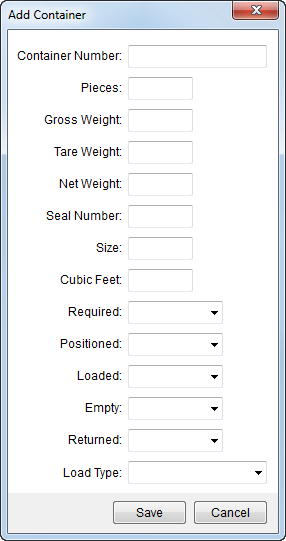
Use the Add Container screen to define shipping containers and to track their status in the move process. This dialog is available through the Add and Edit options within the Containers section of the Container/Lift Van/Airbox Information.
Figure 11: Add Container screen
Described in the following table are the fields and
functions available within the Add Container screen.
|
Field/Function |
Description |
|
Container Number |
Enter the number assigned to the container (up to 32 chars.). |
|
Pieces |
Enter the number of pieces held within the container. |
|
Gross Weight |
Enter the total weight of the container and the shipment. |
|
Tare Weight |
Enter the weight of the container without the shipment. |
|
Net Weight |
Weight of the shipment as either the Gross Weight less the Tare Weight or as manually entered by hand. Entering a Net Weight manually will clear out the Gross Weight and Tare Weight values. |
|
Seal Number |
Enter the security seal number for the shipment (up to 32 chars.). |
|
Size |
Enter the size description of the container. |
|
Cubic Feet |
Enter the amount of space that the container occupies. |
|
Required |
Enter the date that the container was required on (see Date Fields for data entry information). Note: This is a Task Dependency Dates field. |
|
Positioned |
Enter the date that the container was positioned on (see Date Fields for data entry information). . Note: This is a Task Dependency Dates field. |
|
Loaded |
Enter the date that the container was loaded on (see Date Fields for data entry information). Note: This is a Task Dependency Dates field. |
|
Empty |
Enter the date that the container was emptied on (see Date Fields for data entry information). Note: This is a Task Dependency Dates field. |
|
Returned |
Enter the date that the container was returned on (see Date Fields for data entry information). Note: This is a Task Dependency Dates field. |
|
Load Type |
Select a load type to describe the container from the list of values defined within Container Load Type Setup. |
|
|
Save Press this button to save the container record and close the screen. |
|
|
Cancel Discards any changes made to the container record and closes the screen. |

