A key component of MSCrew is the ability to log your time against activities associated to a job. The Punch feature allows you to log your time against a select activity. Additionally, the crew lead can punch in or out multiple personnel at a time. Punch activity can be finalized and approved through MSCrew Crew Time, which is a website hosting within MoversConnect.
MoversSuite users have access to the ability to update and approve crew time activity through the Mobile Crew Time screen.
NOTE: Date and time activities are based on the local time associated to the device the activity is recorded using. For example, if crew logs in at 8:00 a.m. pm on an iPad in Los Angeles, CA, then the information is recorded as 8:00 a.m. Pacific Time Zone. Refer to the Date and Timestamps topic for more information.
How to Punch In or Out:
1. Within the Jobs screens, click the “Punch.”
2. From the Activities screen, click the Activity.
3. Click the PUNCH IN or PUNCH OUT button. *
4. Set Date and Time and Save.
* If the “Is Crew Time Locked” or “Is Crew Time For Crew Lead Locked” is set within the Mobile Api Setup, the user will Punch In or Punch Out when Step 3 is completed. There will be a confirmation to do so. When “Yes” is clicked on the confirmation, the punch is officially created.
STEP 1: Click Punch
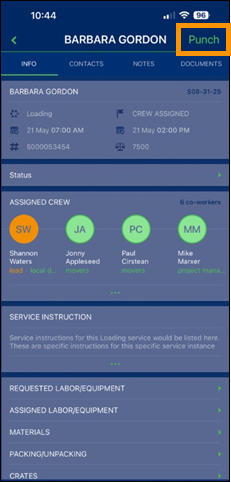
From the Jobs screens, click the green “Punch” in the upper right-hand corner of the screen to access a list of activities.
Figure 69: Info screen
STEP 2:
The list of activities is predefined for your company within Crew Activity Setup.
If you:
•Haven’t already punched into an activity, choose an activity. In Figure 84, “Working” is clicked.
•Have punched into an activity, then PUNCHED IN displays in green next to the arrow within the activity the user is punched in to. Click the activity.
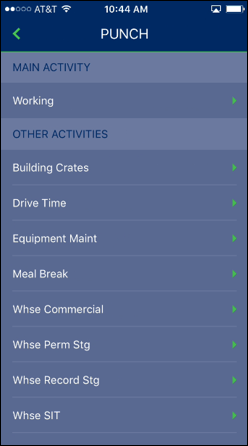
Figure 70: Punch activities
STEP 3: Click the PUNCH IN or PUNCH OUT button.
From the next screen, which will be named the activity you chose or are already punched in to, either click PUNCH IN or PUNCH OUT (depending on what you selected in Step 2.)
Note: If the “Is Crew Time Locked” or “Is Crew Time For Crew Lead Locked” is set within the Mobile Api Setup, the user will Punch In or Punch Out when Step 3 is completed. There will be a confirmation to do so. When “Yes” is clicked on the confirmation, the punch is officially created.
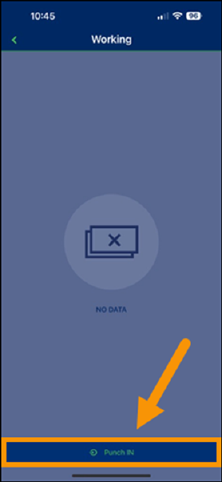
Figure 71: Activity screen to Punch In or Punch Out.
STEP 4: Set Date and Time and Save.
The Date/Time screen appears and set the Date and Time. Punch times for “Additional Activities” can only be created for the same day. Click the green checkmark in the upper right hand corner to save the punch.
IMPORTANT: Then press the green checkmark to confirm. If the checkmark is not clicked, the punch is not saved.
Users can lock the punch times from changing through the Is Crew Time Locked, Crew Time for Crew Lead Only, and Is Crew Time for Crew Lead Locked options available in Mobile Api Setup settings.
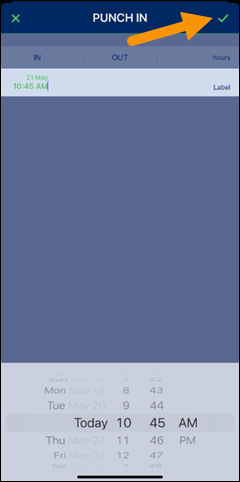
Figure 72: Punch In screen with date scroller
If you are logged into another activity and you confirm logging into a new activity, the application prompts you to confirm that you wish to log out of the prior activity. Press Yes on the warning to confirm the log out or press No to cancel.
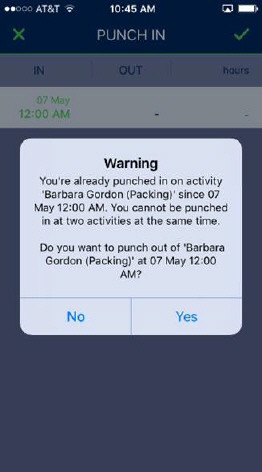
Figure 73: Punch In screen with warning
A detailed list of hours is available for each crew member on a specific activity for a specific job. This screen is accessed from the INFO screen > click on ASSIGNED CREW > press Punch In and select an Activity. The screen depicts each Punch In and Punch Out for a specific crew member on the Activity chosen, and on the specified job. Further, the TOTAL time at the bottom of the screen is the accumulated hours for just that worker on that specific activity on that specified job. It is important to note that, if this employee logs into a different activity on this same job or a different job altogether, that other time does not reflect here. Crew must have punched in and punched out of an activity to be listed on this screen.
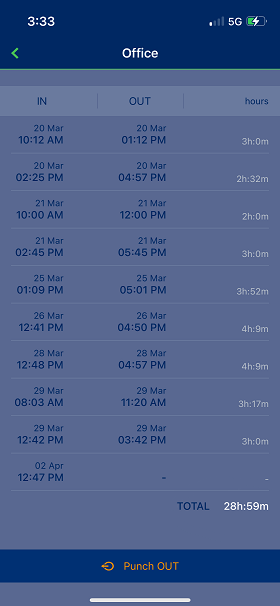
Figure 74: Activity for a specific activity for a specific crew member on a specific job.
Crew leads have the option to punch in or out one or more person at a time through the Assigned Crew screen.
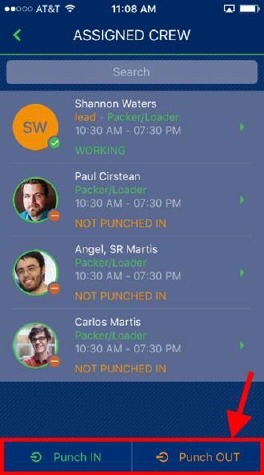
Figure 75: Assigned Crew screen
Choosing Punch IN prompts a lead to select an activity.
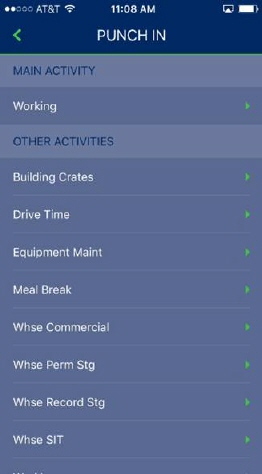
Figure 76: Punch activities
Once an activity is selected, you can mark which employees you wish to assign to the service. You can view the punch status along with role and scheduled service time from this screen, as well.
Note: Users can lock the punch times from changing through the Is Crew Time Locked, Crew Time for Crew Lead Only, and Is Crew Time for Crew Lead Locked options available in Mobile Api Setup settings.
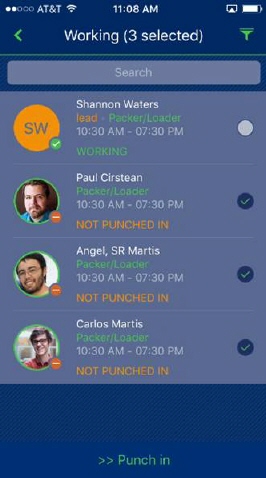
Figure 77: Punch in crew selector
Pressing Punch In, you are prompted to set a date and time using the scrolling selector.
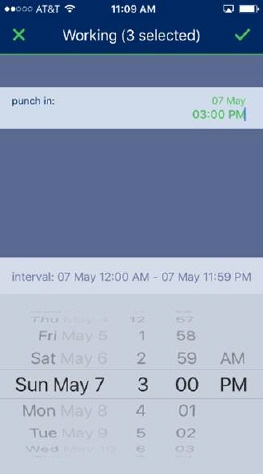
Figure 78: Punch In screen with date scroller
Once the green arrow is pressed, the Assigned Crew screen appears with updated activity listings.
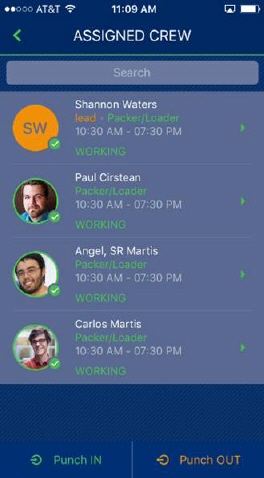
Figure 79: Assigned Crew screen
When the job completes and all personnel are punched out, a lead can review, update, and approve the time entries through the MSCrew Crew Time function.
NOTE: MoversSuite users have access to the ability to update and approve crew time activity through the Mobile Crew Time screen, as well.
RELATED TOPIC: