MoversSuite Administration > MoversConnect > MoversConnect > Mobile Api Setup tab
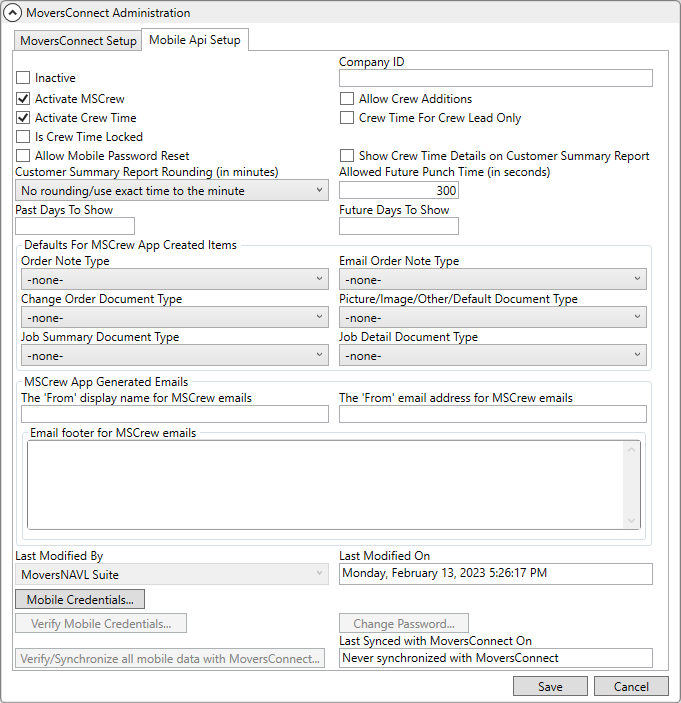
The Mobile Api Setup is utilized by the Mobile API to establish the primary login information and global settings for your MSCrew account. Certain fields and flags are only available when certain options have been set, such as checking “Activate Crew Time” will prompt the “Crew Time for Crew Lead Only” and the” Is Crew Time Locked” flags.
Figure 110: Mobile Api Setup within MoversConnect Administration
Provide the necessary settings to establish a Mobile API account, including entering company credentials. Once changes are made and saved, the system sends a request to verify the Mobile API (which includes Mobile API) and reports the process through the MoversConnect Api Service dialog.
|
|
For Mobile API processing, your IT will need to open a port on your firewall that will forward to the MoversConnect Api Service. The type of traffic is TCP and the incoming IP address is 40.118.235.164. The port specified as the open port on your firewall must match the port specified for the Public Api Service Url set within MoversConnect Setup. |
NOTE: If you update any of the settings within Mobile Api Setup, then in order for those changes to propogate through MoversConnect and to the devices of users, then it is recommended to Verify/Synchronize all mobile data with MoversConnect. This function is available through a button at the bottom of the screen. Additionally, each user must log out and log back into to their mobile devices to see the change.
Technical Field and Function Information
The following table describes the fields and functions available within this dialog.
|
Field/Function |
Description |
|
NOTE: Not all options within Mobile Api Setup are initially visible. Certain boxes, when checked, enable other options to become visible.
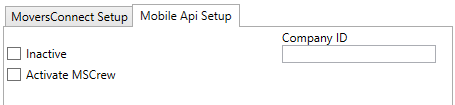
For example, at first the tab looks like this. When Activate MS Crew is checked, other options related to that functionality appear, such as Activate Crew Additions and Activate Crew Time.
| |
|
|
Inactive Check this flag to turn off the Mobile API service. |
|
Company ID |
Enter the identifier provided to your company to support MSCrew through MoversConnect (up to 15 characters). |
|
|
Activate MSCrew Checking this flag activates the Mobile Crew feature. This feature allows users the ability to view the details of local services, equipment resources, materials, and related documents through MSCrew. Changes made to this flag automatically reflect in MoversConnect. If you do not see the changes or if the Last Synced with MoversConnect On is out of date with your recent changes, then you can press Verify/Synchronize all mobile data with MoversConnect to manually send the changes to MoversConnect. |
|
|
Allow Crew Additions Checking this flag gives you the ability to add crew members through MSCrew. After checking this flag, you can add as much crew as you want in the MSCrew app.
|
|
|
Activate Crew Time If this flag is not checked, the “Is Crew Time Locked” and the “Crew Time For Crew Lead Only” flags will not be available.
Checking this flag activates the Crew Time feature. This feature allows users to access the MSCrew Crew Time site and the Mobile Crew Time screen that provide the ability edit and approve times for crew activities logged within MSCrew. Crew leads have options to view service information for all assigned jobs and the ability to approve time. When this flag is checked, the “Is Crew Time Locked” and the “Crew Time For Crew Lead Only” flags are prompted and become available. See the following in this technical table for more information on those settings that derive from this flag: Is Crew Time Locked Crew Time For Crew Lead Only Is Crew Time For Crew Lead Locked |
|
|
Is Crew Time Locked This flag appears when the “Activate Crew Time” flag is checked and the “Crew Time For Crew Lead Only” flag is unchecked. Checking this flag will prevent crew members from altering punch time while punching in or out.
This also activate the “short cut” when crew are punching in and out. Having this flag set will punch in or punch out that crew member when the Activity screen “Punch In” or Punch Out” icon is clicked. If not set, the screen then goes to the Date/Time screen where the date and time can be selected: The green checkmark in the upper right corner must be clicked to save the punch. See MSCrew Punch In/Out for more details.
|
|
|
Crew Time For Crew Lead Only This flag appears when the “Activate Crew Time” flag is checked and the “Is Crew Time Locked” flag is unchecked. Optionally, restrict access to the MSCrew Crew Time site to only crew leads by setting this “Crew Time For Crew Lead Only” flag. If set, only crew leads can access the MSCrew Crew Time site.
Changes made to the Active Crew Time flag automatically reflect in MoversConnect. If you do not see the changes or if the Last Synced with MoversConnect On is out of date with your recent changes, then you can press Verify/Synchronize all mobile data with MoversConnect to manually send the changes to MoversConnect.
The default settings for when Crew Time For Crew Lead Only is checked is to show “Crew Time for Crew Lead Only” checked and “Is Crew Time for Crew Lead Locked” is unchecked.
Is Crew Time For Crew Lead Locked This flag appears when “Crew Time For Crew Lead Only” is checked. Checking this flag prevents the crew lead from altering punch times when punching in or out for the team.
When checked, this also activate the “short cut” when the crew lead is punching in and out. Having this flag set will punch in or punch out that crew member when the Activity screen “Punch In” or Punch Out” icon is clicked. If not set, the screen then goes to the Date/Time screen where the date and time can be selected: The green checkmark in the upper right corner must be clicked to save the punch. See MSCrew Punch In/Out for more details. |
|
|
Show Crew Time Details on Customer Summary Report Check this flag to show crew time details on Customer Summary Report in MSCrew. |
|
|
Check this flag to enable the reset password option for all MSCrew users. Setting this flag allows mobile users to request a new password be emailed to them and possibly sent to their mobile device, depending on what options are set within the Mobile User tab of their Personnel Setup records. Note: This flag and the corresponding flag in Personnel Setup must both be checked to enable the Mobile Password Reset feature for the mobile user. If this option is unchecked, then no mobile user can request a password reset. View Mobile Password Reset for more information. Changes made to this flag automatically reflect in MoversConnect. If you do not see the changes or if the Last Synced with MoversConnect On is out of date with your recent changes, then you can press Verify/Synchronize all mobile data with MoversConnect to manually send the changes to MoversConnect. |
|
Customer Summary Report Rounding (in minutes) |
Specify what rounding time you wish for the Customer Summary Report generated through MSCrew. The rounding affects the display of the crew punch activity and the following options are available: •No rounding/use exact time to the minute •To the nearest 15 minutes •To the nearest 30 minutes
|
|
Allowed Future Punch Time (in seconds) |
Enter the time that you wish to grant for someone to enter a punch activity into the future. By default, a value of 300 seconds is set, i.e. five minutes. This means that a person can log a time that is no more than five minutes into the future. The minimum period allowed in this field is 60 seconds. |
|
Past Days to Show |
Enter the number of past days of which you wish to see the assigned jobs in MSCrew app. This is an optional field and setting “0” days in this field or leaving it unfilled will show the MSCrew app defaults for them, which is 3 days. Note that this number can be any count of days; however, due to device data storage limitations, it is recommended to keep this number as small as functionally possible. |
|
Future Days to Show |
Enter the number of future days for which you wish to see the available jobs in MSCrew app. This is an optional field and setting “0” days in this field or leaving it unfilled will show the MSCrew app defaults for them, which is 5 days. Note that this number can be any count of days; however, due to device data storage limitations, it is recommended to keep this number as small as functionally possible. |
|
Defaults for Mobile App Created | |
|
Order Note Type |
Establish a default type for a note added through MSCrew. This option categorizes the notes that list within the Notes screen within the mobile application as well as in the Notes system. The values available to this field are defined within Note Type Setup. |
|
Email Order Note Type |
Select the type of note to set when creating a note documenting the email sent out by crew through MSCrew. The note is stored within the order Notes. The values available to you are managed through Note Type Setup. |
|
Change Order Document Type |
Provide a default type for change order documents added through MSCrew. This option categorizes the documents that list within the Documents screen within the mobile application as well as in the Document Management system. The values available to this field are defined within Document Type Setup. |
|
Picture/Image/Other/Default Document Type |
Select a default type that is used by MSCrew when the mobile app uploads documents (such as pictures) into the MoversSuite document library. You may want to add a new document type if you want to separate these documents into their own type. The list of options available are from the list of active Document Type Setup records. |
|
Job Summary Document Type |
Provide a default type for job summary documents added through MSCrew. This option categorizes the documents that list within the Documents screen within the mobile application as well as in the Document Management system. The values available to this field are defined within Document Type Setup. |
|
Job Detail Document Type |
Provide a default type for job detail documents added through MSCrew. This option categorizes the documents that list within the Documents screen within the mobile application as well as in the Document Management system. The values available to this field are defined within Document Type Setup. |
|
MSCrew App Generated Emails | |
|
The following three fields are referenced when emails are sent through MSCrew to your crew. | |
|
The ‘From’ display name for MSCrew emails |
Provide a meaningful name as the sender of messages sent through MSCrew (up to 50 characters), e.g. “Do Not Reply”. |
|
The ‘From’ email address for MSCrew emails |
Provide a reply or default email address for messages sent through MSCrew (up to 50 characters), e.g. “donotreply”. The email sent from the mobile device includes an “@MoversConnect.net” address. The “From” entered for this setting is appended to this address, e.g. “donotreply@MoversConnect.net”. Multiple email addresses may be used. Separate email addresses with a comma or semicolon. Field can accept up to 50 characters. |
|
Email footer for MSCrew emails |
Enter footer information to appear at the bottom of messages sent through MSCrew (up to 200 characters), e.g. “This message was generated through our MSCrew mobile device. If you have questions regarding this email, then please use the following contact information to get a hold of us.” |
|
| |
|
Last Modified By |
Name of the user that last updated this record. |
|
Last Modified On |
Day, date, and time that this record was updated. |
|
|
Mobile Credentials Opens the Mobile Api Cloud Account Login dialog allowing you to set the credentials provided by EWS Group for MSCrew functionality. |
|
|
Verify Mobile Credentials Press this button to verify the credentials entered through Mobile Credentials. If changes are made to the credentials, then this button is disabled until Save is pressed. Results of the verification process display within the MoversConnect Api Service dialog. |
|
|
Change Password If you change a password for any user through the Mobile Api settings in Personnel Setup, then press this button to send the changes to MoversConnect. Results of the verification process display within the MoversConnect Api Service dialog. |
|
|
Verify/Synchronize all mobile data with MoversConnect Certain changes to the mobile application settings must be verified and synchronized with MoversConnect. Press this button performs a manual send to MoversConnect to verify data and sync the two systems. Note: Changes to certain fields, such as the Activate MSCrew flag, trigger a sync automatically. Check the Last Synced with MoversConnect On field to determine if recent changes reflect within MoversConnect. Results of the verification process display within the MoversConnect Api Service dialog. |
|
Last Synced with MoversConnect On |
This read-only field displays the day, date, and time that the data within this setup was synchronized with MoversConnect. The synchronization occurs manually through the Verify/Synchronize all mobile data with MoversConnect or automatically when certain data changes, such as when either Activate MSCrew or Activate Crew Time flags are changed. |
|
|
Save Pressing Save keeps any changes you made within the entire MoversConnect Setup area. |
|
|
Cancel Press Cancel to discard any changes you made within any tab in MoversConnect Setup. |
RELATED TOPIC: