 in
the header. To reveal the Report Listing, if not shown, click the menu icon
for that, as well.
in
the header. To reveal the Report Listing, if not shown, click the menu icon
for that, as well.BI Tool Homepage
The Report Listing is the list on the left of the screen. The Report Listing is divided into Public Reports and My Reports. Within each of these sections, reports are further organized into Folders. For example, in Figure 14, within My Reports the folders listed are Operations, Claims, Sales, etc. Further, the folder “Customer Service” is opened and lists these following reports: Text in and out, Text Conversations, Crew Phone Numbers, and O in process by CSR.
Collapse
the Report Listing by clicking the menu icon in
the header. To reveal the Report Listing, if not shown, click the menu icon
for that, as well.
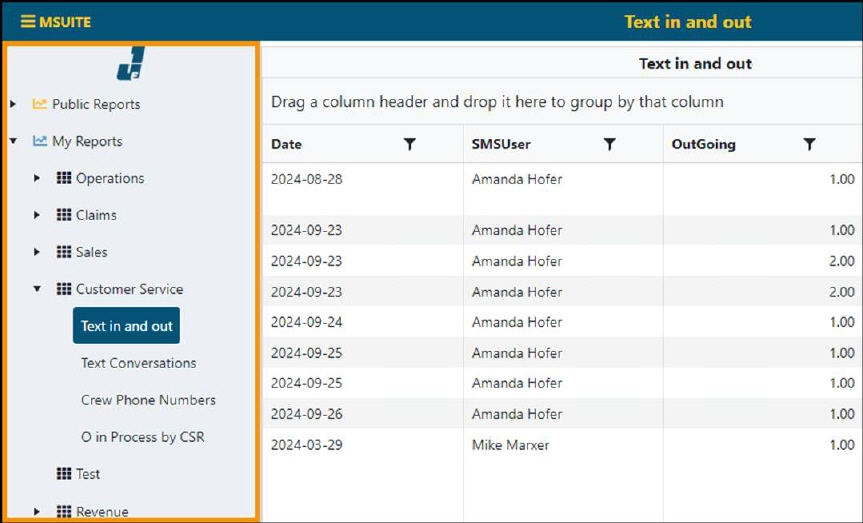
Figure 14: Report Listing
The differences between Public Reports and My Reports are:
•Public Reports is viewable by all users with permissions for those type of reports. The ability to view a report, though public, is determined by the user’s permissions set with BI Tool Administration. To delete, rearrange the listing or otherwise manage the listing, see BI Tool Public Reports Menu Editor for details.
•My Reports is a private folder for the user which is logged in. Reports listed under My Reports are not viewable to others. To delete, rearrange the listing or otherwise manage the listing see BI Tool My Reports Menu Editor for details.
The Default report is the report that has been set to show when the user logs in. Each user sets their own default report. If a default report is not set, the report shown is the report that was open when the user logged off.
To navigate the Report Listing, click the Expand All or Collapse All arrow icons to the left of each menu option to display the reports/dashboards or folders. The options to expand or collapse is also available by right clicking a title that has folders or reports within it, such as “Operations” in Figure 15, to open the menu.
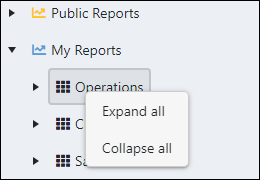
Figure 15: Right click menu
At the report level, right clicking a report name will open another menu which contains the options to Copy, Paste, Downloads, or Scanner. (Scanner is a PDF generator which may not be available at this time.)
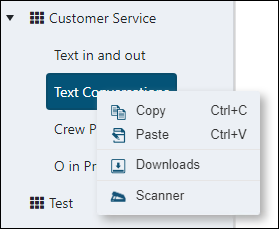
Figure 16: Right click options on the Report level.