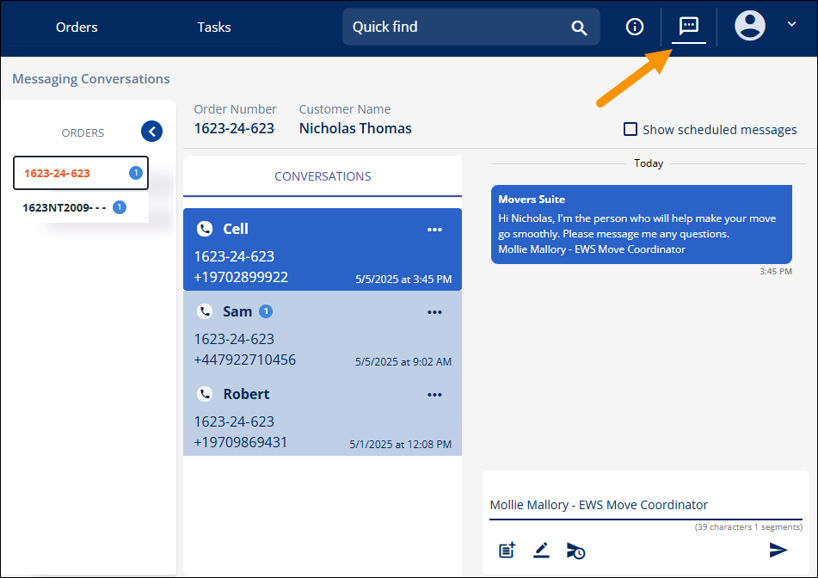
Accessing Messages through the Global Messages icon in the header (indicated in Figure 197) gives you access to all conversations organized by order to which you are subscribed. Messages on the “order level” are accessed from an order > Messages. See MSWeb Messages for details.
Global Messages functionality is similar the functionality in MSWeb Messages; however, within Global Messages, there is only “Conversation” - not access to “Contacts”. “Contacts” are not a part of this area as the list would be unwieldly to use if it listed all contacts for all orders associated to the login. Because “Contacts” is not available here, you cannot initiate a conversation within Global Messages or access Conversations to which you are not already subscribed. To initiate a conversation, go to MSWeb Messages. See the video “MSWeb Messages” in the Training Center for further information on MSWeb Messages and Global Messages.
All the orders to which the logged in user is subscribed will list under “Orders” on the left side of the screen. Leads will be shown in the Orders list under the Shipper Name. The orange one – 1623-24-623 – is the active conversation and the conversation for that order is on the right side of the screen. To further clarify the order number for the active conversation, the Order Number and Customer Name is indicated above the conversation. In Figure 197, the order number is again repeated as 1623-24-643 and the Shipper Name is Nicholas Thomas. To see the conversations or messages on another order, click that order.
Figure 197: Click the Messages icon in the header to access Global Messages.
Conversations can be subscribed to from Global Messages. To subscribe to a conversation, go to the Order Number > Messages, and then follow instructions detailed within MSWeb Subscribe to Conversation.
Notifications of Scheduled Messages are indicated by a blue icon next to the Order Number or Shipper name within the Orders List. See MSWeb Schedule Send for details. Notifications for unread messages will be indicated by a red circle icon next to the appropriate order(s) in the list. Both icon will also list next to the Contact for the Conversation that has scheduled or unread messages, as well.
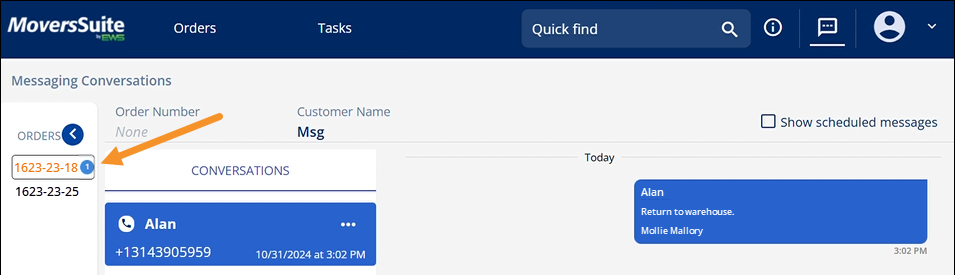
Figure 198: Scheduled Message icon
RELATED INFORMATION:
MSWeb Conversations (Messages)
MSWeb Subscribe to Conversation
MSWeb Unsubscribe from Conversation
MSWeb Delete Scheduled Message