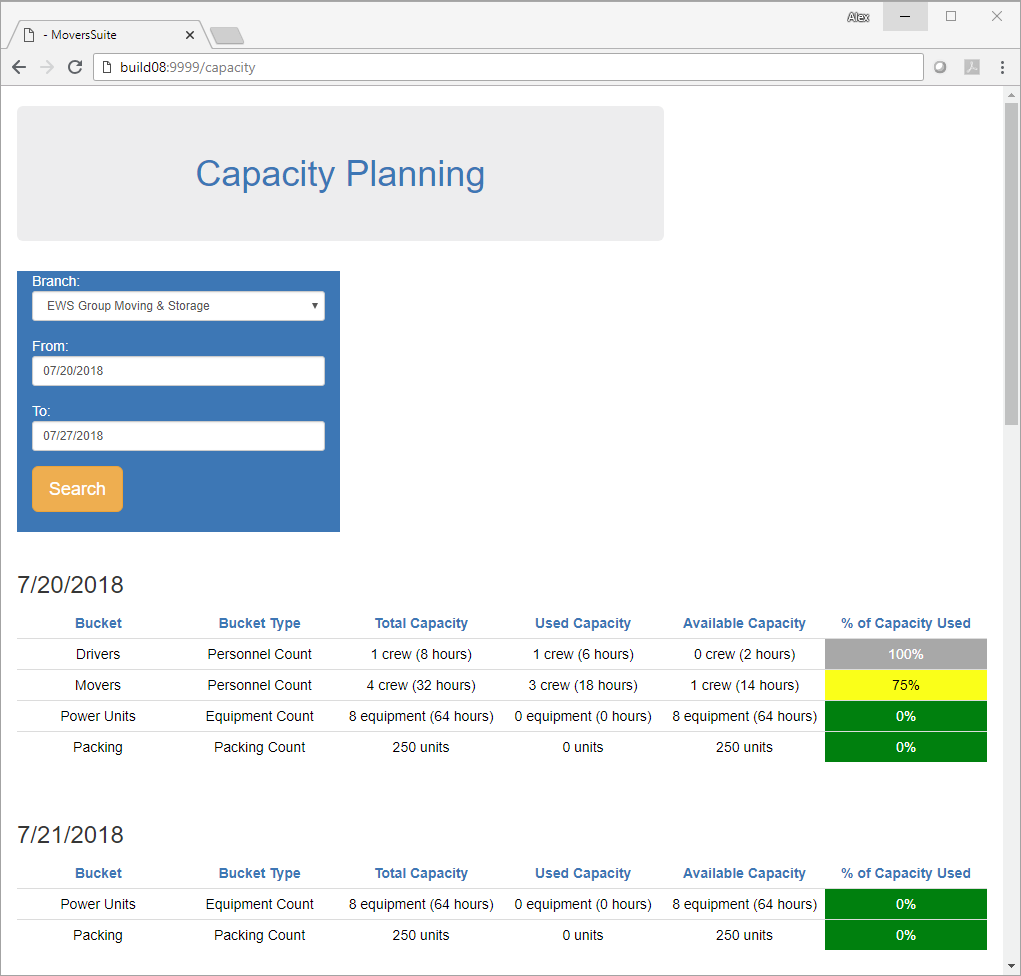
The Capacity Planning feature allows you to view availability of crew, equipment, and packing information on Local Services requests by branch for a given date range. It also provides a visual indication of the percentage used of each resource type established on your system. This information is available to assist sales and surveying personnel in managing service assignments and pricing.
Figure 1: Capacity Planning page
Access to Capacity Planning is through a URL that you view from your local application server. The URL is in the following format:
http://[YOUR APPLICATION SERVER]:[PORT]/capacity
Where [YOUR APPLICATION SERVER] is the server hosting MoversSuite and [PORT] is the available port number. This is also referred to as your External IP Address and Forwarding Port. Refer to Capacity Planning Setup for more information.
When the page loads, enter the Branch and date range you wish to view capacity information on. The branches available are all those defined within your system through Branch Setup. Capacity Planning lists information on all services assigned through a Dispatching Common View of the selected branch.
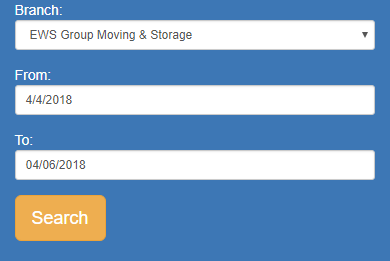
Figure 2: Parameter entry form
The From and To dates default to the current system date. You can edit these dates manually or use the date picker, which appears when you click in either date.
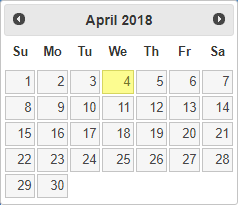
Figure 3: Date picker
The application references all Local Services requests for the date spread and selected Branch. Pressing Search after you set or adjust the parameters and the screen displays availability for each date in the spread.

Figure 4: Sample capacity data for a given date
The Bucket is a category assigned to setup records for each appropriate item your company wants included in planning. Each Bucket is assigned to a specific Bucket Type that determines how the availability is calculated. The following table describes each of the Bucket Types available and how the application determines the availability of that type.
|
Bucket Type |
Description |
|
Equipment Count |
Equipment availability based on the number of items requested or assigned to the resource is evaluated. The count of items specified through the Equipment Request within the Add Local Service screen is the count of items requested. This is compared to what is available for the branch, as determined by supported Equipment Type Setup records. Once the service is assigned through Local Dispatch, then the actual assigned counts (and hours of availability) are compared to what is defined within supported Equipment Setup records. Columns within Capacity Planning include crew counts and hours based the total defined, the amount in use, and the amount available. |
|
Equipment Hourly |
Equipment availability based on hours requested or assigned to the resource is evaluated. Items selected through the Equipment Request for the given Service Time (both set through the Add Local Service screen) determine the requested hourly need. The items available must link to supported Equipment Type Setup records. Once the service is assigned through Local Dispatch, then the actual assigned hours are compared to what is defined within supported Equipment Setup records. |
|
Packing Count |
Packing materials available that are based on CPU assignment are evaluated. The application references the estimated packing counts throughout capacity planning. Specifically, the counts entered for the Estimate column under Packing within Update Containers, Packing and Unpacking for a service determine availability (CPU button within Add Local Service). |
|
Personnel Count |
Labor that has availability determined by individual count is evaluated. For planning purposes, a person is only counted once for an entire day of service. So, if a driver is requested for a two-hour service, they are considered fully utilized for the entire day. Prior to dispatch assignment, the application references the items specified within the Labor Request within the Add Local Service screen to determine availability. After assignments have been made to a service in Local Dispatch, the application counts individual assignments on the service to determine capacity. |
|
Personnel Hourly |
Labor availability based on hours assigned is evaluated. Requested service times are referenced for supported Labor Request within the Add Local Service screen and assigned services are evaluated on what is defined for the employee through their Personnel Setup record. |
Aside from the Bucket and Bucket Type columns, you can update which columns display in the grid along with customizing the labels through Capacity Settings. The default columns show in the image below (Figure 5).

Figure 5: Capacity Planning detail example
In addition to the Bucket and Bucket Type, the following categories are available (based on their default name, which can be updated through the Capacity Settings).
|
Default Colum Title |
Description |
|
Total Capacity |
This column includes all available amounts for the corresponding bucket. For example, if you have 10 movers available and setup for Capacity Planning, then 10 crew shows in this column along with the defined total number of hours of availability. |
|
Used Capacity |
The amount of allocated crew and resources display in this column. |
|
Available Capacity |
The Total Capacity less the Used Capacity show in this column. |
|
% of Capacity Used |
The percentage of Used Capacity divided by the Total Capacity displays. The background color is based on the percentage tier, which is customizable through the Capacity Used Threshold Setup. |
RELATED TOPICS: