If the transaction information has already been entered
and lists under Expected, click the card and drag it over the Receiving Column.
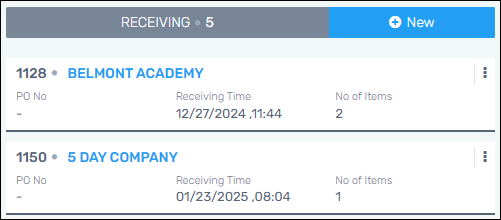
Figure 2: Inbound Receiving
column
If the transaction information has not already been
entered, follow the instruction within Inbound Expected and enter the “Details” section
information.
For either scenario, continue with the following:
1.
Enter the Item Numbers being received within the Items section. Choose
the Item Number by clicking the field to scroll the list or enter a
partial description in this search. If photos of the item are in the system,
click the photos icon to search by image.
2.
Enter the Qty Expected.
3.
Click +Add Item.
4.
Continue to enter the Item Numbers and quantities if needed. Click Add Item
after each line item.
If the item were already
entered, confirm the information and quantity. If any edits need to be made,
click the blue pencil/edit on that line item and make the corrections. Click
Update to update the information.
5.
Once you have finished entering information, click Save.
6.
The transaction card now lists under Processing and will list within the
Warehouse Now if we go to the warehouse that was set to expect that transaction,
the expected Inbound transaction is listed here as well.
IMPORTANT: Any Special Instructions added to an
Inbound Transaction will list on the Inbound Notification Emails.
RELATED
INFORMATION:
Attributes
