
There are numerous videos found within Transactions Videos. Click the links below to view the videos that relate to this topic.
Inbound Transactions: Expected
|
|
There are numerous videos found within Transactions Videos. Click the links below to view the videos that relate to this topic.
Inbound Transactions: Expected |
Though it doesn’t happen often, if you know a shipment is to be delivered to the warehouse it is helpful to create an expected inbound transaction. Regardless, it is helpful to know a bit about the process of inbound transactions.
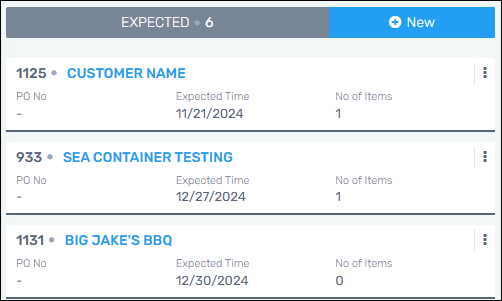
Figure 1: Inbound Expected column
These instructions detail how to create an “Expected” Inbound transaction.
1. From the menu, choose Transactions > Inbound.
2. From Inbound, look to the “Expected” column header and click +New.
3. Within the Details section > Warehouse, choose the Warehouse where the items are being delivered.
4. Within the Details section > Customer, choose the Customer – or the project.
5. Within the Details section > Customer, choose the Contact.
6. Within the Details section > Shipping, if you know the carrier, enter the Carrier. The Contact Person and Phone Number fields in this section refer to the driver.
7. Enter the expected delivery day. If you know the time, enter within Time Frame.
8. Upload any paperwork here, if any.
9. At this point, you can Save and the information will list on a card under the Expected column. The Warehouse now knows to expect the shipment.
If you know what is coming, you can also enter the items within the “Items” section, which is after the Details section. These details can be entered after completing Step 1 – 7 above. You may also enter the items by clicking the card. If you click the card, then click the blue pen/edit icon in the upper right side of the screen to open the card information.
For either situation, to enter the items, continue with the following:
1. Click Items to open the Items section.
2. Choose an Item Number.
3. Enter the Qty Expected.
4. Click +Add Item to add that item to the list on the right.
5. Continue adding items as needed.
6. When all the items are entered, click Save.
7. At this point, the Warehouse now knows to expect the shipment and the size of the shipment, which helps to plan personnel, equipment or floor space, for example.
RELATED INFORMATION: