The UniGroup TransDocs module provides a company the ability to exchange files between MoversSuite and the TransDocs application. The Document API service processes the requests for documents sent to TransDocs from a UniGroup agent and to the Microsoft SharePoint server hosting the MoversSuite document library.
|
Important |
|
For qualified TransDocs documents, when attaching a file with the same name as an existing order document, MoversSuite will overwrite the properties of the existing file with that of the new file through the Attach File screen. |
TransDocs Document Download
Documents for UniGroup orders will automatically download into MoversSuite (SharePoint document library) through the TransDocs application.
TransDocs Document Upload
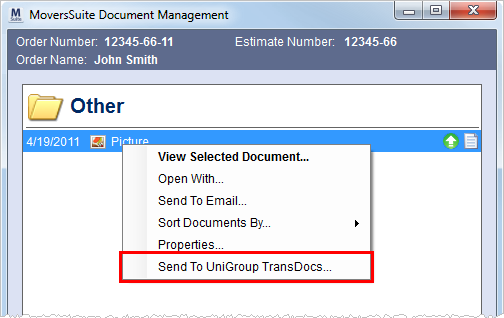
MoversSuite can be set up to automatically send documents to TransDocs and there is an option to manually send the file through the Send To UniGroup TransDocs option for appropriate document files in the Document Management Viewer.
Figure 16: Send To UniGroup TransDocs option
Documents will automatically upload to TransDocs based on the Shipment Type of orders and Document Type of the file. See TransDocs Integration Setup for details.
When a document uploads successfully, the file will be marked
with a green upload indicator ( ). A
tip will display when users hover the mouse over the upload file icon. It
will display the user that performed the upload and the date and time that the
upload occurred.
). A
tip will display when users hover the mouse over the upload file icon. It
will display the user that performed the upload and the date and time that the
upload occurred.
Document Upload Errors
Errors during an upload attempt will display red error
indictor ( ) next to the file name.
Users can hover over the icon to see the error message or press the icon to
access the Document
Management Upload Error dialog. Additionally, from the Third Party
Application Error Management screen, users have the option to Re-Process
and Edit & Re-Process (see Re-Processing Document).
) next to the file name.
Users can hover over the icon to see the error message or press the icon to
access the Document
Management Upload Error dialog. Additionally, from the Third Party
Application Error Management screen, users have the option to Re-Process
and Edit & Re-Process (see Re-Processing Document).
|
Technical Note |
|
Upload data is stored within the following tables: DocumentUploadStatus and DocumentUploadError. |