Report View Options
Description


Show/Hide Document Map
The document map allows a user to jump to other referenced locations within the report such as breaks and individual records.


Show/Hide Parameter Area
This option allows the user to show or hide the parameter entry area.

Page Navigation
User can choose to navigate to the first, previous, next, or last page or choose to enter a page number to jump to in the report.

Refresh Report
Regenerates the report. When changes are made to the report parameters a user will need to either refresh the report using this option or press View Report.

Print Report
Opens a Print dialog where a user can send the contents of the report to a printer.

Save Report
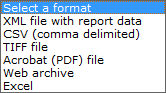
A user can select from several options to save the output of the report in a physical form by pressing Export. The options available to export the file include:

Zoom Display
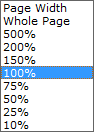
A user can change the size of the report by choosing from a list of zoom options:

Report Search
A user can enter a description in the blank text box and press Find to search the contents of the opened reports. Search hits will be highlighted and the user can toggle back and forth between the matches using the Find and Next buttons.