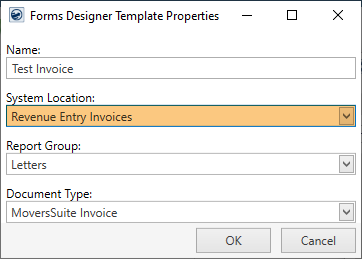
These are the instructions for creating an invoice template within the Forms Designer.
Instructions:
1. From Tools > Forms Designer, click the New Template button.
2. Set the System Location to Revenue Entry Invoices.
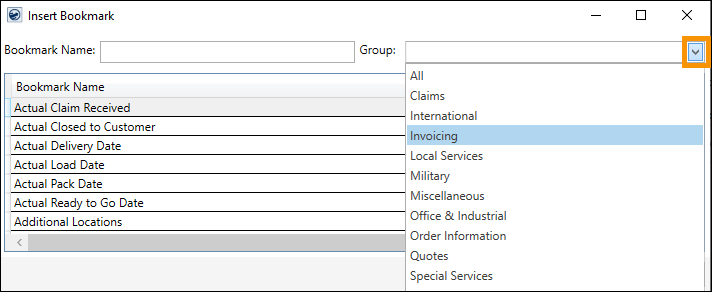
3. Use the Invoicing group to add invoice-related bookmarks.
4. Complete the Template and save.
5. From the Admin Tool, update the Report Profile Setup record(s) for those profiles that should have access to the new report.
6. Click Save.
7. Restart MoversSuite to see the new report in the invoice list.
Instructions with Images:
1. From Tools > Forms Designer, click the New Template button.
2. Set the System Location to Revenue Entry Invoices, which is a new option.
3. When creating the template, use the Invoicing group to add invoice-related bookmarks. Tip: Use the Group dropdown to open the menu and select Invoicing to quickly locate the Invoicing bookmarks.
4. Complete the Template and save.
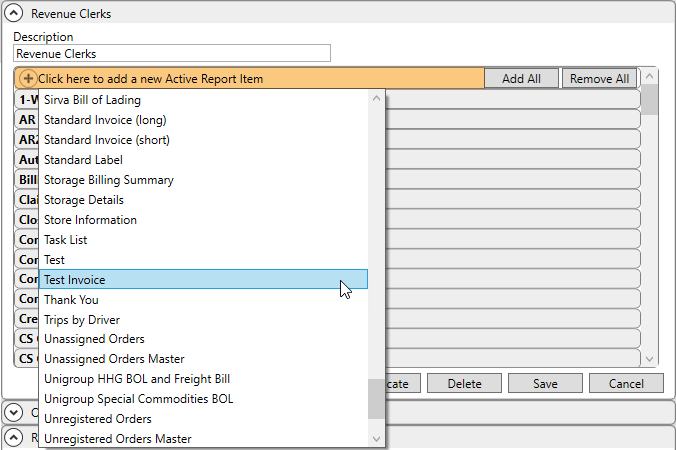
5. From the Admin Tool, update the Report Profile Setup record(s) for those profiles that should have access to the new report. In the example below, the Report Profile Setup record Revenue Clerks is opened. The orange highlighted area is clicked and Test Invoice, the new template that was just created in Step 2, is selected and added to the profile.
6. Click Save.
7. Restart MoversSuite to see the new report in the invoice list.
These are the bookmarks that are now available through Forms Designer, all of which show under the new Invoicing category detailed in Step 3.
|
Bookmark Name |
Description |
|
Invoice Number |
MoversSuite invoice number. |
|
Invoice Header Title |
Title of branch. |
|
Invoice Header Contact |
Contact person associated with the customer address. |
|
Invoice Header Address Complete |
Complete address of branch. |
|
Invoice Header Phone Number |
Phone number of branch. |
|
Invoice Date |
Date when invoice was generated. |
|
Invoice Amount Due |
Total amount due on invoice. |
|
Invoice Due Date |
Date when payment is due by. |
|
Invoice Late Amount |
Total amount due if payment is late. |
|
Invoice Remit-To Title |
Title of remit-to branch. |
|
Invoice Remit-To Address Complete |
Complete address of remit-to branch. |
|
Invoice Remit-To Phone Number |
Phone number of remit-to branch. |
|
Invoice Remit-To Email |
Email of remit-to branch. |
|
Invoice Note |
If a note was added to the invoice, this bookmark shows it. |
|
Invoice Conditions |
A customer-friendly message describing the invoice payment terms. Example: “Payment is due upon receipt of Invoice. Thank you for your prompt payment.” |
|
The following are grids (one row per invoice line item) | |
|
Invoice Line Items |
A grid showing all of the invoice line items, with all of the columns (Item code, Description, Quantity1, Quantity2, Rate, Gross, Discount and Amount). See Figure 3. |
|
Invoice Line Items No Item Code |
A grid showing all of the invoice line items, with all of the columns EXCEPT for Item Code (Description, Quantity1, Quantity2, Rate, Gross, Discount and Amount). See Figure 4. |
|
Invoice Line Items Minimal |
A grid showing all of the invoice line items, with only two columns (Description and Amount). See Figure 5. |
Figure 3 is an example of the Invoice Line Items. Notice each line includes the Item Number. Note that the Invoice Groups are indented.
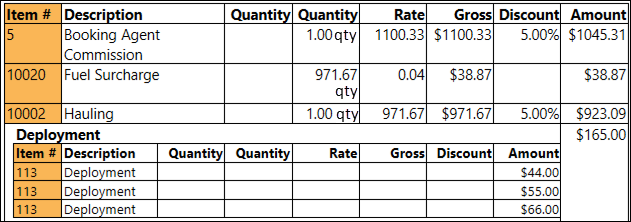
Figure 3: "Invoice Line Items"
Figure 4 is an example of the Invoice Line Items No Item Code. Notice in the image that the Item # columns are not included in this option.
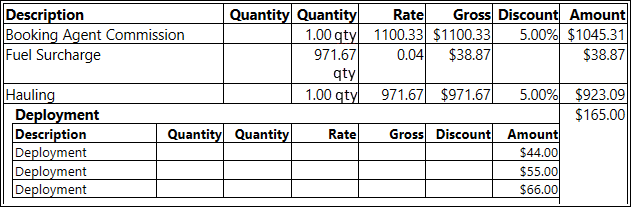
Figure 4: "Invoice Line Items No Item Code" does not list Item Numbers in the grid.
Figure 5 is an example of Invoice Line Items Minimal, which contains just the Descriptions and Amounts.
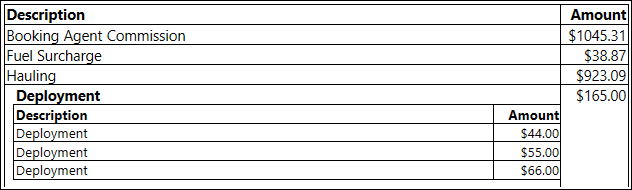
Figure 5: "Invoice Line Items Minimal" just lists the Description and the Amount.
Forms can now be assigned to a System Location of “Revenue Entry Invoices.” When the forms is assigned appropriately to users through the Report Profile Setup, then they will show as options under the Invoice Report setting found when creating or viewing an invoice.
RELATED TOPICS:
Invoicing Bookmarks
Invoicing
New Complete Invoice