RELEASE DATE: October 15, 2024
Versions Include: EnterpriseBISetup.25.3.1.1415
JonasBrowserSetup.25.1.2.349
MoversSuite has tested and verified these updates in this release. Updates with a Reference Number are cases suggested by EWS for improvements.
Feature: Announcements
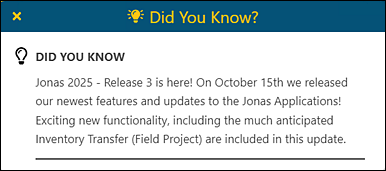
When logging in, a “Did You Know” announcement may appear in the upper left corner of the BI Tool. These announcements are generated by EnterpriseBI. Note that some of these announcements may not be relevant to our use of the BI Tool because EWS has a unique version that is tailored to the needs our of customers.
To access this feature anytime by clicking the new lightbulb icon beside your login name (within the header.)

Enhancement: Report Names
Good news! Report names can now include up to 50 characters.
REFERENCE NUMBER: 7101
Enhancement: Data Sources
A confirmation screen will now appear when changing the Data Source on a report using a BI Tool Chart type component. Data Sources are added within BI Tool Data Sources.
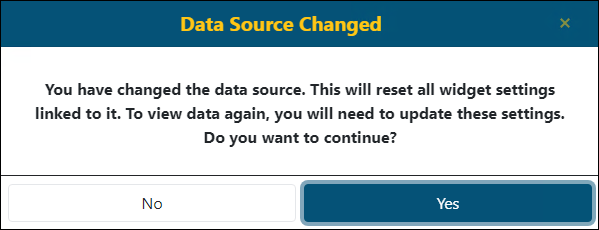
Figure 152: New warning when changing the Data Source on a report.
To explain why this warning/confirmation is needed, look at the image in Figure 153. This report has the Component outlined in red set to “Bar.”
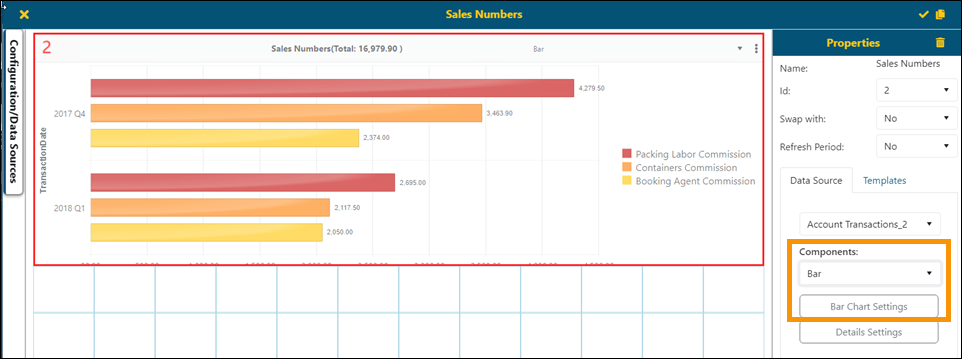
Figure 153: The Properties section of this report show that the Component option is set to "Bar."
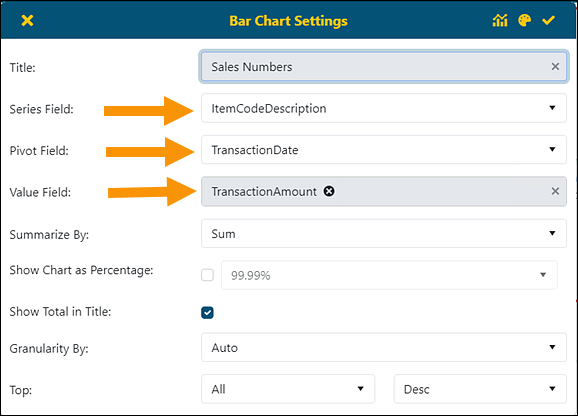
Changing the Data Source on a report that is formatted as “Bar” will erase the settings for that Component. See the settings by clicking the “Bar Chart Settings.” This opens the Bar Chart Settings screen, where the parameters for that format are set. The fields indicated with arrows are the “widgets” referred to in the warning/confirmation. Since these settings are erased with the changing of the Data Source, the warning is helpful. This erasing of settings will happen for any “Chart Type” Component formats. See BI Tool Chart for a complete listing of those Components.
Choosing “Yes” on the new warning/confirmation will save the new Data Source and close the Data Sources screen. Be sure to save the changes to BI Tool Configuration/Data Sources and then update the BI Tool Components settings, if still needed.
Enhancement: Data Source
There is a new Business Category named “Job.” Let us know what information you would like have new BI Tool Views for this category. Email Developer with your ideas!
Fix: Component > Matrix
Previously within the Matrix Setting screen, Static Field(s) would not accept more than three column names. This has now been corrected and more than three can now be set. The Matrix Settings screen is accessed within BI Tool Properties > BI Tool Components > Matrix > Matrix Settings button.
The Matrix Component option also has another fix. When using the Matrix component, the order of the column names set within Static Fields was not being reflected accurately in the report. This bug has been fixed. Within Figure 154 notice the order in which the Static Fields were entered within Matrix Settings screen are the same as on the report.
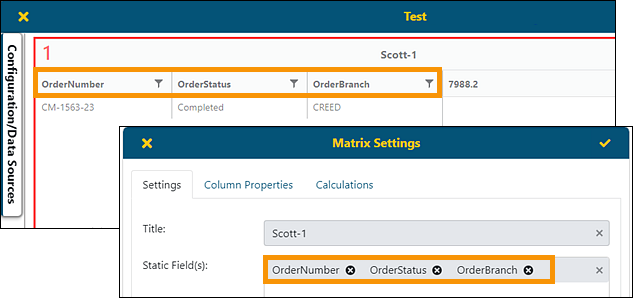
Figure 154: The order of the columns set within Static Fields reflects in the report.
Before this fix, the order of the Static Fields may have looked like this:
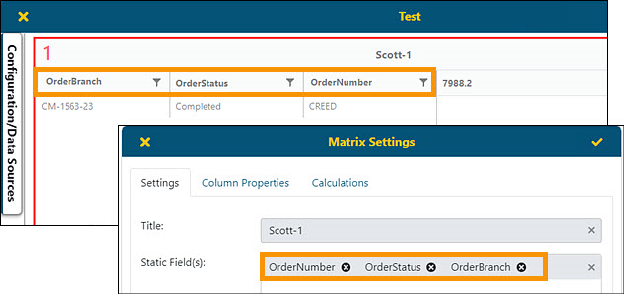
Figure 155: Order Number and Order Branch are ordered incorrectly.