
MoversSuite Administration > Customer Service > Tasks > Task
The Add Task dialog opens when adding or editing a Task item on a Tasks Setup record, aka Task Definition. Use this dialog to define the specifics of each to-do item on the Task Definition. To access this dialog, go to Click here to add a new Task or click the View Details button. Notice the green warning in this section.
Figure 34: This is part of the Task and Task Details section located within Tasks Setup.
When adding a task detail on the Add Task screen, the Task Description is what is visible to users in MoversSuite, so ensure that it is has a clear meaning and easily discerned from other tasks.
The Due Days and Due Type settings work in conjunction with the Dependency Date selection to determine the date the task is due. In the example below, the “Bill Customer” task will have a due date assigned to that is three days after the Actual Delivery date is set on the order. The application automatically sets the task due date when the Actual Delivery date.
The Responsible Role and Responsible User work in conjunction with each other as well. If you know the name of the specific user that should be assigned to the task, then set the Responsible Role to “none.” This activate the Responsible User selector, allowing you to choose from a list of active employees. Otherwise, you can choose from a list of assignments on the order, such as the Transportation Coordinator or Revenue Clerk.
NOTE: Once a task is defined, you can duplicate it to quickly add new tasks. The Duplicate option is only available on existing tasks.
To add a new task detail:
1. Go to Click here to add a new Task (Figure 34).
2. From the Add Task screen, enter the details of the task. See the Technical Table at the bottom of this topic for details on each field.
3. Click Add.
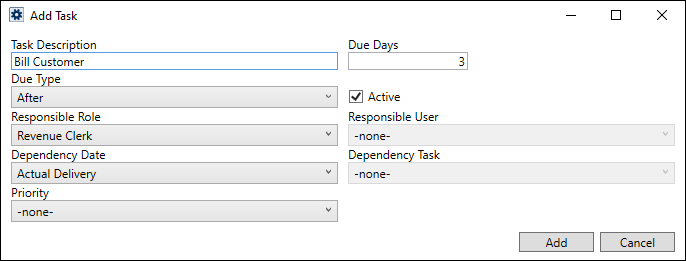
Figure 35: Add Task screen
To edit an existing Task Detail:
1. Open Tasks Setup > choose Tasks Setup record.
2. Locate and open the Task Definition you wish to update, which is located at the bottom of that record.
3. Click on the existing Task item to be updated.
4. Update as needed.
5. Click Save.
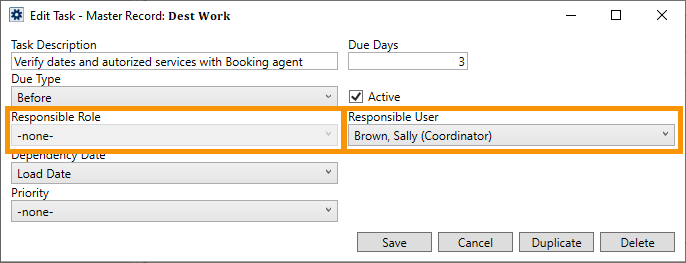
Figure 36: Either Responsible Role or Responsible User can be set on a Task - not both.
To efficiently update several Task Details with a Tasks Setup record:
1. Open Tasks Setup.
2. Locate the Task Setup record needing to be updated.
3. Click the View Details button for the Tasks Group. This opens a listing of all the Task Details.
4. Click the Mass Record Selection Options icon (see Figure 37) and choose Expand All Detail Items. This opens all the records so you efficiently update each Task Detail.
5. Update as needed and save each Task Detail record updated. Remember that Responsible Role must be set to -none- to activate the Responsible User field and dropdown.
6. Click the x in the upper right corner to exit and return to the Tasks Setup record.
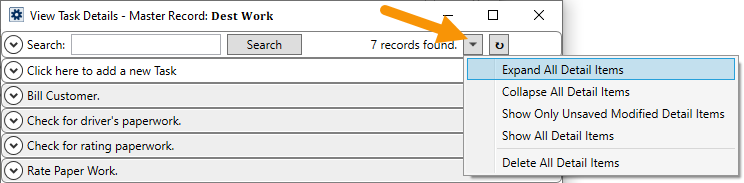
Figure 37: The Mass Record Selection Options icon is indicated with the arrow.
Use the information in the following table to learn more about the specifics of each of these settings.
Technical Field and Function Descriptions
|
Field |
Description | ||||||||||||||||
|
Use this section to define the individual tasks that the application will generate when an order is assed to this particular Task Definition record. These records will display within the Tasks and Workflow tab as well as on the Task List Report. Additional information pertaining to this setup can be found within the Add Task topic. | |||||||||||||||||
|
Task Description |
Enter the name used to identify a particular task (up to 60 characters). Values created here will be available displayed in the Task tab and module. | ||||||||||||||||
|
Due Days |
Enter the number of days (0 – 999) that will be added to or subtracted from the Dependency Date or the due date associated to a Dependency Task to determine the scheduled due date of task completion. A value of 0 (zero) indicates that the Dependency Date or the due date associated to a Dependency Task itself is the due date of task completion; Due Type will be ignored in this case. | ||||||||||||||||
|
Due Type |
The application will compute the task due date as the number of Due Days Before or After the selected Dependency Date or the due date associated to a Dependency Task.
Note: Due Type is ignored when the Due Days field is set to 0 (zero).
| ||||||||||||||||
|
|
Active The Active flag instructs the application to allow the task to be accessible within MoversSuite (checked) or not available (unchecked). Tasks with this flag unchecked do not appear within MoversSuite. | ||||||||||||||||
|
Responsible Role |
Assign the task item to a person assigned to a particular role on the order or claim, such as the Transportation Coordinator. The application automatically assigns this person, when set as this role on the order, as the one responsible for completing the task.
Either Responsible Role or Responsible User can be set. To add a Responsible Role when a Responsible User is set, set the Responsible User to -none- to activate the Responsible Role dropdown.
The following table lists the roles available to assign to a task. The Responsible Role links to specific Labor Types assigned to a user through their Personnel Setup record.
NOTE: For each of the coordinator types, i.e., Logistics Coordinator, OA Coordinator, and Transportation Coordinator, this field once saved, remains unchanged regardless of any changes made on the administrative side.
Leave this setting as “None” to enable the option to choose a specific employee through the Responsible User setting. | ||||||||||||||||
|
Responsible User |
This setting is available when the Responsible Role is set to “None” as this activates the Responsible User field. If Responsible Role is set, this field cannot be set as it is inactive; therefore, to add a Responsible User when a Responsible Role is set, set the Responsible Role to -none- to activate the Responsible User dropdown. Use this setting to define the default person (responsible party) assigned to a task to a specific user. This is a specific user defined within Personnel Setup (only those with a Status of “ACTIVE” and have at least one Labor Type assigned to them are available in the drop-down menu for this field. If this person is not assigned to the branch of the order (Branch tab settings in Personnel Setup), then they will not automatically be set as the task user when the Task Definition is set. | ||||||||||||||||
|
Dependency Date |
Select a date type to base the task due date on. The application will generate a due date for tasks from the dependency date set for the order. If the Dependency Date is “Load Date,” for example, the task due date will be the number of Due Days before or after the Load Date set within Move Information. See Task Dependency Dates or Task Dependency Dates by Category topics for descriptions of the values available to you. There are two option available to you that provide special functionality:
Completion of Other Task Setting this option enables the Dependency Task setting allowing you to choose another task on this same Task Definition to base the due date from.
Document Received You can base a due date of task on when a particular document is added to the order.
| ||||||||||||||||
|
Dependency Task |
If you wish to have a due date of a task be based on the due date of another task when the other task completes, then set the Completion of Other Task option within the Dependency Date field and choose from a list of other task items. The dependent task must already exist within the same Task Definition record of the new tasks.
NOTES: 1. This field is only visible when the “Completion of Other Task” is selected from the Dependency Date dropdown. 3. For “Completion of Other Task” Dependency Date option, this field once saved, remains unchanged regardless of any changes made on the administrative side.
| ||||||||||||||||
|
Priority |
Default a priority to one defined within Task Priority Setup. This value assists those working within the Tasks and Workflow tabs by providing an extra column to group, sort, filters, etc. data. | ||||||||||||||||
|
Document Type |
This is a special field which is only visible if the Dependency Date dropdown is set to the Document Received type. When a document of this Document Type is added to the Document Management system and the Task Definition and Task Group of the same document type are set on the Name, Address, Phone tab, an automatic trigger creates a new task in the Tasks tab, based on the current system date.
NOTES: The Document Received dependency date is only valid for Order Information tasks and will not work with Claims tasks.
Tasks that are created for this type automatically are not removed if the document it was based on is deleted from Document Management.
| ||||||||||||||||
