
This section lists the features, enhancements, and/or fixes made to MSWeb.
Order Find
|
|
Advanced Search feature is available |
An advanced Find Order dialog is available. To access this dialog, you can click on the looking glass icon within the Quick Find. Hover over the icon indicated in Figure 3 and “Advanced Search” pops up as a reminder.
Figure 3: Click the spyglass icon to open the advanced Order Find.
Another way to access this feature through a link available at the bottom of a Quick Find results menu when the list contains more than eight entries. It is labeled “Click here for advanced search.”
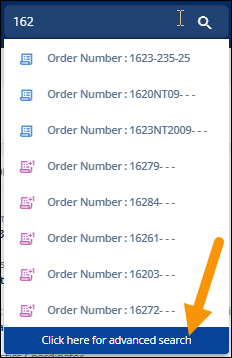
Figure 4: This option shows when results are longer that eight in the list.
From the Find Order dialog, you can search by entering data in one or more of the settings presented. These include:
|
Order Number |
Customer Name |
National Account Name |
Creation Date |
|
Estimate Number |
Order Status |
GBL Number |
Load or Job Start and End Dates |
Once search data is entered, pressing Find will generate a list of matching records. Double-click a record to open it.
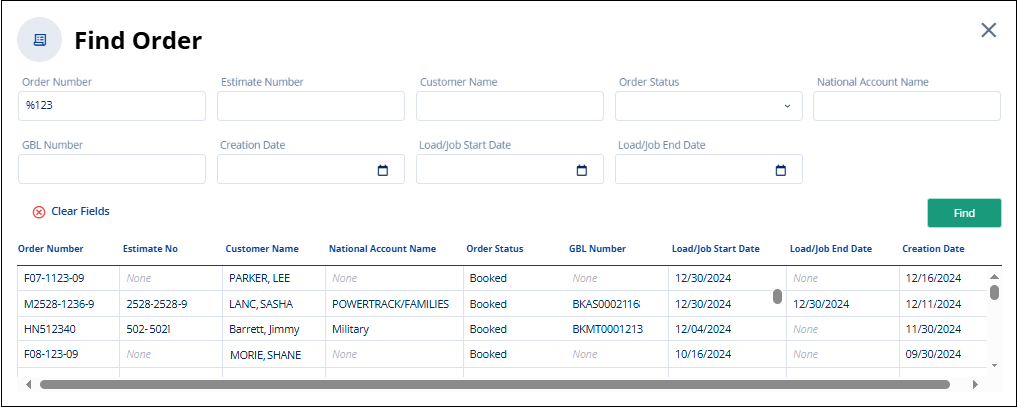
Figure 5: New Find Order screen within MSWeb
Two wildcard characters are available to assist in your searches:
•The percentage (%) character look anywhere within the value for a match.
•Use the underscore (_) character to skip a single character.
Using the Order Number as an example:
|
Example |
Results |
|
123 |
Locates any order that starts with “123”, such as “123-456-25” |
|
_123 |
Locates orders that start with a single character before “123”, such as “Z123” |
|
%123 |
Locates “123” anywhere in the Order Number, such as “INTL-123-25” |
RELATED TOPICS:
INTERNAL REFERENCE: MOV-6917