This section lists the improvements made within MoversSuite Administration - also known as the Admin Tool.
Tasks Setup
|
|
Responsible User can now be set |
In Tasks Setup, when a Responsible User was set, it wasn’t actually being actually saved. Additionally, this wouldn’t be apparent unless that Task Detail was reopened. This has been corrected and now saves correctly.
To set the Responsible User setting on an existing Task Detail:
1. Open Tasks Setup.
2. Locate and open the Task Definition you wish to update.
3. Click on an existing Task item.
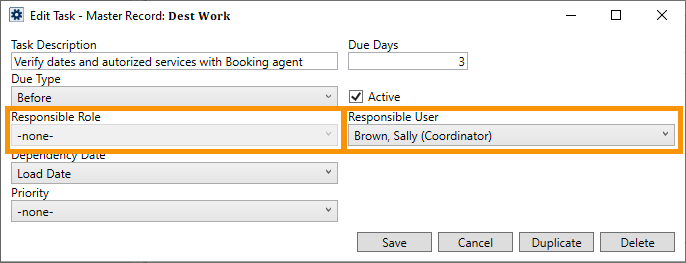
4. Set or ensure the Responsible Role setting is -none- as this activates the Responsible User field and dropdown.
5. Click the Responsible User field’s dropdown and choose a person from the list of active personnel.
6. Click Save.
Figure 1: Either Responsible Role or Responsible User can be set on a Task - not both.
To efficiently update several Task Details with a Tasks Setup record:
1. Open Tasks Setup.
2. Locate the Tasks Setup record needing to be updated.
3. Click the View Details button for the Tasks Group. This opens a listing of all the Task Details.
4. Click the Mass Record Selection Options icon (Figure 2) and choose Expand All Detail Items. This opens all the records so you efficiently update each Task Detail.
5. Update as needed and save each Task Detail record updated. Remember that Responsible Role must be set to -none- to activate the Responsible User field and dropdown.
6. Click the x in the upper right corner to exit and return to the Tasks Setup record.
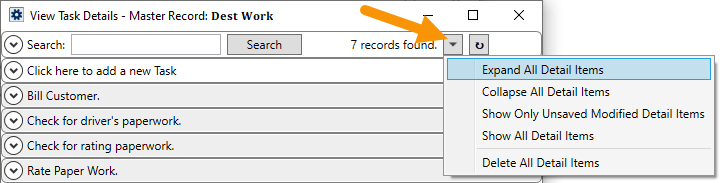
Figure 2: Use Mass Record Selection Options > Expand All Detail Items to open all tasks listed.
These instructions and all related details are listed within the topic: Add Task (Tasks Setup).
RELATED TOPICS:
INTERNAL REFERENCE: MOV-7505