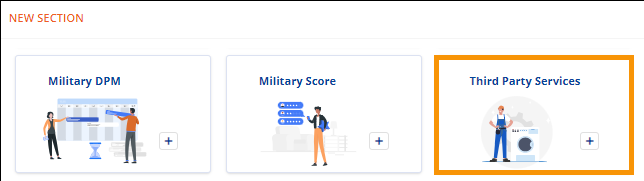
Move Information > New Section > Third Party Services tile
If section has been added: Move Information > Third Party Services section
Add Third Party Services to an MSWeb order by clicking the Third Party Services tile within the New Section, located at the bottom of the screen. (You may need to scroll down).
Figure 83: New Section > Third Party Services tile
When the tile is clicked, Third Party Services now opens under its own section and the tile is removed from the New Section.

To enter a vendor, click the drop-down menu. Or, if needed, click  to open the Find Vendor
screen for a more advanced search for selecting the vendor. Continue to add data
within another field by clicking on a field, such as Purchase Order Number for
example. Enter the data. Click the
to open the Find Vendor
screen for a more advanced search for selecting the vendor. Continue to add data
within another field by clicking on a field, such as Purchase Order Number for
example. Enter the data. Click the  to save or click
  to close and not save any data
entered. When saved, the icons change to edit icon and delete icon as shown
below. Also, when a line item is saved, the Add Third Party Service button
becomes active to enable the ability to add another Third Party Service to the
order.
to close and not save any data
entered. When saved, the icons change to edit icon and delete icon as shown
below. Also, when a line item is saved, the Add Third Party Service button
becomes active to enable the ability to add another Third Party Service to the
order.

Figure 84: Third Party Services section
RELATED INFORMATION:
MSWeb Find Vendor