Order > Navigation Menu >
Send Email
The Add Signature icon  is an option available within Send
Email. Click this icon to create a new signature, edit an existing
signature, create multiple options for signatures, choose a signature for that
email, delete an existing signature, and to set the default signature.
is an option available within Send
Email. Click this icon to create a new signature, edit an existing
signature, create multiple options for signatures, choose a signature for that
email, delete an existing signature, and to set the default signature.
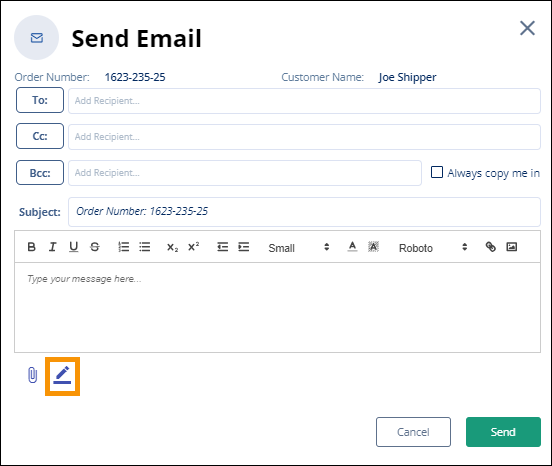
Figure 199: Signature icon
Within this topic are the following:
• To
create a new signature: Step by step instructions on creating and formatting a
signature
• To
select a signature for an email
• How to
create and use a Default Signature
To
create a new signature:
To create the first signature or to add another signature to
the list, click the Add Signature icon  at the bottom of the Send
Email screen. The Select Signature screen opens. (If a signature has
not been created, the Select Signature screen will not show any
options.)
at the bottom of the Send
Email screen. The Select Signature screen opens. (If a signature has
not been created, the Select Signature screen will not show any
options.)
Click the blue Add Signature button on the Select
Signature screen.
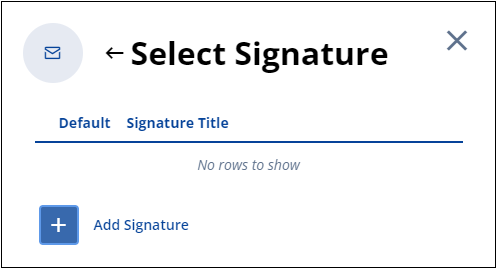
Figure 200: Select Signature
screen does not have any already created signatures listed.
Compose a signature utilizing the Add Signature
screen.
1.
First, name the signature. This is the name that appears in the list when
selecting a signature to add to an email. In Figure 201, the “Signature
Title” – or name of the Signature - that has been entered is “Main.”
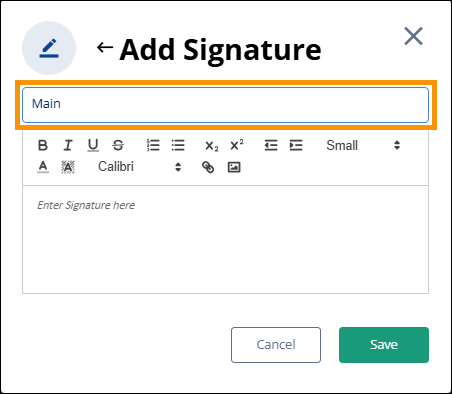
Figure
201: "Main" has been entered to be the Signature Title
2.
Enter any text you wish to have in the signature.
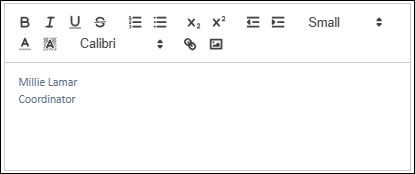
Figure 202: Text has been added to
the signature.
3.
To format the text, first highlight the text. To highlight text, click and drag
the cursor across the text. Highlighted text has a blue background.
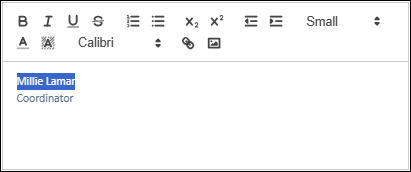
Figure 203: Highlighted text.
4.
Then, click on any format to apply that format to the highlighted text. See the
Icon Bar Explanation Technical Table within MSWeb Send Email for details
on each of the customization options available.
The first format applied to the
name is that “Large” was chosen as the font size.
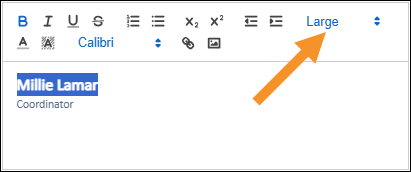
Figure 204: Font size is set to
"Large."
The next format applied is by
clicking the font color icon  to open the color selector. Green was
chosen. After all formats that you wish are applied, click anywhere else within
the text box or Add Signature screen to remove the highlight. Note, do not click
outside the Add Signature screen or everything will be lost. Clicking outside
Add Signature goes back to the Select Signature screen.
to open the color selector. Green was
chosen. After all formats that you wish are applied, click anywhere else within
the text box or Add Signature screen to remove the highlight. Note, do not click
outside the Add Signature screen or everything will be lost. Clicking outside
Add Signature goes back to the Select Signature screen.
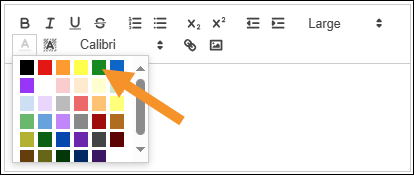
Figure 205: Font color is set to
green.
5.
Continue to format text as needed.
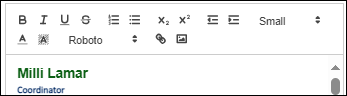
Figure 206: Format applied to both
lines.
6.
If you wish to add a logo, click to where to you wish to put the logo (indicated
by the arrow) and then click the picture icon (indicated by the orange outline.)
Choose the image from your file system to add it to the signature.
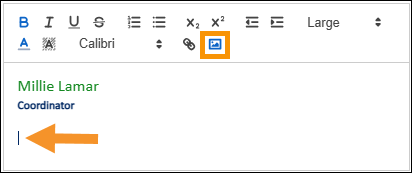
Figure 207: Adding a logo
7.
When all is set, click Save.
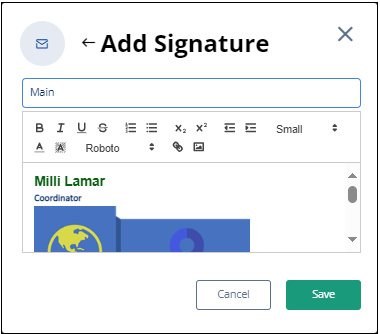
Figure
208: Use Add Signature screen to create a signature.
Once saved, the signature will list in the Select Signature
screen. Information on the Default option is detailed below within “How to
create and use a Default Signature.”
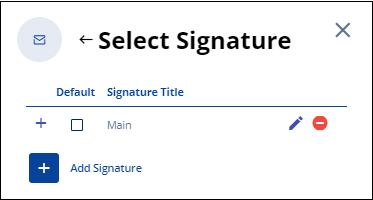
Figure 209: Select Signature
screen lists one signature, "Main."
Icon Bar Explanation Technical Table:
|
|
|
|
|
|
|
Bold |

|
|
|
Italic |

|
|
|
Underline |

|
|
|
Strikethrough |

|
|
|
Numbering |

|
Click this icon to start numbering line items. |
|
Bullet |

|
Click this icon to start adding a bullet to line
items. |
|
Subscript |

|
An example is H20. |
|
Superscript |

|
An example is 10010 |
|
Indent Left |

|
|
|
Indent Right |

|
|
|
Font Size Selector |

|
Click anywhere within this field to open the Font Size
menu. Scroll through the list and click the font to be used. |
|
Font Color |

|
The default font color is black. Highlight character(s)
and click on the icon to choose a color to apply to the highlighted
characters. |
|
Field Color |

|
The default field color is white. Highlight an area and
click on the icon to choose a color to apply to that area. |
|
Font Selector |

|
Click anywhere within this field to open the Font
Selector menu. Scroll through the list and click the font to be used. Or,
highlight characters and then click on the selector to choose and apply a
different font. |
|
Insert Link |

|
This icon allows you to apply a URL to text. In the example below,
the words Support Site are highlighted and then this icon is clicked.

Then, another box opens where you insert the URL that is
to be linked to the highlighted copy. It can be different from the
highlighted words.

Click Save.
The link will look like this for this example:

|
|
Insert Picture |

|
Click this icon to open your file directory. Click on
the picture that is to be inserted into the body of the email.
Use this icon to insert a picture, such as your company
logo, into your signature when creating a signature. See MSWeb Add
Signature for details. |
To
select a signature for an email:
From the email, click the Add Signature icon. From the
Select Signature screen, choose a signature on the list by clicking the
 icon next the signature
to be used in that email. Once this icon is clicked, the screen will close
and the signature will show as being added to the bottom of the email.
icon next the signature
to be used in that email. Once this icon is clicked, the screen will close
and the signature will show as being added to the bottom of the email.
Note that if no signatures have been added, there will not be
any in the list. See instructions below on how to add a new signature.
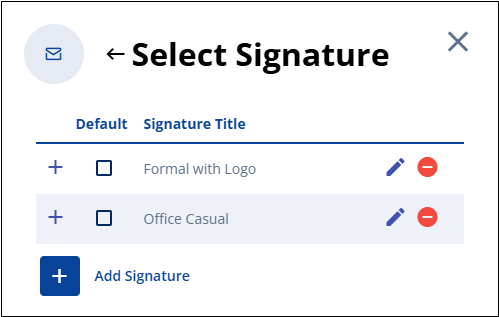
Figure 210: Select Signature
screen with no signature set as the Default.
How
to create and use a Default Signature:
To make a Signature the default Signature, click the Add
Signature icon to open the Select Signature screen. Simply click the box in
the Default column for the signature that will be the default. Exit the Select
Signature screen by clicking the X in the upper right corner.
When an email signature is set as the Default signature, the
Default signature will apply to the email currently being created within that
Send Email screen and to any future emails, including when sending emails
on other Orders. The Default Signature remains in effect until the default
status is removed from that signature. Remove a default status by clicking the
orange checkbox to uncheck the box. Exit the Select Signature screen by clicking
the X in the upper right corner. Once the default status is removed, the
signature continues to list as an option within the Select Signature
screen. The default status can be applied to another signature, or not.
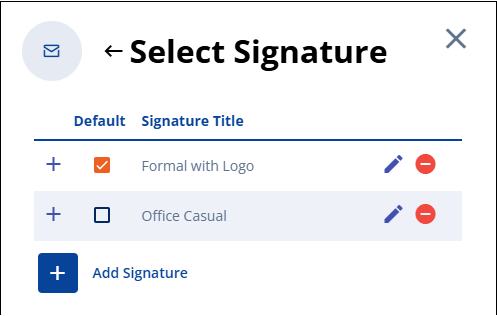
Figure 211: Select Signature
screen with a signature set as the Default.