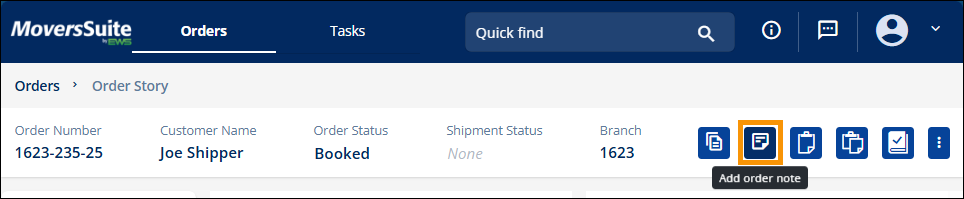
To add a note to an order within MSWeb, clicking the Note icon indicated in the Figure 158.
Figure 158: Add Note icon
Clicking the Note icon opens the Add Note screen.
The Note Status determines whether the note is visible outside of MoversSuite or not. The default Note Status is Private. “Public” allows the note to be shared with external systems.
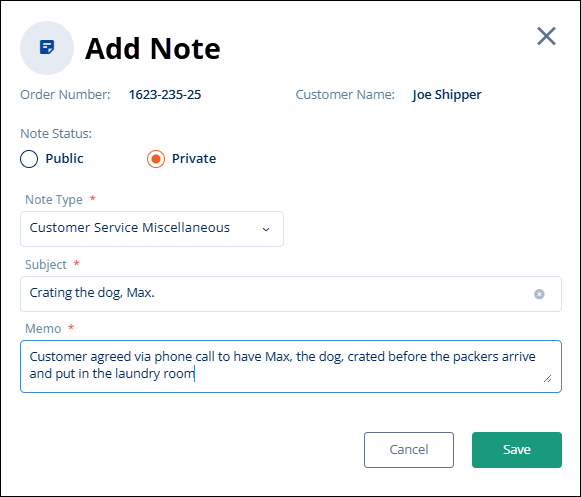
Figure 159: Add Note
Note Type is required, as indicated by the red asterisk, so choose the Note Type from the dropdown. Options shown here are set within Note Type Setup.
Enter the Subject of the Note and the Memo. Click Save to save the note to the order.
Once saved, the Note will appear within the MSWeb Order Timeline found within the MSWeb Order Story. In
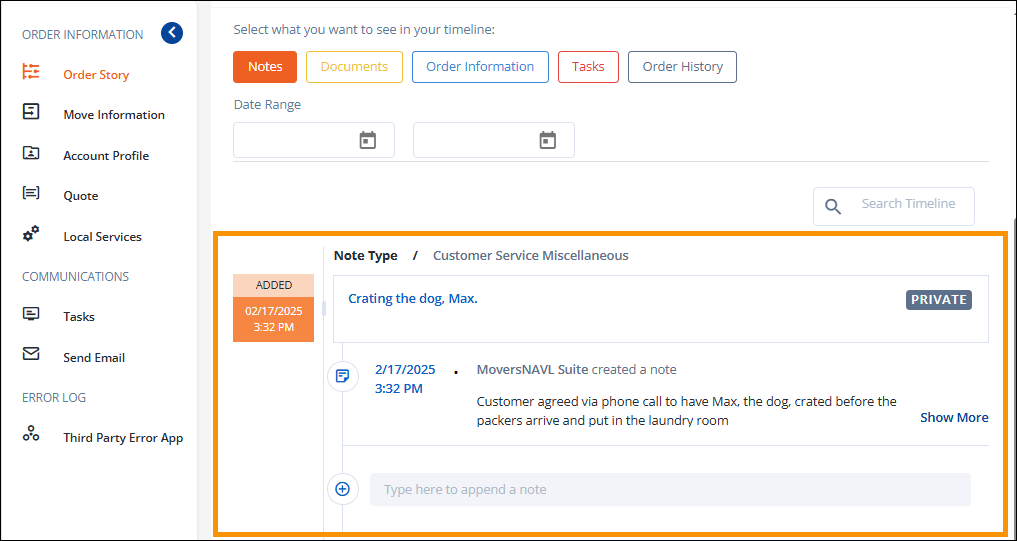
Figure 160: Only Notes are currently shown in the Order Timeline as only the Notes button is selected as a filter.
Use the “Type here to append a note” to add information to the note. In Figure 161, this was used to add “The dog’s name is Chubbs.”
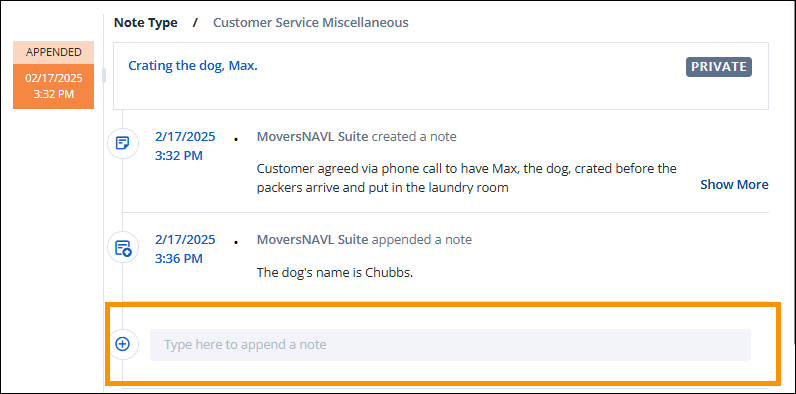
Figure 161: A comment was added to the Note using "Type here to append a note."
RELATED INFORMATION: