 to include
documents from the order in the email.
to include
documents from the order in the email. Navigation Menu > Communications > Send Email
From the Send Email screen, click the Add Attachment
icon to include
documents from the order in the email.
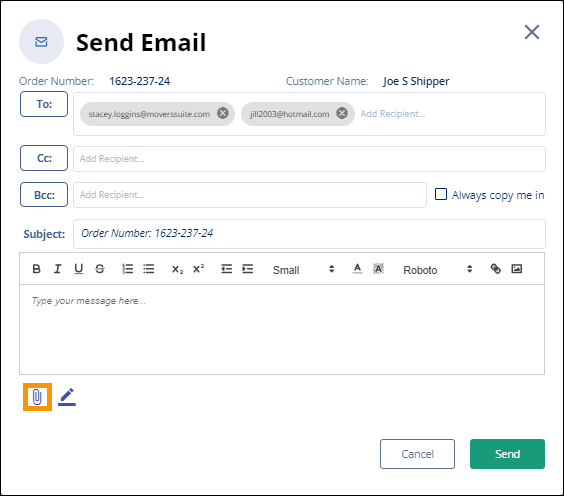
Figure 196: Attachment icon
Clicking the Add Attachment icon will open the Attach from Document Management screen (Figure 197). This screen contains a list of the documents that are attached to the order. The documents that list are those shown in the MSWeb Order Timeline within MSWeb Order Story. Click on the document(s) to attach to the email and, when clicked, they will be highlighted in blue. Click Add. Or click X in the upper right corner to exit the screen.
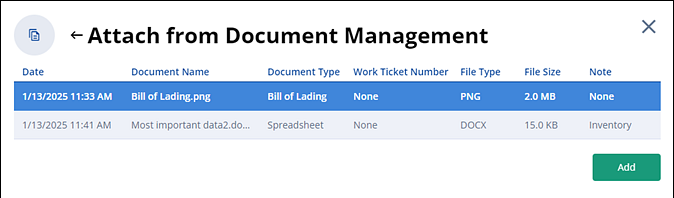
Figure 197: Attach from Document Management screen lists documents already attached to the order.
Once a document is added to the email, it will list under the body of the email, as shown in Figure 198. Use the scroll bar indicated if needed to view the document name bubble. To remove the document from the email, click the X next the document name. For details on what file types are permitted within MSWeb, see MSWeb Documents.
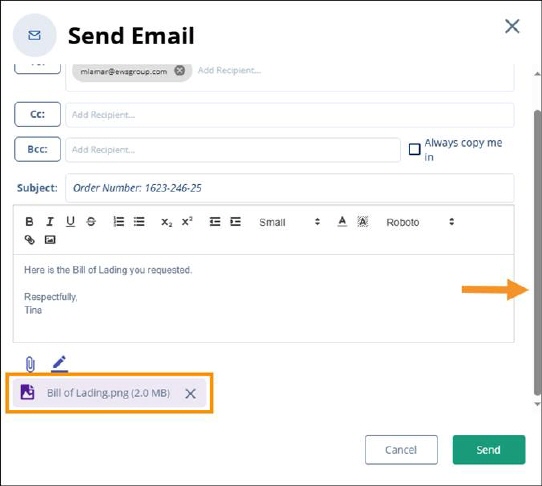
Figure 198: This indicates the document is attached to the email.