 or
or  ) .
) .MSWeb > Order Information > Account Profile
Account Profile (Figure 91) has the information that is available within the desktop version of MoversSuite > Account Profile. Features on this screen include the following sections and details:
Account Profile
Set and update the profile assignment and see note attached to the profile.
Contacts
View the contacts associated with the profile along with setting the Primary contact. Click Primary (under Contacts) to make a contact Primary. Click any field to edit. Click the Information icon to see more information for a contact.
Services
Manage any services associated with the profile, include the option to override services.
Documents
View any documents linked to the profile in this section. This section provides groupings and the option to open the individual documents.
Like so many of the areas within MSWeb, Account Profile is a
section which is expandable and collapsible. Click the arrow in any section to
expand or collapse or expand that section ( or ) .
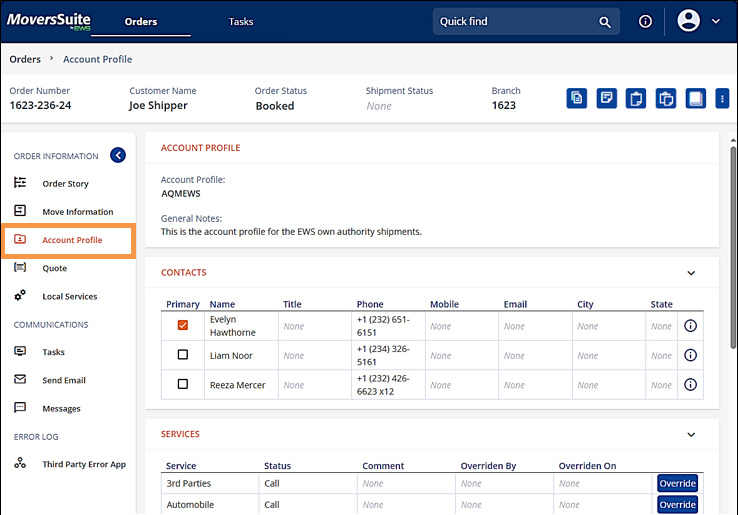
Figure 91: Account Profile
The Account Profile field is also located within MSWeb Navigation Menu > Move Information (Figure 92). Scroll to the Workflow Details section to find the Account Profile field.
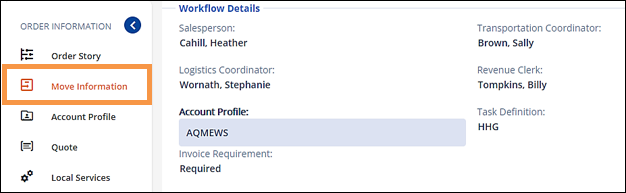
Figure 92: Account Profile field located within Move information > Workflow Details.
The functionality is the same in both. To set or edit the field, click the Account Profile field which makes the field blue indicating that it is “active,” as shown in Figure 92. Choose an Account Profile from the dropdown menu. Click the checkmark to save. A confirmation screen pops-up and click Yes to complete the save (Figure 93).
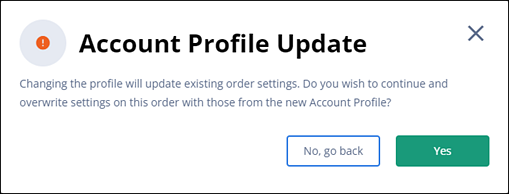
Figure 93: Confirmation for Account Profile edits.
To remove an Account Profile that was incorrectly set, click on the Account Profile field, and then click the X icon (indicated in Figure 94) to remove the profile. Then click the checkmark to save the change.
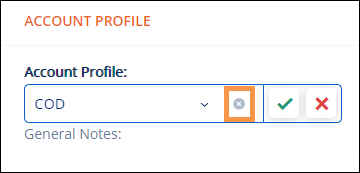
Figure 94: Click blue X icon to remove the Account Profile setting.
If an Account Profile has been set to inactive during the order, the Account Profile will continue to show on the order; however, that inactive Account Profile will no longer be available within the Account Profile dropdown. Should an attempt be made to edit the field, the option will not be available so simply exit out of the edit, and the inactive Account Profile will remain in the field. Account Profiles can be set as Inactive within their Account Profile Setup within the Admin Tool.
RELATED INFORMATION