
Crew leads must be added to Personnel Setup to manage jobs; therefore a contractor or someone designated to be the crew lead must be signed up within Personnel Setup to manage the job. If you wish crew members to have access to MSCrew, they need to be set up with their records, as well. Of note, crew members can use Personnel Setup records with role names, such as ABC Moving Driver 1, instead of their actual names. This is valid if crew members are not on the payroll.
Setup for a Contractor and/or a Contractor and their crew is as follows:
Setup Area: Personnel Setup
1. To add a crew record, from Admin Tool > Personnel > Personnel, press Click here to add a new Employee.
2. From the General tab: Create Personnel record(s).
a. Enter Last Name and First Name.
b. Set their Status to “ACTIVE.”
c. Enter an Employee Number.
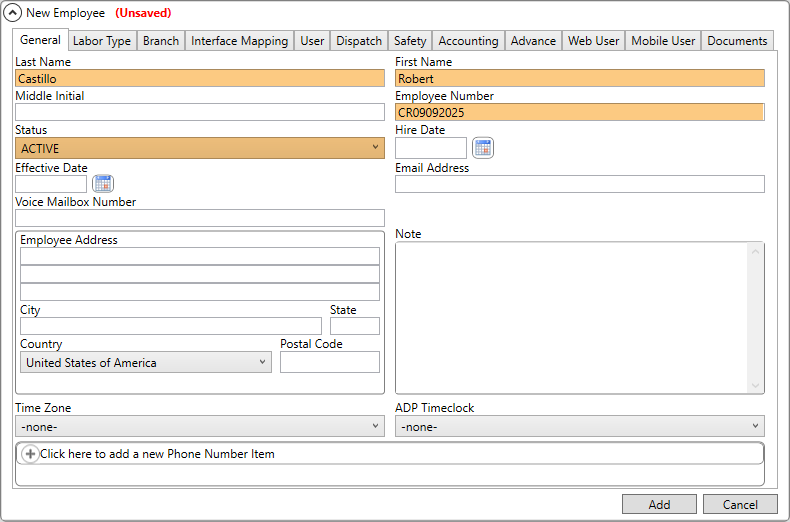
Figure 139: Personnel Setup record > General tab
3. From the Labor Type tab: Use this tab to add a Labor Type on all Personnel Setup records created.
a. To add a Labor Type to the Personnel Setup record, click the “+” next to Click here to add a new Active Labor Type to open the dropdown menu.
b. Click on a Labor Type.
For the primary contractor, you can define them with a Labor Type of “Contractor” or similar naming convention.
For other crew, they can be defined as “Temporary” or more granular as needed, such as “Temp – Movers.” This naming convention allows dispatchers to exclude these employees from non-contractor employees.
NOTE: Labor Type options that list here are set within Labor Type Setup.
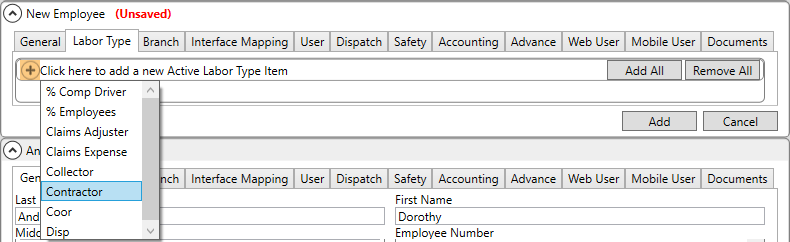
Figure 140: Personnel Setup record > Labor Type tab
4. From the Branch tab: Associate the branch(es) to which that person is available to work.
To add a Branch to the Personnel Setup record:
a. To associate a Branch to the Personnel Setup record, click the + next to Click here to add a new Branch Item to open the dropdown menu.
b. Select a branch from the dropdown menu. More than one branch can be associated to a Personnel Setup record. If more than one branch is associated, select one to be the default Branch within the Default Branch field.
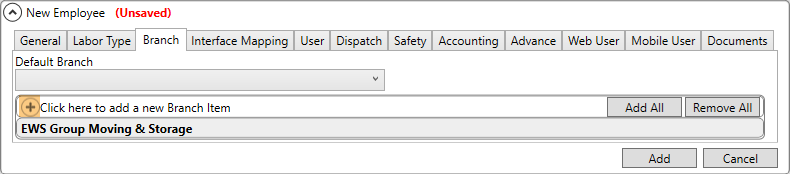
Figure 141: Personnel Setup record > Branch tab
5. From the Dispatch tab: Optional
a. Set the Temp – Allow Overlapping Service Hours for all contractor and crew members. This allows them to be assigned to multiple, concurrent services. Leave this option unchecked if you wish to only have crew punch into one job at a time.
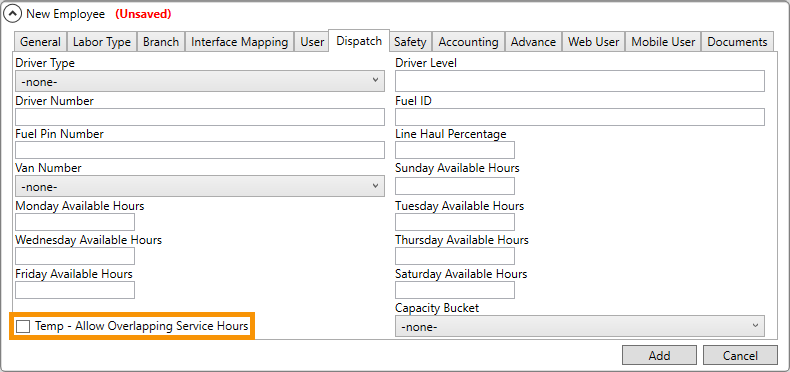
Figure 142: Personnel Setup record > Dispatch tab
6. From the Mobile User tab: The contractor – or crew lead - will need to access the mobile device. Use this tab to grant them appropriate access. If you wish for others on the contracting crew members to access the mobile device, then update their records accordingly.
NOTE: Crew do not have to be mobile users to be assigned to jobs by the lead. They can be set up within the other Personnel Setup tabs and then skip setup on the Mobile User Tab. When a Personnel Setup record has all the other tabs set and not this one, they are still visible to the Lead and able to be assigned to jobs.
a. Set the User ID and Password accordingly. If you wish the individual person to manage their own passwords, then check the Allow Mobile Password Reset box on their Personnel record and then also ensure that it is set on the Mobile Api Setup record (see instructions within MSCrew Contractor MoversConnect Setup.)
b. Set the Mobile User Type to “MSCrew.” Disable a person from accessing the mobile app by selecting “Disable Mobile User” for this option.
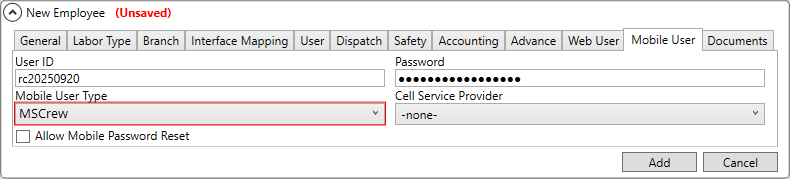
Figure 143: Personnel Setup record > Mobile User tab
7. Click Add to add that Personnel Setup record.
8. Repeat, if needed, for other crew members and/or contractors.