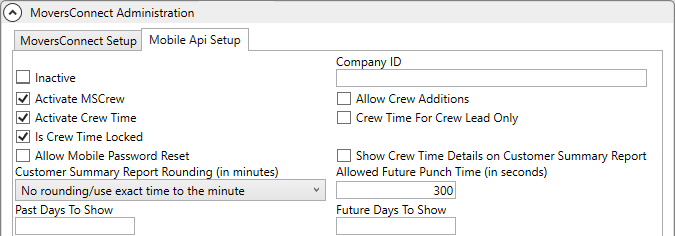
The Mobile Api Setup includes options that affect all MSCrew users, not just contractors and their team.
To update Mobile Api Setup for MSCrew contractor settings, go to MoversConnect Setup > Mobile Api Setup tab and then:
1. The Activate MSCrew box should be already checked. If not, check this box.
2. Check the Allow Crew Additions box. This allows the contractor (or any user assigned to the job) to see a full list of workers. This allows the person the ability to add others to the job.
3. Check the Activate Crew Time box.
4. Check either the Is Crew Time Locked or the Crew Time for Crew Lead Only box.
a. Check Is Crew Time Locked if you wish for crew to only punch in at the current time. If the Is Crew Time Locked box is unchecked, then crew can update the time they punch in on that given day.
b. If you also wish to lock down the lead from altering their punch in and out times, then tick the Crew Time For Crew Lead Only and then tick the Is Crew Time For Crew Lead Locked flag as well.
NOTE: There are multiple combinations for these options that are available to you. See the Technical Table within Mobile Api Setup for detailed instructions.
5. If you wish the contractor and crew to be able to update their passwords, then set the Allow Mobile Password Reset. The reset generates from their mobile device and can be updated as needed through the Mobile User tab on their Personnel Setup record.
Update other settings as desired as detailed within Mobile Api Setup. Refer to the MSCrew Setup and Administration topic for further setup information.
Figure 144: MoversConnect Setup > Mobile Api Setup tab. Clicking on options prompts other options. See Mobile Api Setup for more details.