
This section lists the features, enhancements, and/or fixes added to MoversSuite and MoversSuite integrations.
General Functionality and Atlas Integration
|
|
The option to indicate a VIP order is now available. |
A new VIP option can be set at the order level. When set, a gold star appears next to the Order Number in the blue Information Bar, as shown in Figure 1. Users can manually set this flag in the MoversSuite desktop application. By default, this option is not set.
When an order is downloaded from Atlas and marked as a VIP Order, the VIP flag is set in MoversSuite. If an order is downloaded from Atlas that is not set as a VIP order, MoversSuite reflects this as “Empty.”
Figure 1: Order with the VIP setting set. The gold star indicates this status as well.
There are three states for this setting:
|
Setting |
|
Description |
|
Not Set |
|
This is the default setting. |
|
Empty |
|
This is “not VIP” as sent down by Atlas. This setting also applies when the VIP is “unchecked.” |
|
Set |
|
This has VIP status checked. |
To set an order as VIP:
1. Click the Edit button
2. Check the VIP box
3. Press Save.
This setting and indicator (the gold star) will be available in a future release for MSWeb.
RELATED TOPICS:
INTERNAL REFERENCE:
MOV-7522
ADP Integration
|
|
Setting needs to be adjusted due to an ADP process |
During our testing, it was discovered that the setting “MinimumTimeBetweenPunches” needs to be adjusted due to a processing variable introduced by ADP. Essentially, this setting must be used to avoid possible failures within ADP. Failures can occur when an employee time punches overlapping or “nearly-overlapping” as they usually fail to upload correctly to ADP.
As an example, an employee has the following time punches
(both on the same date): 8:00 AM - 12:00 PM and 12:02 PM - 4:02 PM. These
punches may fail as the punches are too close together.
To prevent
failure, it is highly recommended that MinimumTimeBetweenPunches setting is set
to 5. If this setting was in place, then the second time punch should be
sent to ADP as 12:05 PM - 4:05 PM; however, the punch times do not change in
MoversSuite.
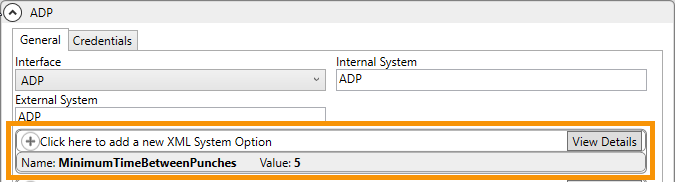
Figure 2: XML System Option MinimumTimeBetweenPunches is set here.
To change this setting:
1. Go to Admin Tool > Administration > XML System Setup> ADP record.(Figure 2)
2. Click View Details within “Click here to add a new XML System Option.” (Figure 3)
3. This opens this screen. Expand the record for MinimumTimeBetweenPunches. (Figure 4)
4. Change the value to 5.(Figure 4)
5. Click Save and click the x in the upper right corner of the screen.
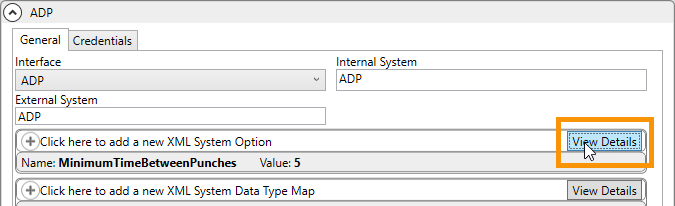
Figure 3: Click View Details to edit MinimumTimeBetweenPunches setting.
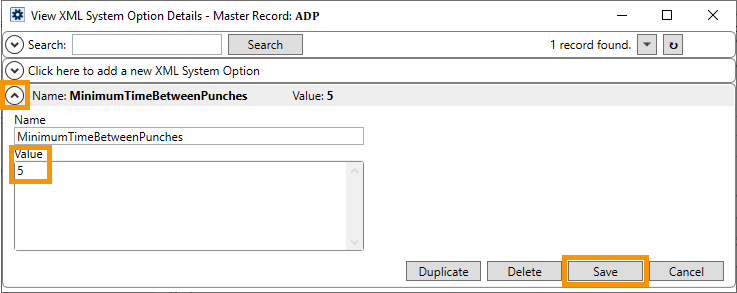
Figure 4: Edit the value here and click Save.
INTERNAL REFERENCE: MOV-7605
RELATED INFORMATION:
Report: Storage Details
|
|
Description is not showing within the Storage Details report |
This bug seemed to occur sometime on or after the 2025.18 release. The issue was that the Storage Details report no longer displayed anything within the line item Description, which should match what shows within the Billing Items record, such as “Monthly Perm Storage.” The description was showing on the Storage Billing Summary.

Figure 5: Highlighted area shows empty Description, which was the bug.
INTERNAL REFERENCE: MOV-7600
Recurring Billing
|
|
Generating Storage can lead to error |
Error 280 was the result when one of the following selections occurred when generating Recurring Billing for storage:
•Select all branches
•Select all storage types
•Select all branches and select all storage types
The error didn’t happen if one branch and one storage type was selected.
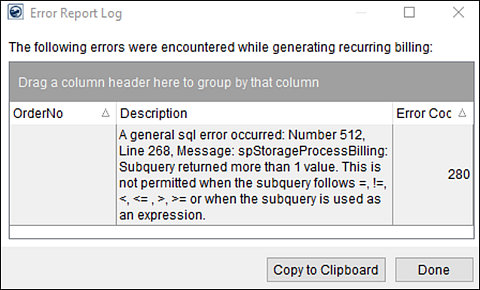
Figure 6: This is the 280 error and its Description.
INTERNAL REFERENCE: MOV-7602
Billing
|
|
Multiple Alternate Addresses could throw an error |
This error occurred if the GP Customer had alternate Customer Addresses and if there were 2 or more of the 3 address lines with data within them.
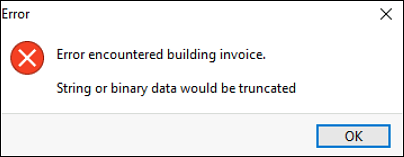
Figure 7: Error that resulted for this bug.
INTERNAL REFERENCE: MOV-7603


