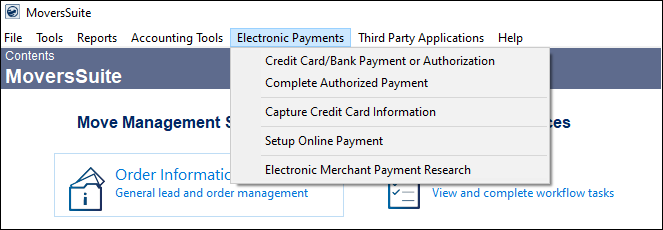
NOTE: This menu only appears if your company has setup to use Remedy Payments or PYXiS as their Electronic Merchant payment processor(s). Additionally, the user must have the appropriate security setup within their Personnel Setup record. If both of the criteria are not met, the Electronic Payments menu will not appear. See Electronic and Online Payments Setup (Remedy) and/or Electronic and Online Payments Setup (CSI Pay) for setup details.
Use this menu to process credit card transactions and authorizations (and/or ACH payments if your Electronic Merchant service provider enable it.) Financial information captured using the Electronic Payment Menu can be attached to the Customer, when allowed by selecting that option. To capture financial information that is only to be used for a Recurring Billing record, use AutoPay Setup (Recurring Billing) which captures the information for that payment setup only. Payment Methods set up through the Electronic Payments Menu will list within the Payment Method dropdown within AutoPay Setup (Recurring Billing).
Figure 16: Electronic Payments Menu
Use this menu to process Electronic Payments (including Automatic Payments) or establish Online Payments. Also, use this menu to problem solve when a payment is unsuccessful. Each option is used as follows:
Credit Card/Bank Payment or Authorization
•To process a credit card payment now, see Electronic Payments (Pay Now)
•To authorize a payment amount, which is to be completed later.
Complete Authorized Payment
•Use to process Authorized Payment(s) that were created through Credit Card/Bank Payment or Authorization. The Authorization can be charged up to the Authorized Amount.
•Use to revoke the Authorization.
Capture Credit Card Information
•To securely enter credit card information (using a secure web link ) that the customer has given you. When complete, the credit card will appear in dropdowns under “Payment Method” within Recurring Billing > Autopay Setup tab and “Payment Method on Hand” within Credit Card/Bank Payment or Authorization. See Electronic Payments (Pay Later), Automatic Payments, or Online Payments for more information on using the captured credit card information.
Setup Online Payment
•To establish an Online Payment for a customer using a provided email address. The Online Payment link gets emailed to the customer and the customer must complete the Online Payment link for payment. See Electronic Payments (Pay Later) for additional details.
•To capture a Payment Method for future use and the assigned email address(es) receive notifications when the payment method has been captured or payment has been made.
•For when the customer wishes to establish a payment method for Recurring Payments through a secure payment site.
Electronic Merchant Payment Research
•To this option to see if Electronic Payments or Online Payments were successful or unsuccessful.
•To find out from the payment processor the reason for the card being declined (only available if the transaction was processed through CSI Pay.)
•To generate a Cash Receipt on a successful payment.
•To reattempt a payment that was previously not successful.
•To see if a payment was made when customer clicks Enter when they weren’t supposed to during a processing.