Setup Area: BI Tool Data Sources > Main, Second or Third > Customization
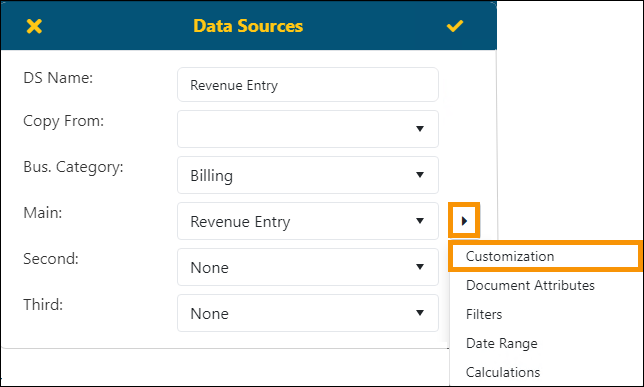
Edit a Column Title within a report, go to that view’s Data Source, and click on the menu options icon to choose “Customization” (Figure 77).
Figure 77: See BI Tool Data Sources for more details on this screen.
Then, to edit a Column Title, first select the Column Title to be renamed or updated. In Figure 78, the Column Title that will be renamed is “SysUDFLabel1” which is indicated.
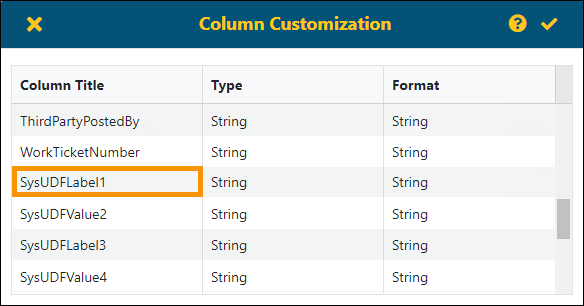
Figure 78: Column Customization screen
Clicking on the title, opens the field for editing.

Figure 79: Field is active for editing.
Make any changes to Column Title and then click anywhere outside that section (but still within Customization) to change the title name.

Figure 80: Title is renamed "Custom Field Name."
To save these changes, click the checkmark in the upper right corner of Customizations. To not save the changes, click the x to exit without saving.

The following technical table provides additional information on the functionality of this screen:
|
Fields |
Description |
|
Column Title |
This is the name that will shown as the Column’s Title in the report. Click a field to edit a name. |
|
Type |
This field determines how the data is presented in the report. The option chosen determines the options available within Format. Once an option is chosen, click OK to save the edit. The options are: Numeric/Currency Boolean Date/Date Time String |
|
Format |
The option chosen within Type determines the options available within Format. Each option has an example to show how the data will be formatted. |
|
|
Click to exit the screen without saving changes. |
|
|
Click to save the changes and exit the screen. |

