Configuration/Data Sources > Data Source
The Date Range option allows date parameters to be set on the Data Source being created or when used when editing a Data Source. When set here, the Date Range will be applied to all reports created from that specific data source on which it is set. Date Range
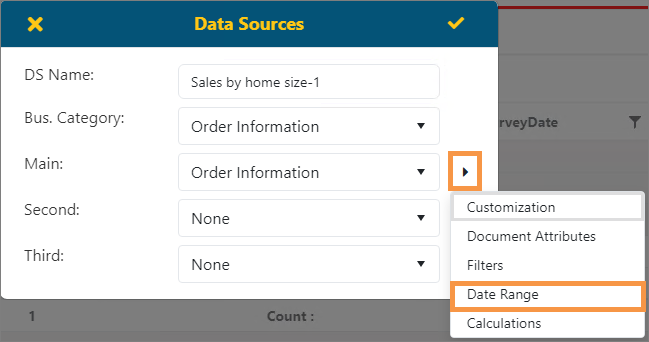
Date Range is found within Data Sources where indicated within Figure 85.
Figure 85: Data Sources > click menu button to access Date Range.
To apply a Date Range to a Data Source:
1. Click “Date Range” within Main (or Second or Third if available) level of this Data Source.
2. Click the dropdown to choose from the date options. The date options that list are based on those found within the BI Tool View chosen within Main (or Second or Third). Use the search indicated by the arrow within Figure 86 to narrow the results.
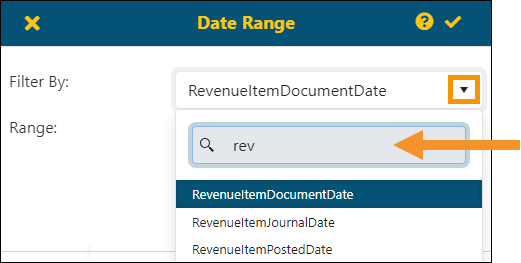
Figure 86: Date Range screen. Dropdown and Search are indicated.
3. Select a Range. In the image below, “Custom” was selected. Enter the From: and To: fields. Or, choose from any of the options listed in the table after the image.
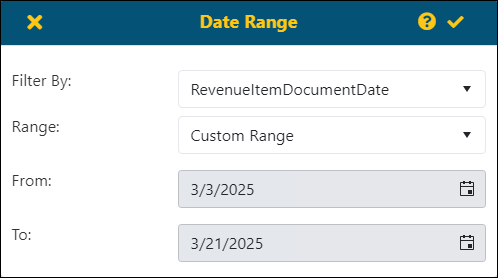
4. Click the checkmark in the upper right corner to save or the x to exit without saving.
The options available within Date Range are the following:
|
Category |
Option |
Added Details |
|
Range |
No Range |
|
|
|
Custom |
|
|
Week |
Current Week |
|
|
|
Last Week |
|
|
|
Next Week |
|
|
|
Last Two Weeks |
|
|
Month |
Current Month |
|
|
|
Last Month |
|
|
|
Next Month |
|
|
|
Same Month Last Year |
|
|
Quarter |
Current Quarter |
|
|
|
Last Quarter |
|
|
|
Next Quarter |
|
|
|
Same Quarter Last Year |
|
|
|
Calendar Quarter |
|
|
|
Last Calendar Quarter Year |
|
|
Year |
Year-To-Date |
The Year-to-Date filter begins at the start of the year and runs to the end of the current month. For example, if you apply the Year-to-Date filter on August 21st, the filter criteria will consider to the end of August. |
|
|
Year-To-Date – Last Year |
This is the same as Year-To-Date but for the previous year. |
|
|
Last Year |
|
|
|
Next Year |
|
|
Days |
Today |
|
|
|
Last 7 Days |
|
|
|
Last 30 Days |
|
|
|
Last 90 Days |
|
Of note, the Year-to-Date filter begins at the start of the year and runs to the end of the current month. For example, if you apply the Year-to Date filter on August 21st, the filter criteria will consider to the end of August.