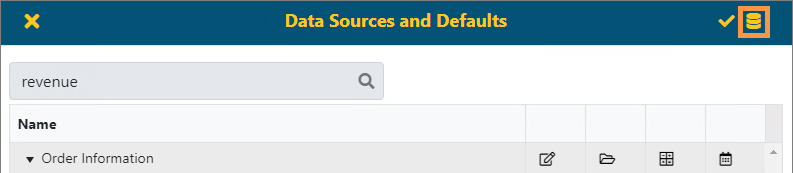
BI Tool > Settings > Administrator > Data Sources and Defaults > Current Queues icon
On the BI Tool Data Sources and Defaults Administration screen, clicking the icon in the upper right corner of the screen (Figure 42) opens the Current Cache Queue screen (Figure 43). If there are views set through the BI Tool Cache Scheduling functionality, they will list here.
Figure 42: Current Queues icon on the Data Sources and Defaults screen.
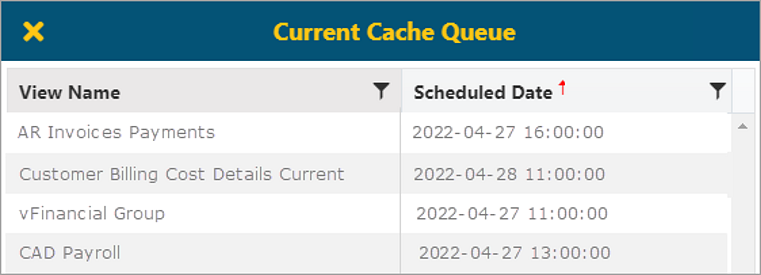
Figure 43: Current Cache Queue screen