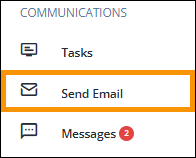
Navigation Menu > Communications > Send Email
Send an email from an order using “Send Email” from within the MSWeb Order Story > MSWeb Navigation Menu (Figure 171).
Figure 171: Navigation Menu > Communications > Send Email
Clicking “Send Email” opens the Send Email screen, and auto-populates the Order Number and Customer Name list at the top of the screen as reference. The Order Number on the screen also populates the Subject line.
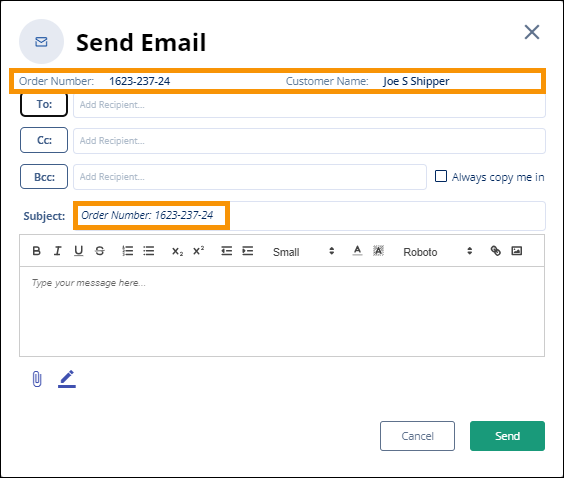
Figure 172: Send Email screen
The contacts are divided into two sections. The top section under “Select addresses from the following list of contacts on this order…” are the contacts established on the order through Customer Contact (found within MSWeb Order Story and MSWeb Move Information). All the options that list are the same for the To, Cc, or Bcc buttons. Use a scroll bar on the right to view additional contacts in the list in that section. Click on one or more contacts and, when clicked, the contact turns blue to indicate it is selected. In Figure 173, “Graham Levy” and “Joe S Shipper” have been selected and highlighted in blue.
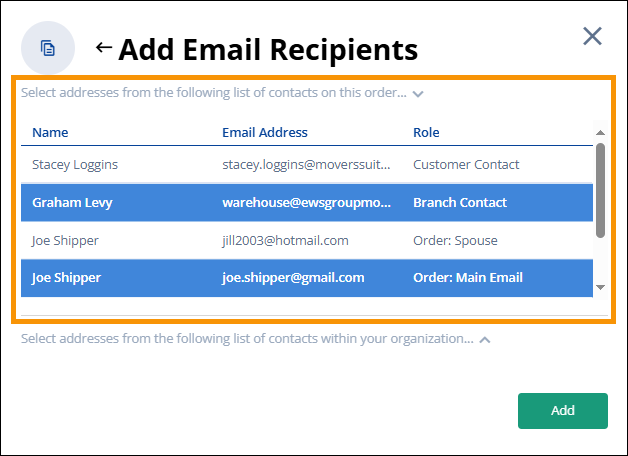
Figure 173: Add Email Recipients screen > Order related email address listing
The second section is in the lower portion of the Add Email Recipients screen. Click anywhere on the “Select addresses from the following list of contacts within your organization” (as shown in the Figure 174) to open the list of contact. This list of contacts are personnel within your organization with an email set within Personnel Setup who are not already related to the order. Click on a name to highlight and select a name, if needed..
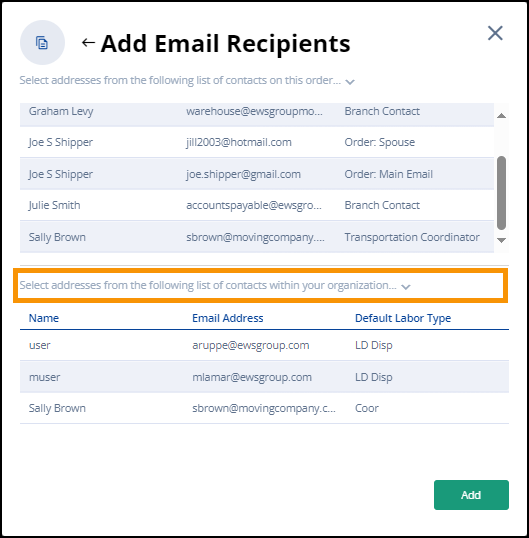
Figure 174: Add Email Recipients from company listing
To manually add an email address to the email, type in the
email address and click enter. No need to enter commas or semicolons between
email addresses. Click the delete icon  next to a name to remove that name
from the list.
next to a name to remove that name
from the list.
When ready, click Add to adds the highlighted names/email addresses to the email.
Now, enter text within the text box. Or, copy text from elsewhere and paste into the text box. Use the format options to customize the body of the email, if you like. A table with the detail of all the format options is located within MSWeb Add Signature > To create a new signature.
To add an attachment to the email, use the Add Attachment
icon  below the
text box. You may have to scroll to locate that icon. See MSWeb Add Attachment for details on this
feature.
below the
text box. You may have to scroll to locate that icon. See MSWeb Add Attachment for details on this
feature.
Should you wish to add a signature, use the Add Signature
icon  below the
text box. You may have to scroll to locate that icon. See MSWeb Add Signature for details on this
feature.
below the
text box. You may have to scroll to locate that icon. See MSWeb Add Signature for details on this
feature.
Click Send to send the email.
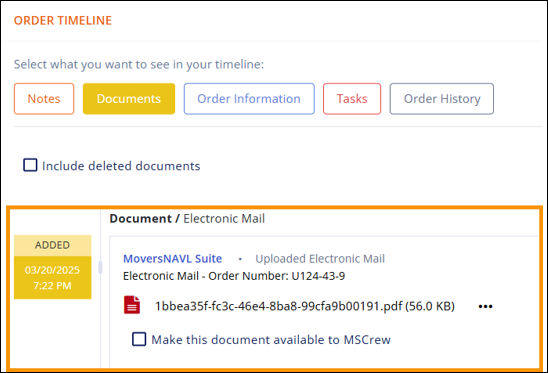
Sent emails are converted to PDFs and list within MSWeb Order Timeline. Any documents attached to the order are show
RELATED INFORMATION: