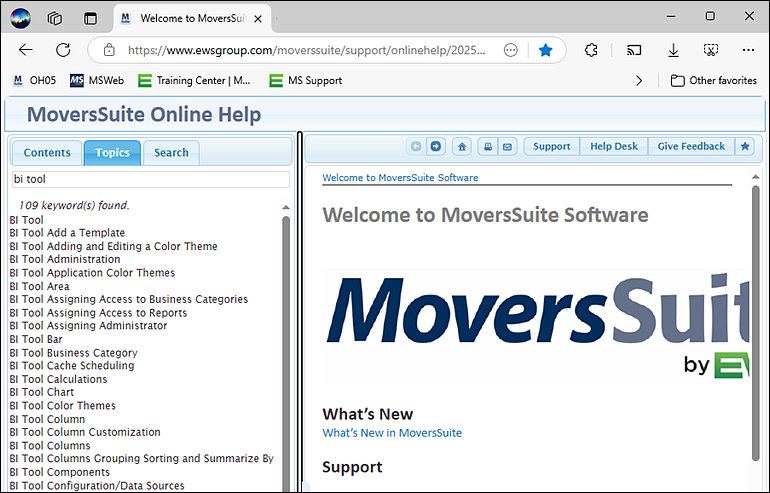
Use the MoversSuite Online Help to find information regarding the BI Tool. As there are many products covered in the Online Help, it is helpful that there are two key ways to find information specific to the BI Tool:
1. In the Topic List search, enter BI Tool (Figure 2). Most topics for the BI Tool will start with “BI Tool” as shown. This search will list almost all the information on the BI Tool that is in the Online Help. Scroll through the list to see if what you need is listed. Please note that the topics are constantly updated.
Figure 2: BI Tool is entered as the search under the Topic List tab
2. Enter the screen name as it appears in the BI Tool. Many of the screen names are detailed in the Online Help. For example, in Figure 3, the screen name is Data Sources; however, as all topics for the BI Tool start with “BI Tool”, enter “BI Tool Data Sources” in the search under Topic in the Online Help (Figure 4).
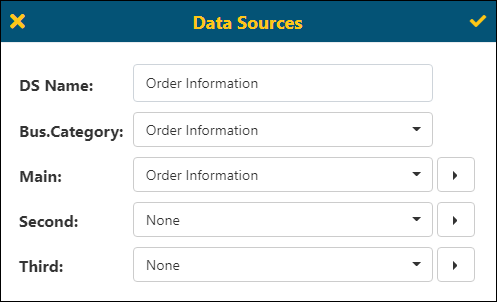
Figure 3: This screen is named Data Sources
Scroll down to see all the information and related links to topics.
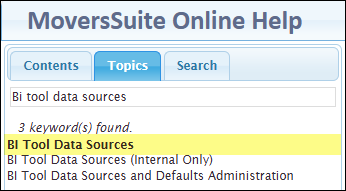
Figure 4: Enter Data Sources in the Topic List search
If just “Data Sources” was entered under Topics, there would not be any search results.
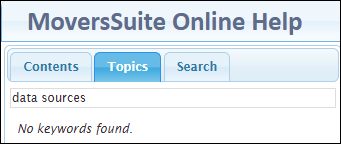
Figure 5: No results found.
3. Under Search, entering “Data Sources” under Search, will return every topic that contains the words “Data” and/or “Sources.” This may not be helpful as you’d wish. It is recommended to but “Data Sources” within quotes so that the search specifically looks for that name within all topics within the MoversSuite Online Help, as shown in Figure 6. The list will be organized with the topics that contain the highest quantity of the search to the topics that contain the search phrase the least. By default, the search is highlighted so that results can be quickly located within the topic.
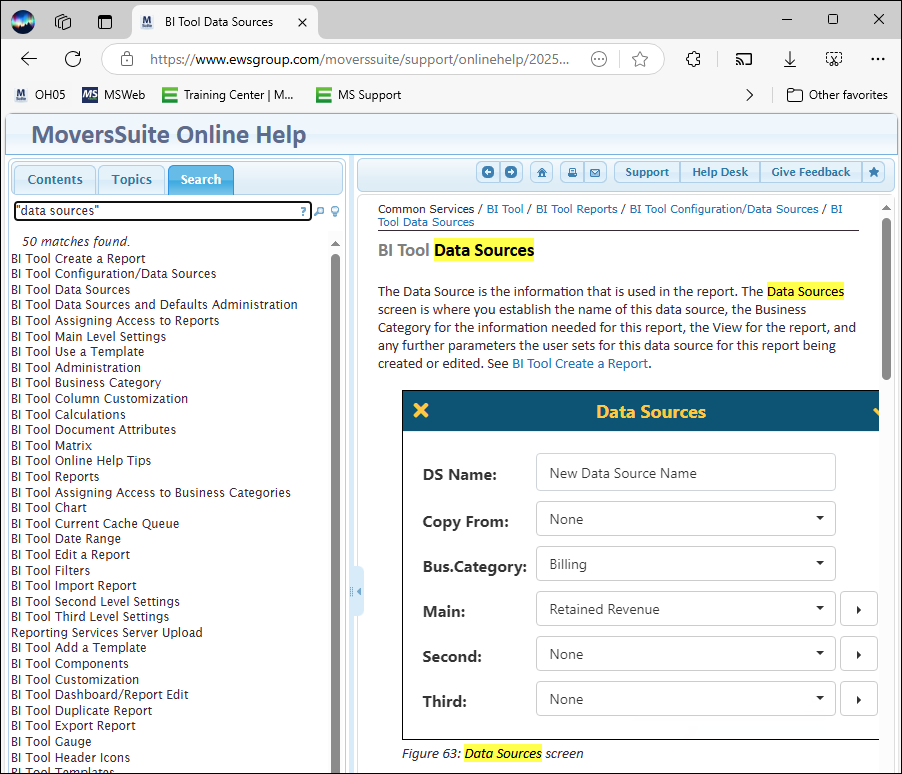
Figure 6: Note that search phrase is put in quotation marks.