MSWeb Navigation Menu > Communications > Messages > Order Level messages > Contacts tab
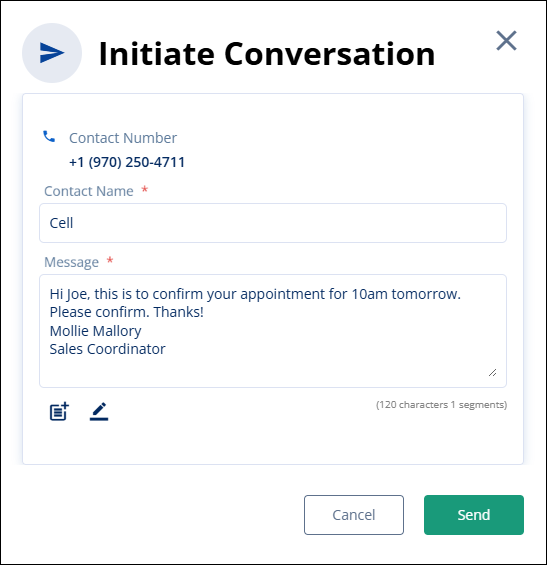
This topic details how to start a conversation and how to use the “Initiate Conversation” screen.
Figure 203: Initiate Conversation
The Contact is not listed under Contacts:
First, if a Contact is not listed under Contacts, click Add Custom Number. This will open the Initiate Conversation screen. Enter the Contact Number, Contact Name, and Message, such as in Figure 204. Add a signature if one is not already there and if needed. (See MSWeb Message Signature.)
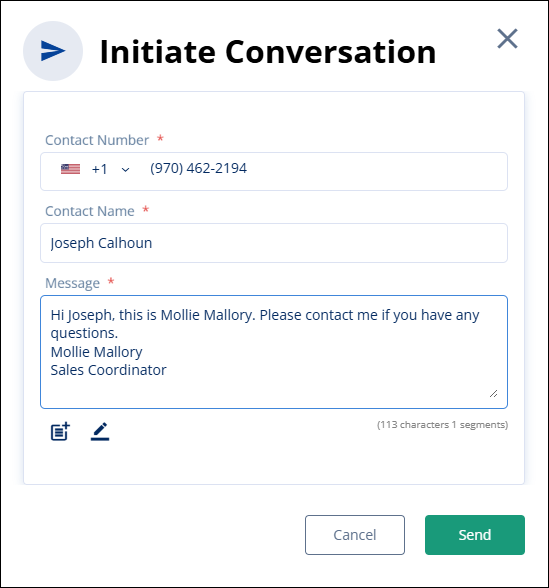
Figure 204: Blank Initiate Conversation screen.
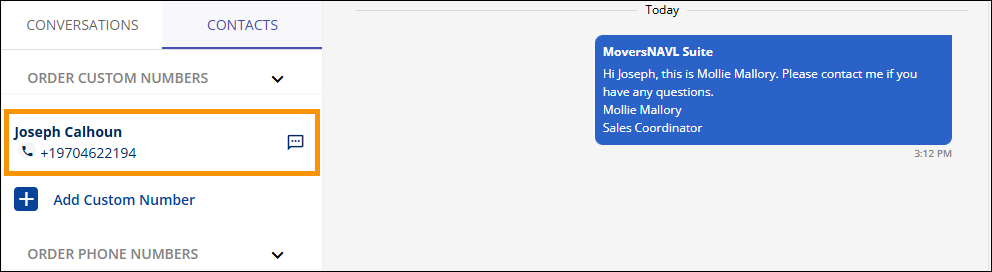
When this message is sent, the Contact Name and Contact
Number will now list under Messages > Contacts (see MSWeb Contacts (Messages) for this topic.)
The Message icon  indicates that there is a
conversation with that contact.
indicates that there is a
conversation with that contact.
The Contact is listed under Contacts:
Contacts that list within the Contacts tab are the ones that
have been entered for the Customer Contact within MSWeb Order Information, which list under
the Order Phone Number header. Any Contact Name and Contact Number entered using
“Add Customer Number” will list under Order Custom Numbers header. Contacts that
have the Message icon  already have conversations to which
you are subscribed. Messages that have Subscribe icon
already have conversations to which
you are subscribed. Messages that have Subscribe icon  have conversations involving that
Contact on that order; however, you are not subscribed and cannot yet Message
that Contact nor receving any messages in that conversation. To subscribe, see
MSWeb Subscribe to
Conversation.
have conversations involving that
Contact on that order; however, you are not subscribed and cannot yet Message
that Contact nor receving any messages in that conversation. To subscribe, see
MSWeb Subscribe to
Conversation.
To start a conversation, where there isn’t any conversation with that Contact on the order, go to MSWeb Messages > Contacts tab and click the + icon next to a Contact.
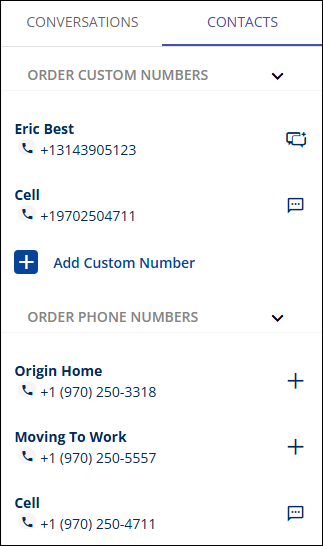
Figure 205: Click + to start a conversation with that contact.
If a Contact or phone number is not listed within Contacts, add the Contact using the + Add Custom Number button.
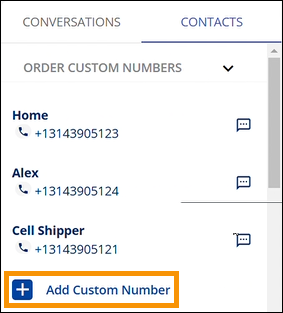
Figure 206: Use Add Custom Number to add a phone number not already associated with that contact.
With either option, the Initiate Conversation screen opens. Enter the phone number, the Contact Name, and a Message. The option to use a template or edit a signature is available. In the image below, the Signature is already set; however, the message has yet to be entered. Start the message above the Signature. When ready, click Send to send the message or Cancel. When the message is sent, the contact and that phone number will list within Contacts and the conversation will show under the Conversation tab.

Figure 207: Initiate Conversation screen.