This section lists the features, enhancements, and fixes added to MoversSuite and MoversSuite integrations.
BI Tool
|
|
Customer Name added to the Order Financial View |
The Customer Name has been added to the Order Financial View. This column shows as “CustomerName” (no space) when adding through a Data Source. This view also currently contains the Customer Number from your accounting system.
RELATED TOPICS:
BI Tool View by Field (Order Information)
REFERENCE NUMBER: MOV-7365
|
|
“Has Access” permission no longer allows the ability to edit the Data Source on a Report. |
The BI Tool user permission “Has Access” is a read-only permission. This permission was erroneously allowing users the ability to edit a Data Source; however, only the “Is Creator” permission should allow this ability. Enterprise BI has this fixed so that now only the “Is Creator” permission will allow the editing of a report within the BI Tool Data Source.
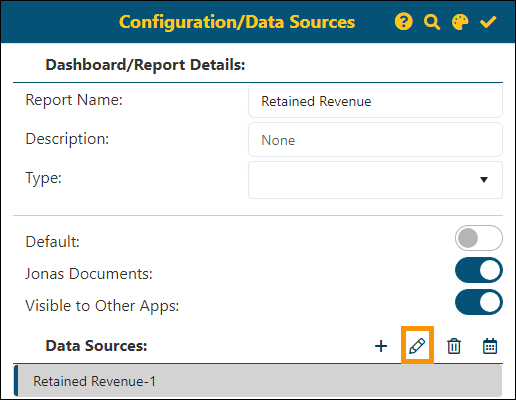
How does a user know if they have an “Has Access” or “Is Creator” permission on a report? When a user tries to edit a report in BI Tool Data Sources (such as using BI Tool Filters and BI Tool Date Ranges, for example), if the edit icon is active then they have an “Is Creator” permission. An example of an active edit icon is shown in Figure 1. Users with only a “Has Access” permission on a Report will see an inactive edit icon should they attempt to edit the Data Source for that Report (Figure 2).
Figure 1: Active edit icon within Configurations/Data Sources.

Figure 2: Inactive edit icon is indicated.
RELATED TOPICS:
BI Tool Assigning Access to Reports
REFERENCE NUMBER: MOV-7387
|
|
Sort Order functionality now works in headers that allow this ability. |
Sort functions are now working properly within areas such as Data Sources > Customization > Column Titles.
To use Sort, click on the header to prompt the ascending or descending sort arrow. (MOV-6506)
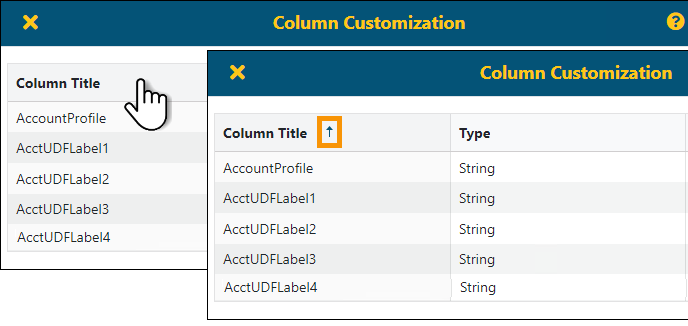
Figure 3: Click a header (left image) to prompt the Sort arrow (right image).
REFERENCE NUMBER: MOV-6506