Order > Navigation Menu >
Send Email
The Add Signature icon  is an option available within Send
Email. Click this icon to create a new signature, edit an existing
signature, create multiple options for signatures, choose a signature for that
email, delete an existing signature, and to set the default signature.
is an option available within Send
Email. Click this icon to create a new signature, edit an existing
signature, create multiple options for signatures, choose a signature for that
email, delete an existing signature, and to set the default signature.
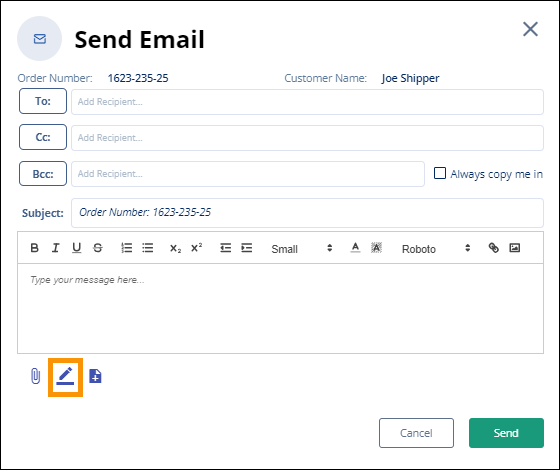
Figure 162: Signature
icon
To select a signature for an email:
From the email, click the Add Signature icon. From the
Select Signature screen, choose a signature on the list by clicking the
 icon next the signature
to be used in that email. Once this icon is clicked, the screen will close
and the signature will show as being added to the bottom of the email.
icon next the signature
to be used in that email. Once this icon is clicked, the screen will close
and the signature will show as being added to the bottom of the email.
Note that if no signatures have been added, there will not be
any in the list. See instructions below on how to add a new signature.
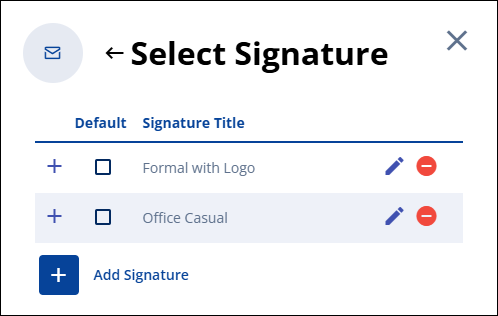
Figure 163: Select Signature
screen with no Signature set as the Default.
To create a new signature:
To create the first signature or to add another signature to
the list, click the Add Signature icon  at the bottom of the Send
Email screen. The Select Signature screen opens. (If a signature has
not been created, the Select Signature screen will not show any
options.)
at the bottom of the Send
Email screen. The Select Signature screen opens. (If a signature has
not been created, the Select Signature screen will not show any
options.)
Click the blue Add Signature button on the Select
Signature screen.
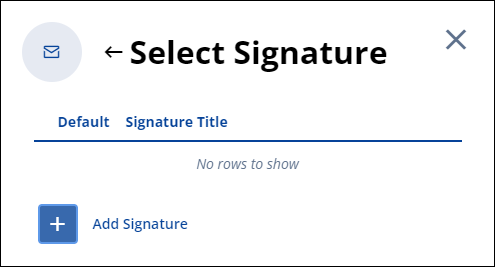
Figure 164: Select Signature
screen does not have any already created signatures listed.
Compose a signature utilizing the Add Signature
screen. First, name the signature. In Figure 165, the name entered is
“Main.” Use the Font selector, font size selector, enter a logo, or use any of
the other options to customize your signature. See the Icon Bar Explanation
Technical Table within MSWeb Send Email for details on each of the
customization options available. When finished, click
Save.
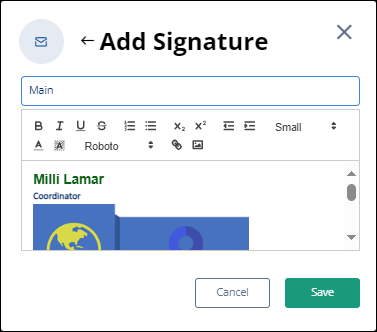
Figure
165: Use Add Signature screen to create a signature.
Once saved, the signature will list in the Select Signature
screen. Information on the Default option is detailed below within “How to
create and use a Default Signature.”
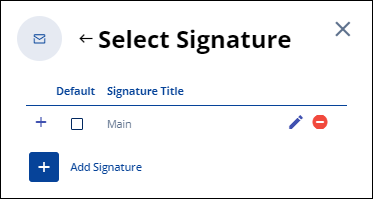
Figure 166: Select Signature
screen lists one signature, "Main."
How to create and use a Default Signature:
To make a Signature the default Signature, click the Add
Signature icon to open the Select Signature screen. Simply click the box in
the Default column for the signature that will be the default. Exit the Select
Signature screen by clicking the X in the upper right corner.
When an email signature is set as the Default signature, the
Default signature will apply to the email currently being created within that
Send Email screen and to any future emails, including when sending emails
on other Orders. The Default Signature remains in effect until the default
status is removed from that signature. Remove a default status by clicking the
orange checkbox to uncheck the box. Exit the Select Signature screen by clicking
the X in the upper right corner. Once the default status is removed, the
signature continues to list as an option within the Select Signature
screen. The default status can be applied to another signature, or not.
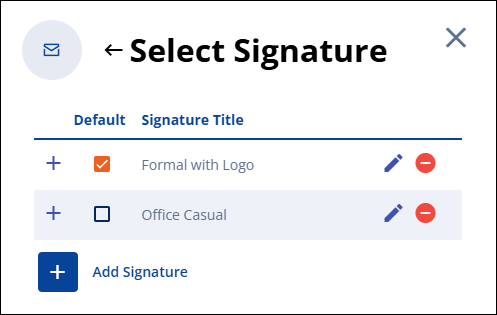
Figure 167: Select Signature
screen with a signature set as the Default.