
This section lists the features added to MoversSuite.
Text Messaging Conversations Screen Improvements
The Text Messaging Conversations screen has been improved with the following features added:
Background color added to the selected conversation to make the record stand out better.
Contact name and phone number added to the top of the right pane. This was done to ensure that you are communicating with the correct party.

Update counter that displays in the conversation summary box is in red font.

The following screen displays each of these improvements (Figure 1).
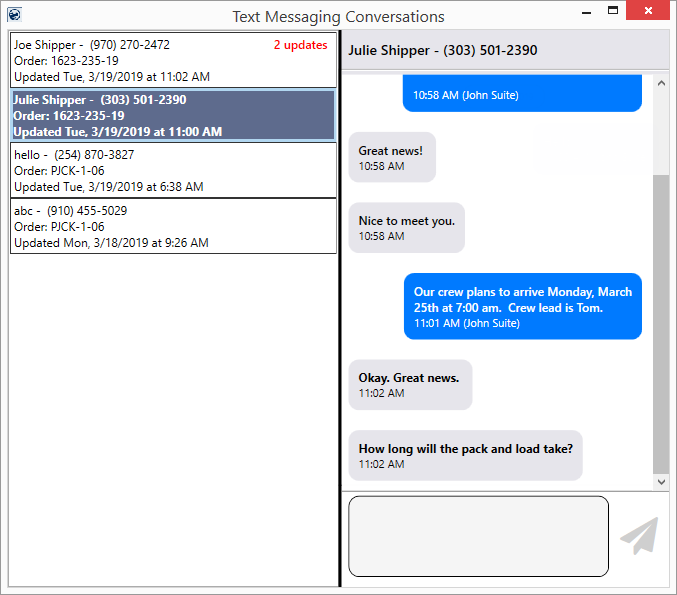
Figure 1: Text Messaging Conversations screen
Refer to the Text Messaging topic for more information.
|
SUMMARY (5348) |
|
User interface improvements to the Text Messaging Conversations screen. |
|
The following areas have been affected by this change:
|
Local Service Date Options Updated
The Service Date setting in Add Local Service has been updated to allow you to quickly set the date of the service.
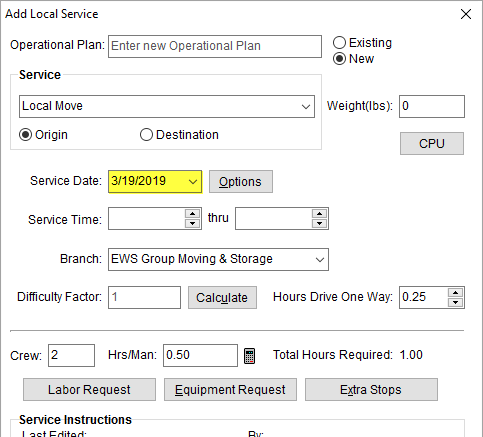
Figure 2: Add Local Service screen
And, if you wish to create multiple services or set the service date as To be determined, then you can access those options separately through a new Options button.
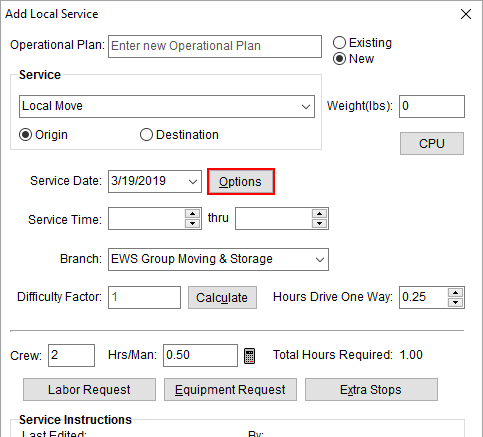
Figure 3: Add Local Service screen
Pression Options opens the Service Date Option dialog.
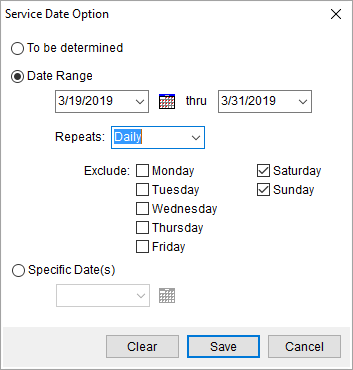
Figure 4: Service Date Option dialog
Service Date Options
From this dialog, you have three options:
To be determined
This is the default option and allows you to create the service without setting the date or dates.
Date Range
Choosing this option allows you to
create a series of services based on several additional options. Enter the dates
within the fields or use the Date
Picker  to select the range.
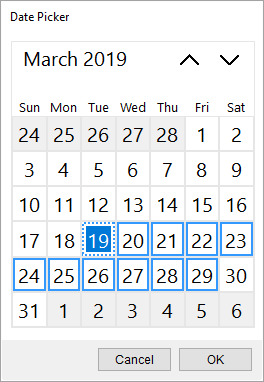
Figure 5: Date Picker dialog
Next, choose whether to repeat Daily or Weekly through the Repeats option. If you choose Daily, then the Exclude days are listed.
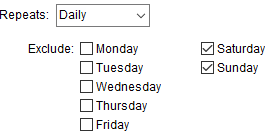
Figure 6: Daily options
If you choose Weekly, then you choose which dates you wish the services to be occurring On. You can also provide the number of weeks you wish the recurrence to cover through the Every option.
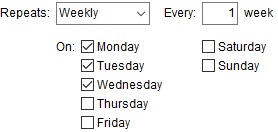
Figure 7: Weekly options
If you wish for the same days to repeat every week for X number of weeks, then leave Every set to 1. In the example above, you create services Monday, Tuesday, and Wednesday for every week during the specified date range.
If you wish the services to skip a week or two, then you can set Every to a different value. For example, if you wish for services every other Monday, then tick only the Monday box and set Every to 2. The application will create a single service every other Monday for the specified date range.
Specific Date(s)
Create services for a specific date
or for multiple dates with the Date
Picker .
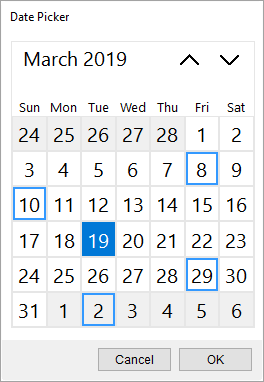
Figure 8: Date Picker
The Date Picker operates in two modes depending on whether you are selecting a range or specific dates. In range mode, you pick the start date and then select the end date of the range. Each record highlighted on the calendar. When choosing specific dates, you can click on each date you wish included. In either mode, you can choose a different month or year to choose from (there is a 500 date service limit, though).

Optionally, you can press Clear to remove all selected values from any of the options.

Once the options are set, press Save to keep the changes.
The dates selected through the Service Date Option dialog display through the Service Date field.

You can edit the service date by editing the service and choosing Options. This opens a modified Service Date Option dialog allowing you to select a specific date only.
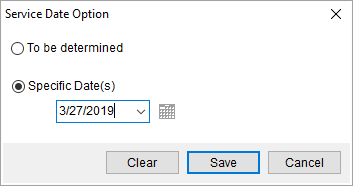
Figure 9: Service Date Options when editing service dates
Read more about this subject through the Add Local Service and Local Services topics.
|
SUMMARY (4936) |
|
Updated Service Date options available through Add Local Service. |
|
The following areas have been affected by this change:
|