

Watch the Overview Video for this release
This section lists the features added to MoversSuite.
|
|
Watch the Overview Video for this release |
Text Messaging Available for Contacts Associated to an Order
Your company can utilize MoversSuite Text Messaging to send and receive simple text messages to order contacts. Text Messaging functionality is summarized as follows:
•Consists of two dialogs: Text Messaging Dashboard and Text Messaging Conversations.
•Open the Text Messaging Dashboard through the Text Messaging option within the Tools Menu.
•Text Messaging Dashboard and Text Messaging Conversations dialogs are separate application windows that you remain open while you work in MoversSuite.
•Access the Text Messaging Conversations dialog anytime through the Text Messaging Dashboard.
•Create contacts that you can message based on order phone numbers or manually entered (custom) phone numbers.
•A phone number can be assigned to a single contact, which can be used on multiple orders.
•Each user can initiate a conversation with established contacts or newly created contacts.
•Each contact phone number is a single conversation with your organization. Multiple users can participate in the conversation and the conversation can be associated to more than one order.
•Security settings allow you to control which users can access Text Messaging functionality.
•MoversSuite utilizes Sakari to manage the sending and receiving of text messages from MoversSuite. Your company must sign up for the functionality by contacting the EWS Group Sales Team along with establishing an account with Sakari.
•You can establish as many Sakari accounts as needed, which can then be assigned to one or more branches; allowing you manage costs at the branch level.
Your company can utilize MoversSuite Text Messaging to send and receive simple text messages to order contacts. The Text Messaging Dashboard is available through the Tools Menu option of Text Messaging. When the dashboard appears, it provides a count of unread messages for all conversations you are associated.

Figure 1: Text Messaging Dashboard
If you are on a specific order, you can click on Current Order to expand the dialog and view information on conversations specific to the open order.
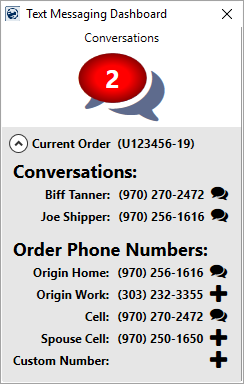
Figure 2: Text Messaging Dashboard
Text messages for each MoversSuite user are handled through the Text Messaging Conversations dialog, which appears when you initiate or view a conversation.
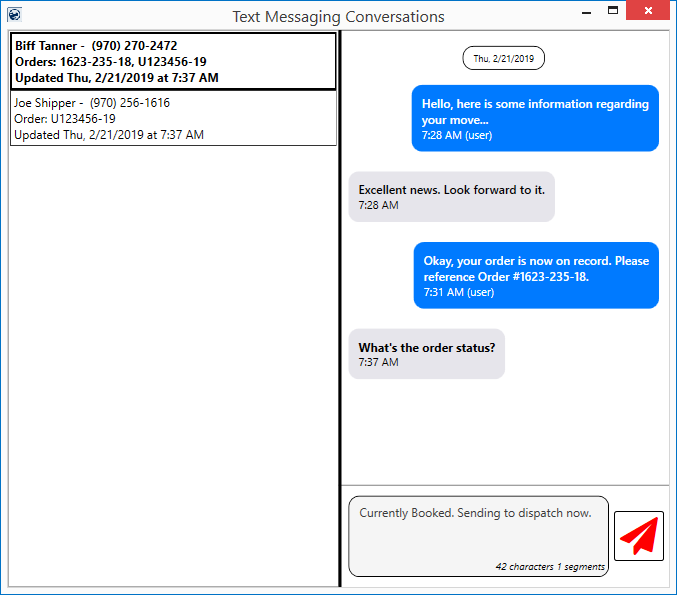
Figure 3: Text Messaging Conversations dialog
Refer to the Text Messaging topic or watch the release overview video for a more information.
Contact our Sales Team for information on setting up Text Messaging on your system.
Learn more about Sakari and view their pricing options through their website at https://sakari.io.
|
SUMMARY (5199, 5301, 5302, 5303, 5304, 5310, 5311, 5314) |
|
Text Messaging now available. |
|
The following areas have been affected by this change: Schema Changes Version 2019R05
|
View and Adjust the Commissions based on Miles
When commissioning by miles, you can now adjust the miles referenced when calculating the commissions. The Miles setting is now available through the Add Revenue Commission dialog when the Commission Plan for the employee is one that is based on Miles.
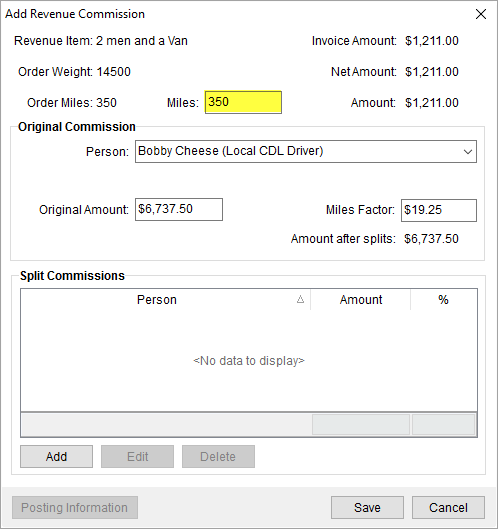
Figure 4: Add Revenue Commission dialog
The Miles setting defaults to the Miles set on the order through the Move Information tab. Optionally, you can adjust the number of miles for the employee for which they are commissioned. Once you make a change to the Miles setting, the application confirms the request with a confirmation prompt (Figure 5).

Figure 5: Add Revenue Commission with confirmation dialog
Once you save the commission, you are also prompted to enter an Accounting Note, as a reminder of the modifications made to the commission.
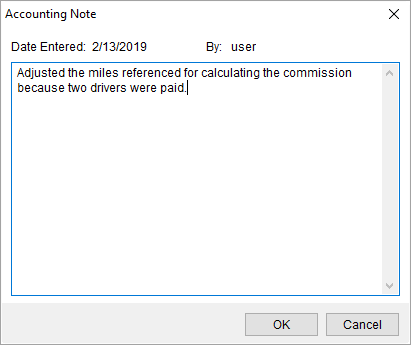
Figure 6: Accounting Note dialog
The Commission Statement Report has also been updated to display the miles referenced if the commission links to one that is based on miles. If the commission does not link to one based on miles, then the report displays the miles set on the order. This data displays in the header of each detail line and is labeled of “Miles.”
Refer to the Add Revenue Commission and Commission Statement Report topics for more information.
|
SUMMARY (5273, 5306) |
|
Commissions based on miles can be adjusted through Add Revenue Commission. |
|
Miles shown on the Commission Statement Report displays either the miles set on the order or the miles referenced for a commission based on mileage. |
|
The following areas have been affected by this change: Schema Changes Version 2019R05
|