

The import file supported by the Generic Revenue Import process is a spreadsheet containing basic data that is interpreted by MoversSuite prior to the import through the Generic Revenue Import window.
The file accessible to the Generic Revenue Import process must be a spreadsheet of one of the following types:
CSV (.csv)
XLS (.xls)
XLSX (.xlsx)
The following template can be downloaded and updated for your needs and imported through the Generic Revenue Import process. This file contains headers and columns of sample data.
The following is an excerpt from the above template sample. This sample contains a header row, which is optional. Also note that you can have multiple transaction items for each order (shown in the Invoice No column).
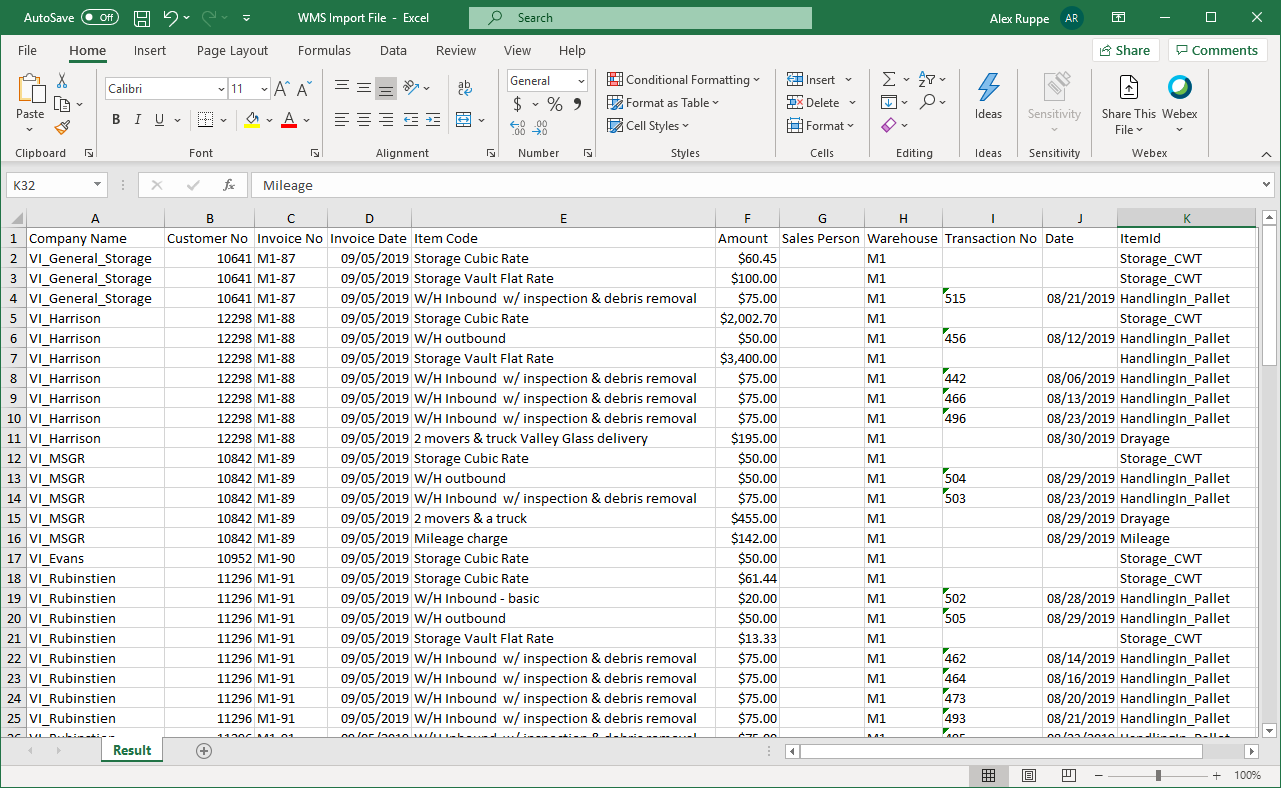
Figure 1: Generic Revenue Import File sample template
The layout of this file is described in the table below. The column indicator (A, B, C, etc.) correlates to the actual column entered into the spreadsheet used to create the import file. The Column Value is the value entered.
IMPORTANT: While importing, if a matching Order Number is encountered, a warning dialog is prompted. However, the existing settings based of an import, including the Salesperson mapping, are not updated.
|
Column Heading |
Description | |
|
A |
Company Name |
Provide the name of the company associated to the invoice. This value is set as the Last Name/Company Name on the order. |
|
B |
Customer No |
Enter the customer identifier. The customer must exist within your accounting system, e.g. Dynamics GP, and match what is supported within MoversSuite. Use the Customer Find to verify the customers defined within your system. |
|
C |
Invoice No |
Provide the invoice number associated to the revenue from the external system. This value is referenced when adding or updating records in MoversSuite. Specifically, if matches to the Order Number. If the order exists, then you will receive a warning that indicates that if you continue with processing, then the transactions will be generated for the order existing in MoversSuite. If no order exists, one will be created in MoversSuite with the value associated to the Invoice No. You can have multiple lines for each Invoice No (order), i.e. you can import as many transactions as you want for the same order number. |
|
D |
Invoice Date |
Provide the date of the invoice. This value is set as Book Date in MoversSuite application. |
|
E |
Item Code |
Displays the line item description from the external system. Data in this column is for reference only. |
|
F |
Amount |
Provide the dollar amount of the line item. |
|
G |
Salesperson |
Provide the identifier on your external system for the appropriate salesperson to receive a commission. The import process matches this value to a salesperson through the Interface Mapping within Personnel Setup. Utilize this field to auto-commission the salesperson for imported items.
NOTE: Only one Salesperson can be associated to a single order, i.e. cannot have multiple Salesperson identifiers set for the same imported invoice. No other labor types can be commissioned at this time.
|
|
H |
Warehouse |
Enter the identifier for a Warehouse. Data in this column is for reference only. |
|
I |
Transaction No |
Enter the Transaction number of the order. Data in this column is for reference only. |
|
J |
Date |
Enter the order date. Data in this column is for reference only. |
|
K |
ItemId |
Set the identifier for each line item. This identifier must map to codes within XML Item Code Setup to map the line item to a known MoversSuite Item Code. |
Refer to the Technical Field Description within Generic Revenue Import for further usage details on these data.