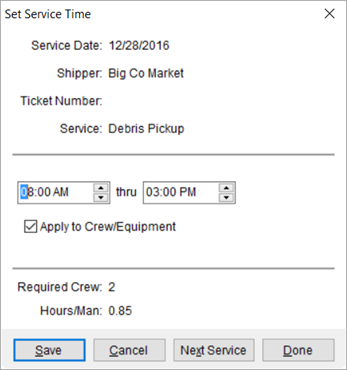
The Set Service Time feature allows a user to quickly adjust job start and end times. A Next Service feature provides efficiency by accessing the next record down in the data grid without having to close and reopen the Set Service Time screen. This screen is available through the Set Service Time button in the Dispatch Center.
Figure 21: Set Service Time screen
Described below are the fields and functions within the Set Service Time screen.
|
Field/Function |
Description |
|
Service Date |
This field displays the date of the service. |
|
Shipper |
Displays the formatted shipper name combined from the Last Name/Company Name and First Name fields from the Name, Address, Phone tab.
Office & Industrial For Office & Industrial orders, the Last Name/Company Name and First Name fields set within the Contacts and Locations tab displays. |
|
Ticket Number |
This field displays the Work Ticket number generated for the service. |
|
Service |
This field displays the description of the service. |
|
Job Start Time |
Modify the starting time of the service by entering a
time in MM:SS format or by clicking one of the hour, minute, or AM/PM
values and pressing the up and down arrow ( See Time Fields for details. Setting the Job Start Time automatically sets the Job End Time based on the number of man hours needed to complete the service.
Clear the Job Start Time field by highlighting the entire time value within the field and pressing the Delete key on your keyboard. This resets the time to 12:00 AM. Once you click to another field, such as the Job End Time, the time field is cleared or blanked out; you can also click Save and the cleared state is saved as well. |
|
Job End Time |
Modify the ending time of the service by entering a time
in MM:SS format or by clicking one of the hour, minute, or AM/PM values
and pressing the up and down arrow ( See Time Fields for details.
Clear the Job End Time field by highlighting the entire time value within the field and pressing the Delete key on your keyboard. This resets the time to 12:00 AM. Once you click to another field, such as the Job Start Time, the time field is cleared or blanked out; you can also click Save and the cleared state is saved as well.
Next Day Service If the service time crosses midnight of that day, then the application indicates this by displaying Ends Next Day next to the setting. |
|
|
Apply to Crew/Equipment Check this option to apply the time changes made in this dialog to all crew members and equipment assigned/dispatched to the service (default). Uncheck the option to not update times for crew and equipment already assigned/dispatched. |
|
Required Crew |
Displays the number of crew estimated or requested to perform the service. |
|
Hours/Man |
This field displays the estimated or requested number of hours for each member of the crew. |
|
|
Save (Alt+S) Save any changes made to the time setting for the record. |
|
|
Cancel (Alt+C) This function closes the screen without saving changes. |
|
|
Next Service (Alt+X) This function opens the next record down in the Dispatch Center data grid. |
|
|
Done (Alt+D) This function closes the dialog without saving changes. |
RELATED TOPICS:
 ) to adjust.


