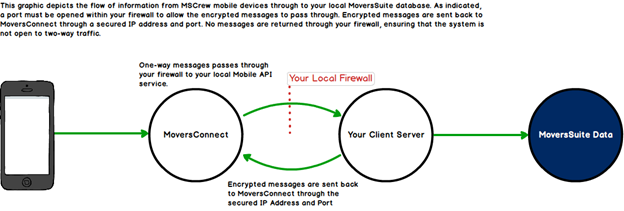
This topic covers establishing and managing support for the MoversSuiteCrew Mobile Application. Below is information divided into two sections: MSCrew Mobile Application Setup and Technical Setup Information on the areas available that affect the MoversSuiteCrew Mobile Application.
MoversSuiteCrew Mobile Application Setup
The following instructions are designed to assist you in establishing to run MoversSuiteCrew Mobile Application on your environment.
Before you begin…
This setup assumes that the person or persons setting up the MoversSuiteCrew Mobile Application has a thorough understanding of internet technology and has access to needed administrative and technical tools.
Have the following information on hand:
•IP address of the server hosting the Mobile API service
•Login and connection information for MoversConnect. You will need the Company ID, User name, and Password provided to you by EWS Group along with the IP Address and Port to access MoversConnect.
|
Step |
|
|
1. |
Enable MoversConnect messaging forwarding Create a “port forwarding rule” to route traffic from the internet to a specific computer on your network. You need to create a port forwarding rule on your router so that messages coming from the MoversConnect service (i.e. from IP address 104.45.221.191 on port 51059) get routed to your Mobile API service server on a specific port (which will also be 51059). Typically, you need to know the IP address of the server that is hosting the Mobile API service. This means your API service server needs to have a fixed local network IP address. Note: Sometimes the port forwarding rules allow for a range of ports when setting up the rule. If so, use port 51059 as the starting and ending port numbers. |
|
2. |
Link Mobile API to MoversConnect Open MoversConnect Setup and verify that the Cloud Service Url references MoversConnect, i.e. https://www.moversconnect.net. This establishes a link between MoversConnect to the Mobile API service running locally on your system. |
|
3. |
Establish Mobile Credentials for mobile user access Open MoversConnect, and under Mobile API Credentials settings, set the API Service and Port to the URL and port for Mobile API running locally. Open Mobile Api Setup and set the Mobile Api Service Url to the URL for the Mobile API service running locally, e.g. http://localserver:51059/mobileapi. Note: Only “http” is supported at this time. Set the Company ID to the MoversConnect Company ID provided to you Set the Activate MSCrew flag Set other values as needed. For example, if you wish to enable Mobile Password Reset, then set the corresponding flag. Click on Mobile Credentials and provide the User Name and Password of your MoversConnect account. Pres Verify Mobile Credentials to confirm the accuracy of your settings. |
|
4. |
Update Windows Firewall settings On the server hosting the Mobile Api service locally, establish an inbound rule with Advanced Security to allow access through the specific port for the MoversSuite Mobile API Product; the port is the one referenced for accessing MoversConnect, which is 51059. |
|
5. |
Verify Mobile Credentials Open Mobile Api Setup, press Verify Mobile Credentials. This verifies that a message goes to MoversConnect through your local Mobile API service, opens a database connection, and then verifies that the information returns to MoversConnect, i.e. full-cycle check of the Mobile API setup. |
|
6. |
Setup mobile users For each person you wish to access the MoversSuiteCrew Mobile Application, open their Personnel Setup record, open the Mobile User tab, and provide User ID, Password (optionally, you can leave blank and enable Mobile Password Reset functionality), and Mobile User Type. Note: Saving changes here automatically verifies and synchronizes the Mobile User information within MoversConnect (same function as pressing the Verify/Synchronize all mobile data with MoversConnect button within the Mobile Api Setup).
IMPORTANT: If you change a password through the Mobile User tab, you must set evoke the Change Password function within Mobile Api Setup. This function synchronizes the password within MoversConnect. |
View the Mobile User Log for additional information on the requests generated by the MoversSuiteCrew Mobile Application processes.
Additional setup may be needed depending on the level of functionality you wish to support. Review the information in the Technical Setup Information (below) for more information on additional settings.
RELATED SETUP AREAS:
MoversSuiteCrew Settings in MoversSuite
Technical Setup Information
The following section includes setup areas related to the MoversSuiteCrew Mobile Application functionality.
Note: Additional setup is needed to support the Mobile App through MoversConnect. Contact EWS Support team to find out more.
|
Setup |
Description |
|
Use this setup to define the providers available for sending text messages (SMS) through the Mobile Api Setup. | |
|
Define the values available to identify crew time activities for MoversSuiteCrew Mobile Application users. Managers and users use these descriptions to accurately reflect the Crew Time activities. The values set here are also assignable to crew through the Crew tab within the Enter Actuals screen. | |
|
The Mobile Api Setup is utilized by the Mobile API to establish the primary login information and global settings for your MoversSuiteCrew Mobile Application account. | |
|
Learn the components and flow of resetting a password for a mobile device through this topic. | |
|
Use this setup to provide company logo to display on documents and other usages within the MoversSuiteCrew Mobile Application. The logo appears in the heading of the following: MoversSuiteCrew Internal Summary
| |
|
The Mobile User Log allows you to pull and view logs generated for MoversSuiteCrew Mobile Application users through MoversConnect. | |
|
Create the link and credentials for the Mobile API service through the Mobile Api Setup tab. If you wish personnel to receive an email when errors appear in the MoversConnect Log, then enter their information under the MoversConnect Email Recipient section (Add MoversConnect Email Recipient). Set the default work day hours by setting the Work Time Start and Work Time End times. | |
|
View this topic to see which settings in MoversSuite affect MSCrew. | |
|
You can link a photo to a MoversSuiteCrew Mobile Application user through this setup. This image is referenced by the MoversSuiteCrew Mobile Application as a means of visual identifier for the person.
Note: Mobile application users also have the means of uploading profile pictures (images) through their devices.
| |
|
For users you wish to have access to the MoversSuiteCrew Mobile Application, provide the User ID, Password, and Mobile User Type within the Mobile User tab. This information must match what is defined for the user within MoversConnect.
Enable Password Reset With the Allow Mobile Password Reset enabled within the Mobile Api Setup record, you can also enable individual crew by checking the same flag within each Personnel Setup record. Refer to Mobile Password Reset topic for more information.
IMPORTANT: If you change a password through the Mobile User tab, you must set evoke the Change Password function within Mobile Api Setup. This function synchronizes the password within MoversConnect. | |
|
Phone types you wish available within the MoversSuiteCrew Mobile Application must have a Mobile App Phone Type Name associated to their record. |