MoversSuite Administration > MoversConnect > MoversConnect > Mobile Api Setup
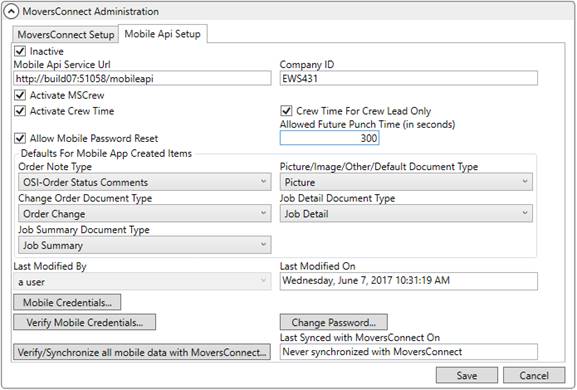
The Mobile Api Setup is utilized by the Mobile API to establish the primary login information and global settings for your MoversSuiteCrew Mobile Application account.
Figure 67: Mobile Api Setup within MoversConnect Administration
Provide the necessary settings to establish a Mobile API account, including entering company credentials. Once changes are made and saved, the system sends a request to verify the Mobile API (which includes Mobile API) and reports the process through the MoversConnect Api Service dialog.
|
IMPORTANT |
|
For Mobile API processing, your IT will need to open a port on your firewall that will forward to the MoversConnect Api Service. The type of traffic is TCP and the incoming IP address is 104.45.221.191. The port specified as the open port on your firewall must match the port specified for the Mobile Api Service Url. |
Technical Field and Function Information
The following table describes the fields and functions available within this dialog.
|
Field/Function |
Description |
|
|
Inactive Check this flag to turn off the Mobile API service. |
|
Mobile Api Service Url |
Provide the full path of the URL for the Mobile API service running locally along with the port number that allows data transfer from MoversConnect through your firewall (up to 255 characters), e.g. http://server:51059/mobileapi. For Mobile API processing, your IT will need to open a port on your firewall that will forward to the MoversConnect Api Service. The type of traffic is TCP and the incoming IP address is 104.45.221.191. The port specified as the open port on your firewall must match the port specified in this URL. |
|
Company ID |
Enter the identifier provided to your company to support the MoversSuiteCrew Mobile Application through MoversConnect (up to 15 characters). |
|
|
Activate Mobile Crew Checking this flag activates the Mobile Crew feature. This feature allows users the ability to view the details of local services, equipment resources, materials, and related documents through the MoversSuiteCrew Mobile Application. Changes made to this flag automatically reflect in MoversConnect. If you do not see the changes or if the Last Synced with MoversConnect On is out of date with your recent changes, then you can press Verify/Synchronize all mobile data with MoversConnect to manually send the changes to MoversConnect. |
|
|
Activate Crew Time Checking this flag activates the Crew Time feature. This feature allows users to access the MoversSuiteCrew Crew Time site that provides the ability to view job and crew assignments as well as manage crew time for the MoversSuiteCrew Mobile Application. Crew leads have options to view service information for all assigned jobs and the ability to approve time. Crew Time For Crew Lead Only Optionally, you can restrict access to the MoversSuiteCrew Crew Time site to only crew leads by setting the Crew Time For Crew Lead Only flag. If set, only crew leads can access the MoversSuiteCrew Crew Time site. Changes made to this flag automatically reflect in MoversConnect. If you do not see the changes or if the Last Synced with MoversConnect On is out of date with your recent changes, then you can press Verify/Synchronize all mobile data with MoversConnect to manually send the changes to MoversConnect. |
|
|
Check this flag to enable the reset password option for all MoversSuiteCrew Mobile Application users. Setting this flag allows mobile users to request a new password be emailed to them and possibly sent to their mobile device, depending on what options are set within the Mobile User tab of their Personnel Setup records. Note: This flag and the corresponding flag in Personnel Setup must both be checked to enable the Mobile Password Reset feature for the mobile user. If this option is unchecked, then no mobile user can request a password reset. View Mobile Password Reset for more information. Changes made to this flag automatically reflect in MoversConnect. If you do not see the changes or if the Last Synced with MoversConnect On is out of date with your recent changes, then you can press Verify/Synchronize all mobile data with MoversConnect to manually send the changes to MoversConnect. |
|
Defaults for Mobile App Created Items | |
|
Order Note Type |
Establish a default type for a note added through the MoversSuiteCrew Mobile Application. This option categorizes the notes that list within the Notes screen within the mobile application as well as in the Notes system. The values available to this field are defined within Note Type Setup. |
|
Picture/Image/Other/Default Document Type |
Select a default type that is used by the MoversSuiteCrew Mobile Application when the mobile app uploads documents (such as pictures) into the MoversSuite document library. You may want to add a new document type if you want to separate these documents into their own type. The list of options available are from the list of active Document Type Setup records. |
|
Change Order Document Type |
Provide a default type for change order documents added through the MoversSuiteCrew Mobile Application. This option categorizes the documents that list within the Documents screen within the mobile application as well as in the Document Management system. The values available to this field are defined within Document Type Setup. |
|
Job Detail Document Type |
Provide a default type for job detail documents added through the MoversSuiteCrew Mobile Application. This option categorizes the documents that list within the Documents screen within the mobile application as well as in the Document Management system. The values available to this field are defined within Document Type Setup. |
|
Job Summary Document Type |
Provide a default type for job summary documents added through the MoversSuiteCrew Mobile Application. This option categorizes the documents that list within the Documents screen within the mobile application as well as in the Document Management system. The values available to this field are defined within Document Type Setup. |
|
|
|
|
Last Modified By |
Name of the user that last updated this record. |
|
Last Modified On |
Day, date, and time that this record was updated. |
|
|
Mobile Credentials Opens the Mobile Api Cloud Account Login dialog allowing you to set the credentials provided by EWS Group for MoversSuiteCrew Mobile Application functionality. |
|
|
Verify Mobile Credentials Press this button to verify the credentials entered through Mobile Credentials. If changes are made to the credentials, then this button is disabled until Save is pressed. Results of the verification process display within the MoversConnect Api Service dialog. |
|
|
Change Password If you change a password for any user through the Mobile Api settings in Personnel Setup, then press this button to send the changes to MoversConnect. Results of the verification process display within the MoversConnect Api Service dialog. |
|
|
Verify/Synchronize all mobile data with MoversConnect Certain changes must to the mobile application settings must be verified and synchronized with MoversConnect. Press this button performs a manual send to MoversConnect to verify data and sync the two systems. Note: Changes to certain fields, such as the Activate MSCrew flag, trigger a sync automatically. Check the Last Synced with MoversConnect On field to determine if recent changes reflect within MoversConnect. Results of the verification process display within the MoversConnect Api Service dialog. |
|
Last Synced with MoversConnect On |
This read-only field displays the day, date, and time that the data within this setup was synchronized with MoversConnect. The synchronization occurs manually through the Verify/Synchronize all mobile data with MoversConnect or automatically when certain data changes, such as when either Activate MSCrew or Activate Crew Time flags are changed. |
|
|
Save Pressing Save keeps any changes you made within the entire MoversConnect Setup area. |
|
|
Cancel Press Cancel to discard any changes you made within any tab in MoversConnect Setup. |
RELATED TOPIC:










