The following setup areas are needed to enable Letter Management functionality. The setup areas list in the order of importance. Following this list are details needed for each setup area.
Security Profile Setup
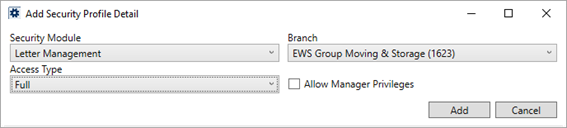
User access to the Letter Management functionality is controlled through the Letter Management security module. Create a single detail record within Security Profile Setup for each profile that you want to grant a user access to Letter Management functionality. This one record applies to all branches and allows the user to add, edit, and delete Letter Management templates.
Figure 23: Add Security Profile Detail dialog
Refer to Letter Management details within the Security Modules topic for more information.
Document Type Setup
The grouping available to list a template under include those defined within Document Type Setup. Items defined within this setup list as Document Type options within Letter Template Properties, which is available when adding a template or when editing the properties of a template.
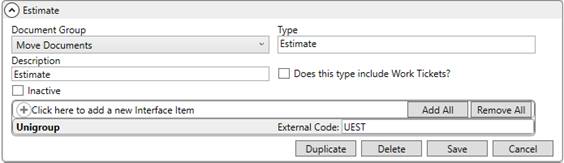
Figure 24: Document Type Setup
Custom Phone Type Bookmarks Setup
Custom phone types can be defined and referenced as bookmarks through the Insert Bookmark feature. If you add a phone type to Shipper Phone Type Setup, then it shows up as a bookmark with “Phone” appended to it. For example, if you add a type of “Cell,” then the application builds a bookmark titled “Cell Phone” and makes it available under the Order Information group.
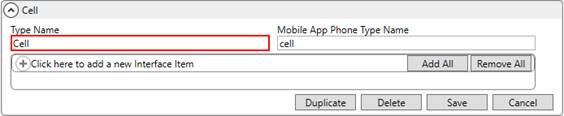
Figure 25: Shipper Phone Type Setup
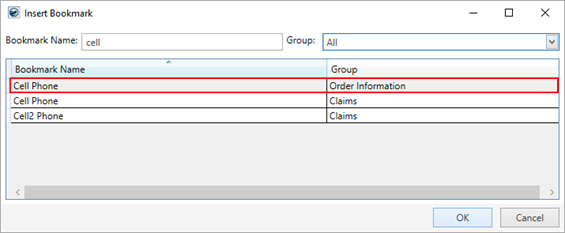
Figure 26: Insert Bookmark dialog
Customized phone bookmarks are available for Claims related bookmarks as well. Adding a custom type to the Claim Phone Type Setup makes that type available as a bookmark for the custom type under the Claims group. The application automatically appends any new type with “Phone” and makes it available within the Insert Bookmark dialog.