
A video on this topic is located within Transactions Videos. Click the link below to view the video that relates to this topic.
|
|
A video on this topic is located within Transactions Videos. Click the link below to view the video that relates to this topic.
|
It is useful to have information regarding when a shipment is be to Outbounded from a warehouse as it helps with staffing and organization.
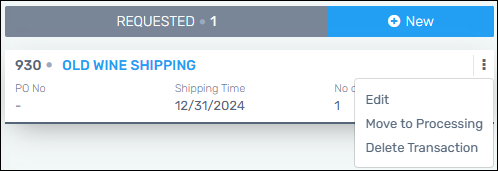
Figure 4: Outbound Requested column
These instructions detail how to create an “Requested” Outbound transaction.
1. From the menu, choose Transactions > Outbound.
2. From Outbound, go to the “Requested” column header and click “+New.”
3. Within the Details section > Warehouse, choose the Warehouse from where the items are to be delivered or shipped.
4. Within the Details section > Customer, choose the Customer – or the project. Enter the “Requested By” contact.
5. Within the Details section > Shipping, enter the Shipping Date.
6. Upload any Transaction Documents here, if any.
7. Under “2. Items,” enter any items on the transaction. Enter the “Item No.” and “Qty Requested.” Click “”+Add Item.”
8. Repeat Step 8 for any additional items.
9. Click Save. This information will show on a “card” under the Outbound > Requested column.
RELATED INFORMATION: